







.avif)
.avif)
.avif)


Website
Website Accessibility Checklist for 2026: A Practical WCAG 2.2 Guide
Using Claude for accessibility reviews means asking it to look at copy, structure, and content the way an auditor would: drafting alt text, checking heading order and labeling logic against a written checklist, summarizing test findings in plain language, and pointing out spots that are likely to need a closer look. It is a fast first pass that runs before anyone touches a keyboard-only test or a screen reader, not a replacement for either.
Short answer: Claude is good at drafting and reviewing text-based accessibility work — alt text, labels, plain-language rewrites, and audit summaries. It cannot see contrast on a live page, tab through a real build, or confirm that anything meets a legal standard. Treat it as a reviewer that reads fast, not a tester that clicks buttons.
Accessibility work on a client project usually competes with a deadline, and the parts that get skipped first are the slow, reading-heavy ones: checking every heading, re-reading every label, working through a long list of scan results line by line. Handing that reading work to Claude does not remove the need for testing, but it means the team spends its own time on the parts a text review cannot do, instead of the parts it can.
Most accessibility work at an agency happens in three stages: design review, build review, and a pre-launch check. Claude fits best in the first two, where the work is mostly reading and writing, checking labels, structure, and copy against a checklist, rather than the last stage, where a real person needs to use the real product.
We treat it as an early filter. It reads faster than a person, so it can go through a long page of headings, labels, and copy in one pass and flag the parts worth a second look. That leaves more time for the manual and assistive-technology testing that actually confirms whether something works.
It also gives us something concrete to bring into a client conversation early. Instead of waiting until a full audit is scheduled, we can run a quick pass on a set of designs or a staging build, share what came up, and agree on what gets fixed now versus what waits for the fuller manual check later in the project. Clients tend to respond well to this, because it turns accessibility from a single pass/fail moment near launch into an ongoing conversation that starts while there is still time to act on it cheaply.
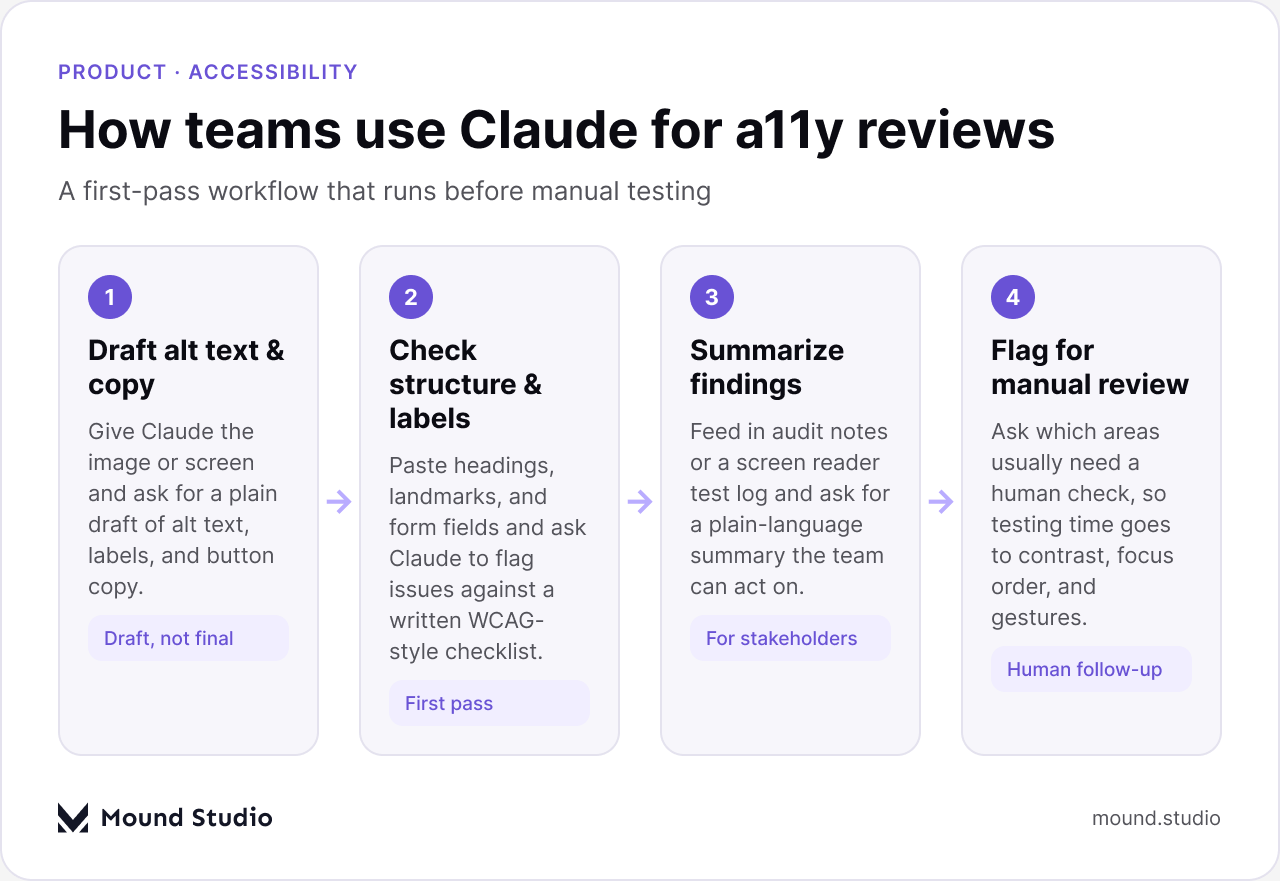
Alt text and interface copy are where an AI first pass earns its keep fastest, because the work is almost entirely language. Give Claude the image, the context it appears in, and what the surrounding page is trying to do, and ask for a short, literal description rather than a marketing line.
A useful prompt names the image's purpose (decorative, informative, or functional), the page it sits on, and any text already nearby so Claude does not repeat it. It also helps to ask for a few options at different lengths, since a photo in a blog post and an icon inside a button need very different amounts of description. For a product screenshot, naming what the screenshot is meant to prove, such as a completed step or a specific state of the interface, produces a far more useful draft than describing every pixel on the screen.
| Image type | What alt text should do |
|---|---|
| Decorative | Usually needs an empty alt attribute, not a description |
| Informative photo | Describe what matters to the content, not every visual detail |
| Icon-only button | Describe the action, not the shape of the icon |
| Chart or diagram | Summarize the takeaway; put full data in nearby text |
The same approach works for plain-language reviews. Paste in a paragraph of interface copy or an error message and ask Claude to rewrite it in shorter sentences, at a lower reading level, without jargon. This helps every reader, and it is one of the more direct wins in a typical accessibility pass because confusing copy is a barrier on its own, even for someone using no assistive technology at all.
Heading order and form labeling are two of the most common places a page quietly breaks for someone using a screen reader, and both are things Claude can check from text alone, without seeing the rendered page.
Paste in the page's heading list in order, along with the labels tied to each form field, and ask Claude to check it against a plain checklist: does every page have one H1, do headings skip levels, does every input have a label that describes what it collects, and are buttons named for what they do rather than "click here" or "submit." Claude reads through the list and flags anything that looks off, along with a short reason.
A prompt that works well names the checklist explicitly rather than assuming Claude will guess one: "Using this heading list, flag any page missing an H1, any heading level that skips a level, and any form field without a matching label. For each flag, name the item and give one sentence on why it matters." Naming the criteria up front is what separates a specific, useful answer from a generic one, and it also gives your team a record of exactly what was checked, which is useful the next time someone asks what a review actually covered.
A full accessibility audit, whether run with automated scanning tools or a manual screen reader pass, tends to produce a long list of findings written in technical language. Turning that into something a product manager or a client can act on is its own piece of work, and it is one Claude handles well.
Paste in the raw findings and ask for a summary grouped by severity and by page, written for someone who does not do accessibility work day to day. Ask it to separate quick fixes from ones that need design or engineering time, since that split usually decides what gets scheduled first. This step tends to save a meaningful amount of back-and-forth in client reviews, because everyone is reading the same plain version of the list instead of a raw tool export.
| Finding type | Typical fix owner | Usual effort |
|---|---|---|
| Missing alt text | Content or design | Low |
| Heading order broken | Design or engineering | Low to medium |
| Form field unlabeled | Engineering | Low to medium |
| Focus order or keyboard trap | Engineering | Medium to high |
Grouping findings this way also makes it easier to plan the fix in sprints rather than treating the whole list as one large, unscheduled task. A backlog with quick copy and labeling fixes at the top and structural engineering work further down is far easier for a team to commit to than a flat list of forty scan results.
Anything that depends on how a page actually renders, responds to input, or sounds when read aloud sits outside what a text-based review can confirm. These are the areas worth setting aside time for once the first pass is done.
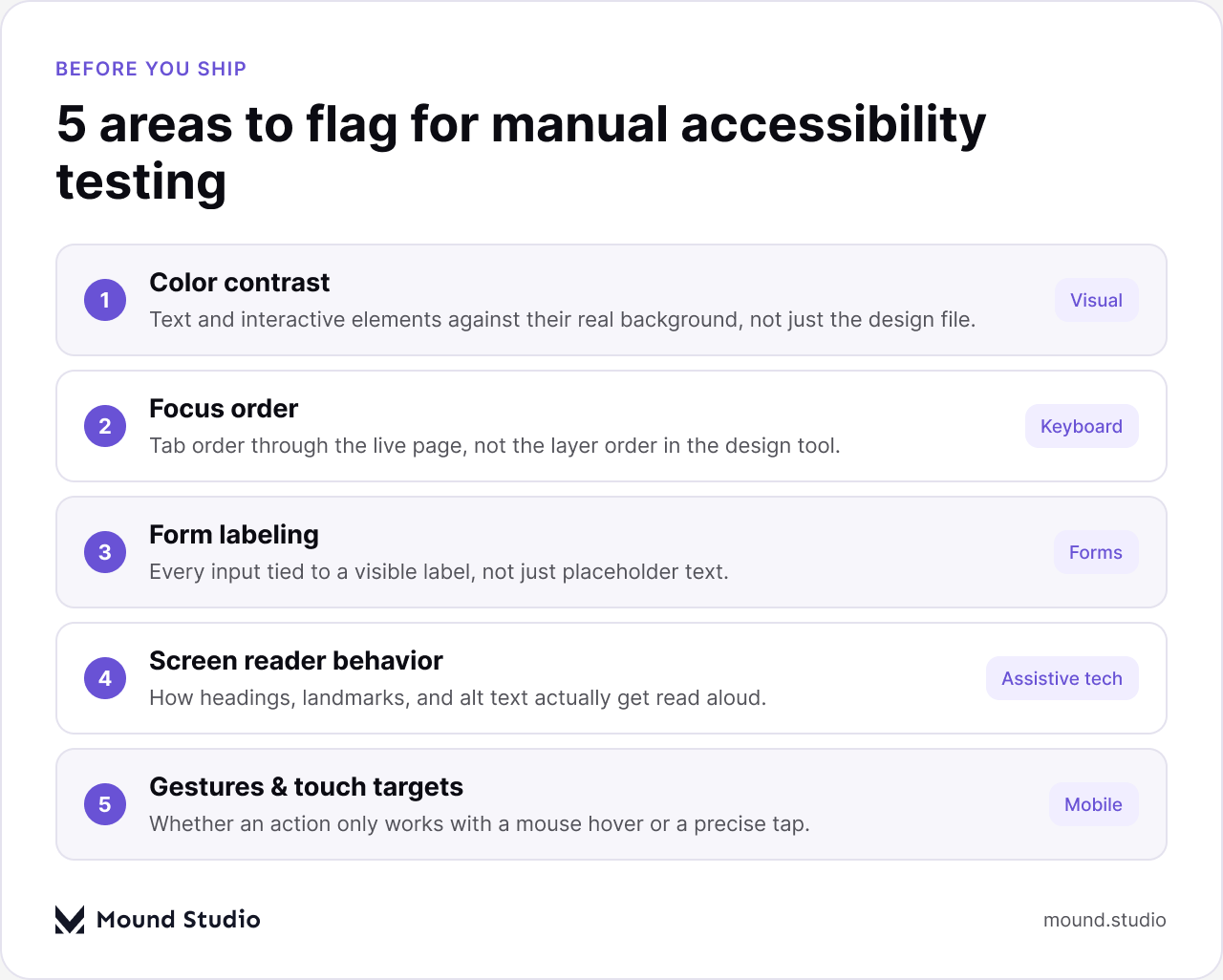
Our website accessibility checklist goes deeper on how to run this manual pass, including which tools pair well with a screen reader test.
It helps to be specific with a client or a team about the line between an AI-assisted first pass and a real accessibility check, so nobody mistakes a quick review for a finished one.
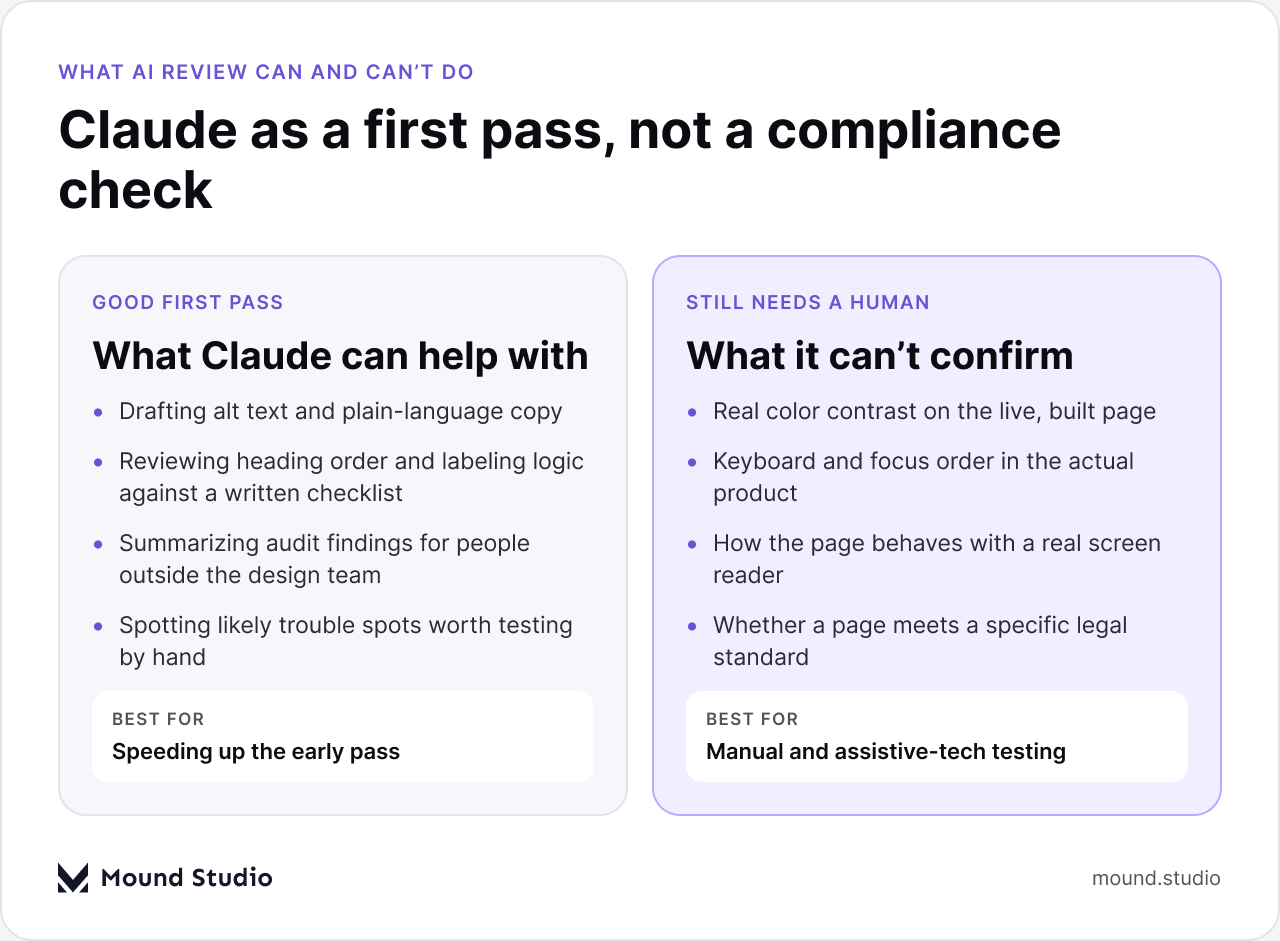
This is also why we never present an AI-assisted pass as proof of compliance. Different clients answer to different standards and different jurisdictions, and confirming any of them takes a qualified reviewer looking at the actual product, not a summary of what a language model noticed in a batch of text. What Claude gives you is a way to catch obvious problems early and to make the manual testing that follows more focused, not a substitute for it. Our guide on using Claude for UX writing and microcopy covers the copy side of this in more detail, and our piece on running a UX audit walks through where a full review fits around it.
Use this as a rough starting point on a new project, then adjust it to whatever standard your client actually needs to meet.
| Task | Start with Claude | Needs a manual test |
|---|---|---|
| Draft alt text for new images | Yes | Spot-check a sample |
| Rewrite confusing error copy | Yes | No |
| Check heading order on a long page | Yes | Confirm on the live build |
| Verify color contrast | No | Yes, always |
| Confirm keyboard and focus order | No | Yes, always |
| Sign off for legal compliance | No | Yes, with a qualified reviewer |
The pattern across the table is consistent: anything that lives in text, Claude can take a first pass at. Anything that lives in behavior, such as how a page responds to a tab key, a swipe, or a screen reader, needs a person and the real product in front of them. If your team is new to this split, start by running the text-based pass on your next project and booking the manual test as its own separate step, rather than hoping one covers the other.
Claude is a fast, useful first pass for the parts of accessibility work that are really about language: alt text, labels, heading structure, plain copy, and turning a dense audit into something a team can act on. It is not a substitute for testing with real assistive technology, real users, or a qualified reviewer, and it does not guarantee compliance with any standard on its own. Used well, it just means your team's testing time goes to the parts that actually need it. If you want help building an accessibility review into your product's workflow, tell us where you are starting from and we will help you scope it.
No. Claude can review text-based elements like alt text, labels, and heading structure, but it cannot test contrast, keyboard behavior, or screen reader experience on a live build, which is what a full audit covers.
No. No AI tool can guarantee compliance with any accessibility standard. Confirming compliance takes a qualified reviewer checking the actual product against the specific standard your project needs to meet.
Give it a specific, written checklist rather than a general instruction. Naming exactly what to check, such as heading order or label presence, produces a more useful and consistent answer than asking it to "check accessibility."
Yes, as a draft. Give it the image, its purpose on the page, and any nearby text, and ask for a short, literal description. A person should still review the draft before it ships.
Color contrast on the live page, keyboard and focus order, form behavior, and how the page sounds with a real screen reader all need a manual or assistive-technology test, not just a text-based review.

.png)