







.avif)
.avif)
.avif)

Product
How to Do a UX Audit: Step-by-Step Guide and Checklist

An accessible website can be used by everyone, including people who are blind or have low vision, people who navigate with a keyboard, and people with hearing, motor, or cognitive disabilities. It is also a better website for everyone else: clearer text, obvious buttons, and forms that are easier to complete.
Most of the web is not there yet. The same handful of problems, such as low-contrast text, missing alt text, and unlabeled form fields, show up on site after site. That is good news, because a short list of fixes removes a lot of real barriers.
Accessibility is also a legal matter in more places. The European Accessibility Act has applied since 28 June 2025 to many digital products and services sold in the EU, and accessibility lawsuits remain common in the United States. Treat this guide as practical advice, not legal advice.
To make your website accessible, aim for WCAG 2.2 level AA. Start by fixing the most common issues: low contrast, missing alt text, unlabeled form fields, empty links and buttons, and a missing page language. Then test by hand with a keyboard and a screen reader, build accessible components into your design system, and re-check every release.

The good news is that these six issues are also the cheapest to fix. A focused pass on them removes a large share of real barriers before you touch anything advanced.
The Web Content Accessibility Guidelines, published by the W3C, are the standard most laws and policies point to. WCAG 2.2 is the current version. It is organized around four principles, and every checklist item below maps to one of them. Level AA is the target most organizations use.
| Principle | What it means | Example on your site |
|---|---|---|
| Perceivable | People can see, hear, or otherwise take in the content | Alt text, captions, enough contrast |
| Operable | People can use every control with any input method | Full keyboard access, visible focus, large targets |
| Understandable | Content and behavior are predictable and clear | Plain labels, helpful error messages |
| Robust | Content works with current and future assistive tools | Proper HTML elements, names, and roles |
Use these four groups as a working checklist. Each item is something you can verify yourself in a few minutes.
You will not fix everything in a week, so order the work by how many people it blocks and how fast the fix is. This table is the order we use on audits.
| Priority | Issue | Typical fix |
|---|---|---|
| 1 | Low-contrast text and buttons | Darken text or backgrounds until the pair passes AA |
| 2 | Form fields without labels | Add visible labels tied to each input |
| 3 | Missing alt text | Describe meaningful images, mark decorative ones |
| 4 | Empty links and buttons | Give icon buttons and image links a clear name |
| 5 | Hidden focus outline | Restore a strong, visible focus style |
| 6 | Missing page language | Set the language in the site settings |
Imagine a services company with a home page, six service pages, a blog and a contact form. In a typical audit, we would scan the five main templates first and note every flagged issue. Then we would tab through the home page, the contact page and one service page, and try the contact form with a screen reader.
The usual findings are predictable. The gray body text on a white background is too light. The hero image has no alt text. The menu icon has no name. The form uses placeholder text instead of labels. The focus outline was removed in the style sheet. Each one has a small fix, and together they change how the site feels to use. The result is a short, ordered list for the team, with the fastest wins at the top.
Testing works best as a loop of five steps: scan, test by hand, fix the basics, build it into your design system, and monitor.
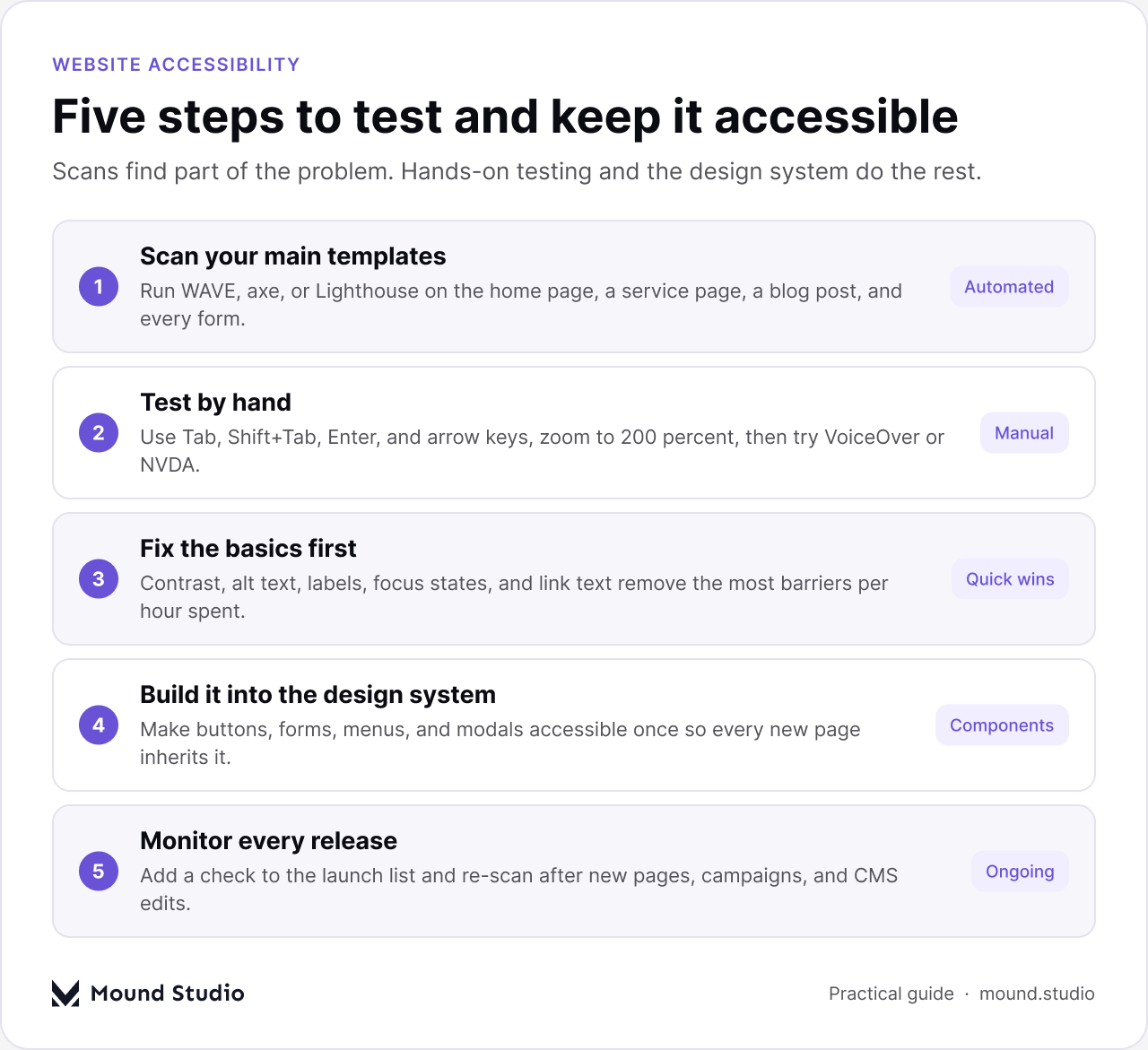
Tools such as WAVE, axe, or Lighthouse flag common issues quickly. Scan your main templates: home page, a service page, a blog post, a form, and checkout if you have one. Remember that automated tools only catch a part of real accessibility problems.
Put your mouse away and navigate the whole page with Tab, Shift+Tab, Enter, and the arrow keys. Zoom to 200 percent. Then try a screen reader, such as VoiceOver on Mac and iPhone or NVDA on Windows, on your key flows. The keyboard test below takes about two minutes per page.

Contrast, alt text, labels, focus states, and link text cover a large share of real barriers, and most fixes are quick. Fix these before you spend time on edge cases.
Fixing pages one by one does not last. Make buttons, forms, menus, and modals accessible at the component level, so every new page inherits the fix. Our guide to building a design system explains how. Palette choices matter here too, and how to choose brand colors shows how to test contrast before a color becomes a token.
New pages, campaigns, and CMS content can reintroduce problems. Add an accessibility check to your launch checklist and re-scan regularly. If you are planning a bigger update, fold these checks into your website redesign checklist.
You do not need to be an expert to catch the worst problems. Turn on VoiceOver or NVDA, close your eyes or turn the screen off, and try to complete one real task, such as finding a service and sending the contact form.
If you get stuck at any point, a real user would too. Write down where and fix that first.
Good alt text says what an image is for, not just what it looks like. Ask one question: if the image vanished, what would the reader miss?
Forms are where sites lose customers, so they deserve extra care. Follow these steps for every field.
Many designs remove the outline because it looks messy. Do not delete it. Restyle it instead: use a thick outline in a color that has strong contrast with both the element and the page, and leave a small gap so it does not blend in. Then tab through every page and check that each link, button, and field shows it clearly.
Accessibility is not only code and color. The words matter too. Plain language helps people with cognitive disabilities, people reading in a second language, and everyone in a hurry.
Editors should have these rules in their publishing checklist, since new content is where problems often return.
Many people use a phone with one hand, in poor light, or with a screen reader turned on. Make sure targets are large enough to tap without hitting the wrong one, keep enough space between links, and do not lock the page to one orientation. Test with your device settings changed: larger text, reduced motion, and a screen reader. If the layout breaks when the text size increases, real users will see the same break.
The fixes only last when everyone knows their part. Designers check contrast and focus states before handoff. Developers use the right HTML elements and test with a keyboard. Editors write alt text and clear links. Someone owns the checklist and runs the scan before each release. Our Figma developer handoff checklist is a good place to add accessibility notes, and a wider review such as a UX audit is a natural time to check these points too.
Consider publishing a short accessibility statement and a way for visitors to report problems. It shows that you take the topic seriously, and it gives you real feedback from real users. Reply to reports quickly and fix what you can.
If you have a live site, run a scan on your five main templates this week and fix the top six issues from the table above. If you are designing something new, put contrast, focus states, and form labels into the first version of your components. If you outsource design or development, ask for these checks in the brief, not in a bug list at the end.
Accessible sites are clearer, easier to use, and often perform better in search, and it is far cheaper to build accessibility in from the first wireframe than to retrofit it. It is part of every web design and UI/UX design project we run, so talk to us if you want your site audited.
Web accessibility means designing and building websites that people with disabilities can perceive, navigate, and use. That includes people who use screen readers, keyboards, voice control, or zoom. It also helps people with temporary or situational limits, such as a broken arm or bright sunlight.
Most organizations aim for WCAG 2.2 level AA. It is the level referenced by most accessibility laws and policies, and it is a realistic target for a business website without special requirements.
WCAG AA requires a contrast ratio of at least 4.5:1 for normal text and 3:1 for large text. Check body text, buttons, placeholder text, and text over images.
No. Overlay widgets do not fix the underlying code and can create new problems for people who already use assistive technology. Fix issues in the design and the code itself.
Run an automated scanner such as WAVE or axe, then test by hand with a keyboard only, at 200 percent zoom, and with a screen reader like VoiceOver or NVDA. Scanners catch only part of the problems, so the manual pass matters.


.png)