







.avif)
.avif)
.avif)


Product
What Is a Design System? How to Build One in 8 Steps

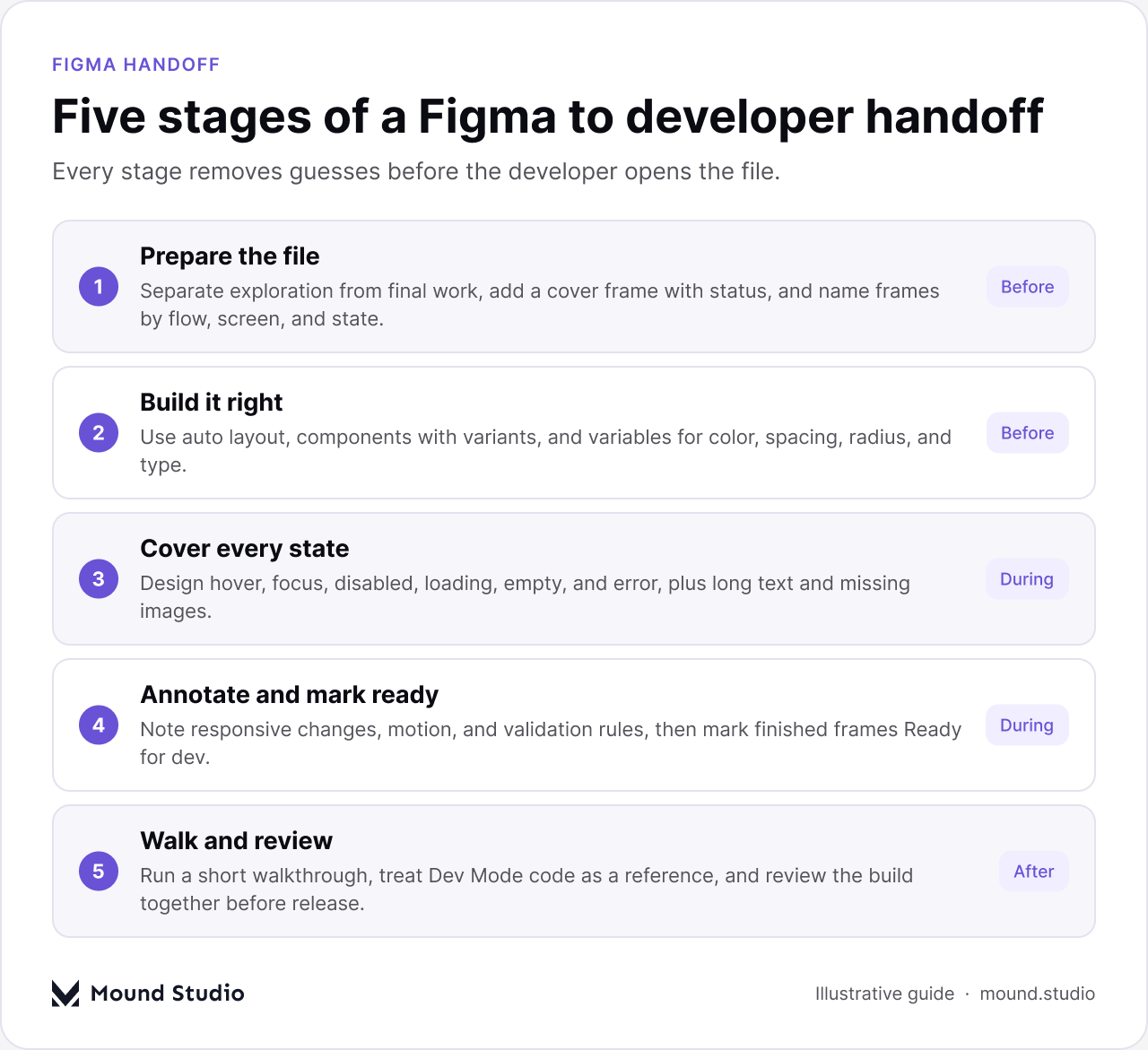
Most handoff problems are not caused by bad designers or bad developers. They are caused by missing information. A developer opens a file full of old iterations, finds three versions of the same screen, and has to guess which button style is final, what happens on a small screen, and what the page looks like when there is no data.
Every guess becomes a question in chat, a delay, or a detail that ships wrong and gets fixed later. A good handoff removes those guesses before the developer ever opens the file. This guide gives you a twelve-item checklist, the tables we use to specify states and responsive behavior, and the mistakes to avoid.
To hand off Figma designs to developers, prepare a clean handoff page, build with auto layout, components, and variables, design every state, document responsive behavior and interactions, mark finished frames as Ready for dev, walk the developers through the file, and review the build together before release.
The gap is rarely talent. It is whether the file answers questions before they are asked. Compare what a developer meets on day one in each case.
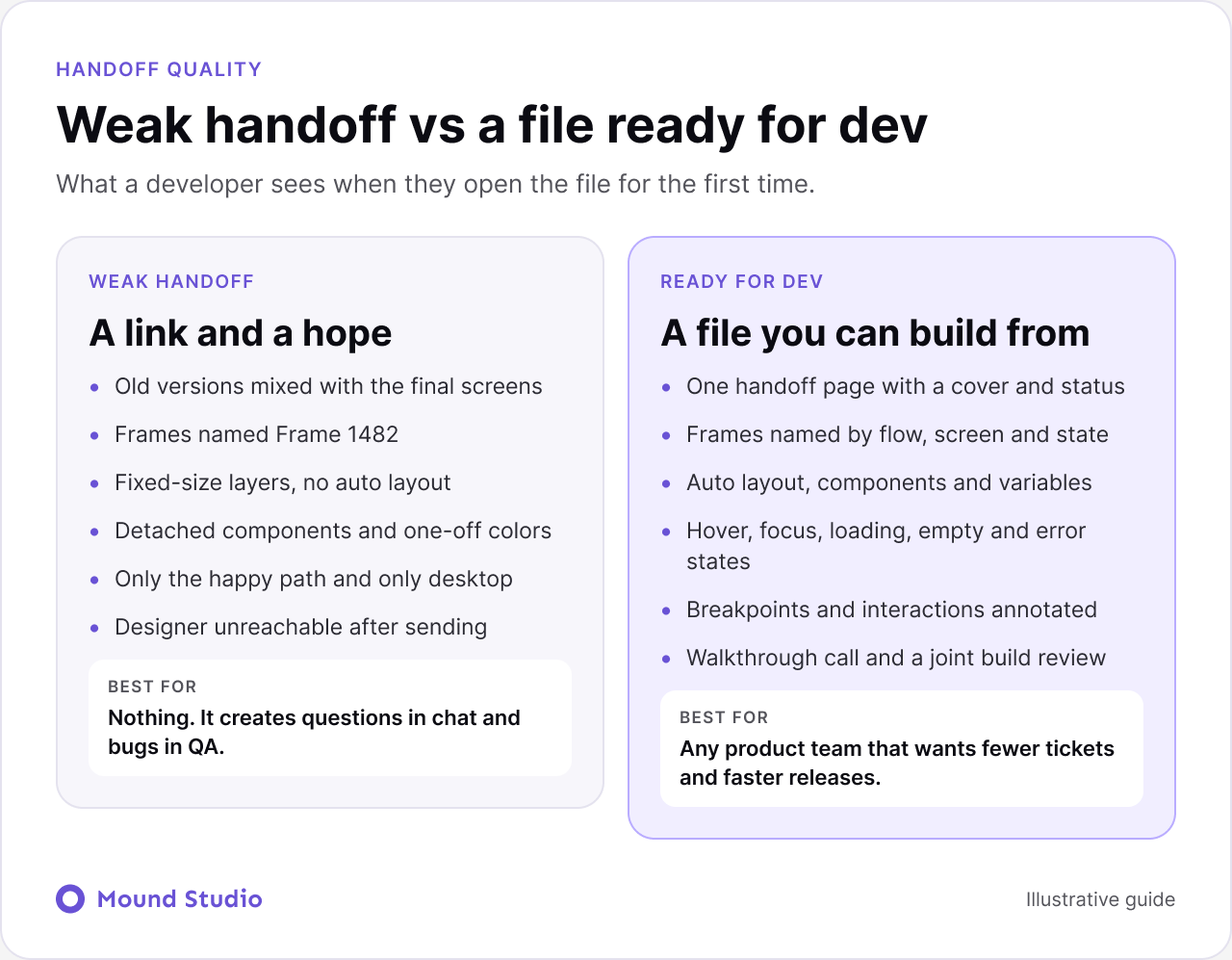
Keep exploration, feedback, and final designs apart. Many teams use a dedicated page or a separate handoff file that only contains approved screens. Add a cover frame with the feature name, status, date, and a one-line summary so anyone opening the file knows where they are.
Rename frames by what they are, such as "Checkout / Payment / Error", not "Frame 1482". Developers search and navigate by names. Clear naming also makes Dev Mode easier to use. A simple pattern of flow, screen, and state works for most products.
Auto layout maps closely to how flexbox works in code. When spacing, padding, and alignment are defined with auto layout, developers can read the real rules instead of measuring gaps by hand. It also shows how elements should behave when text gets longer.
Buttons, inputs, cards, and navigation should be components with clear variants. Colors, spacing, radius, and type should come from variables and styles with names that match your code tokens where possible. If you do not have this foundation yet, our guide to building a design system is a good place to start.
Ask a developer how tokens are named in the codebase, then mirror it. A few habits keep names useful.
When names match, a developer can read a value in Figma and type the same name in code without translating.
The happy path is only one version of a screen. Show hover, focus, active, and disabled states for interactive elements. Show loading, empty, and error states for data views and forms. Show what happens with very long names, missing images, and many items. These are the details that cause the most back-and-forth.
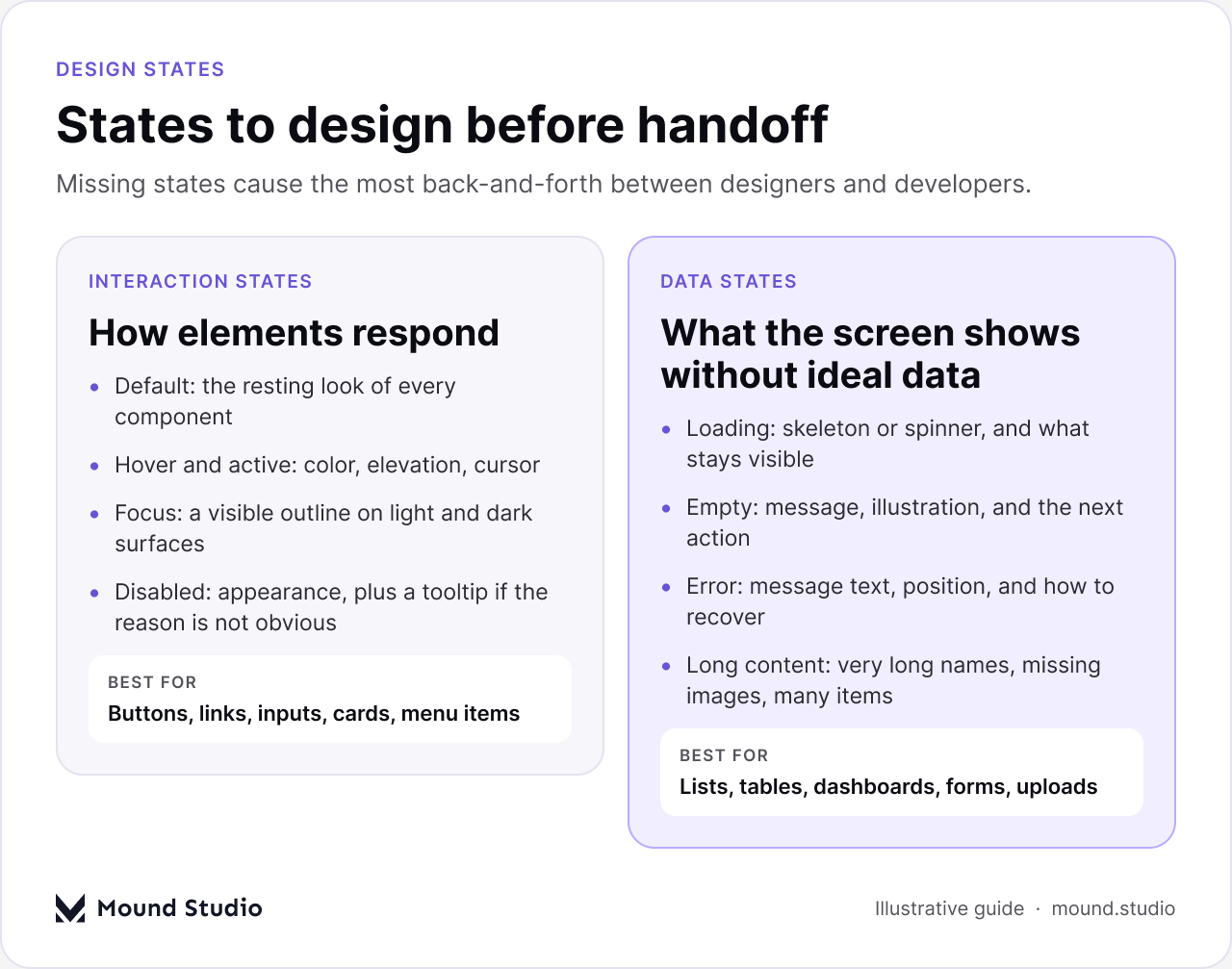
Use this table as a quick guide to what each state needs to show.
| State | Applies to | What to specify |
|---|---|---|
| Hover and active | Buttons, links, cards, rows | Color, elevation, and cursor change |
| Focus | Every interactive element | A visible outline that works on light and dark surfaces |
| Disabled | Buttons, inputs, menu items | Appearance and whether a tooltip explains why |
| Loading | Lists, tables, buttons, pages | Skeleton or spinner, and what stays visible |
| Empty | Lists, dashboards, search results | Message, illustration, and the next action |
| Error | Forms, uploads, failed requests | Message text, position, and how to recover |
Take a settings screen with a form and a save button, described here as typical practice. A weak handoff shows one clean screen with everything filled in. A ready handoff shows more.
That is six frames instead of one. It takes an hour or two of designer time, and it removes a long thread of questions. The developer builds each state once, in the right order, and QA already has a list to test against.
Design key breakpoints, usually mobile, tablet, and desktop, and note what changes between them. Does the sidebar collapse? Does the table scroll or stack into cards? What is the maximum content width? Write it down next to the frames.
| Element | Mobile | Tablet | Desktop |
|---|---|---|---|
| Navigation | Menu button and full-screen panel | Compact bar | Full bar with all links |
| Data table | Stacks into cards | Scrolls sideways | Full table |
| Card grid | One column | Two columns | Three or four columns |
| Forms | Single column, full-width fields | Single column | Two columns where it helps |
Static screens cannot show everything. Add short annotations for animations, transitions, validation rules, and conditional content. Link a prototype for complex flows. Figma Dev Mode lets you attach annotations and measurements directly to designs, so notes stay where developers look.
A good annotation is short, specific, and placed next to the thing it describes. It answers one question a developer would otherwise ask. Compare these two notes on a sign-up form.
Use this quick routine when you annotate a screen:
The most common annotation mistakes are writing paragraphs nobody reads, describing behavior the design already shows, and leaving out the rules that are invisible on a static screen, such as character limits, sorting order, and what happens on a slow connection.
Mark icons and images for export in the right format, use real or realistic content instead of placeholder text, and share final copy. Specify accessibility details such as alt text, focus order, and contrast where they are not obvious.
In Figma, you can mark sections, frames, and components as Ready for dev. Developers then see a clear list of what is final in Dev Mode. If something changes after handoff, update the status and tell the team, instead of editing quietly.
A 30-minute walkthrough saves days of messages. Explain the flow, the key decisions, the edge cases, and anything that is still open. Invite questions early, while changes are cheap.
Dev Mode can show CSS and code snippets, which are useful for values like spacing, colors, and type. They are a starting point, not production code. Developers should still build with the team's own components and tokens.
Before release, compare the build with the design on real devices. Check spacing, states, responsiveness, and interactions. Log differences as specific tickets, and agree on which ones matter before launch and which can follow.
Keep the tone practical. The aim is a build that works well for users, not a pixel-perfect copy for its own sake.
Handoff goes faster when everyone knows their part. A short agreement at kickoff is enough.
A short conversation early prevents redesigns later.
Write the answers on the cover frame or in the handoff page, so the next person does not have to ask again.
Each one moves a decision from the design stage to the build stage, where changes cost more. A missing error state becomes a developer's guess. A missing mobile layout becomes a layout nobody approved. Fixing this is mostly about habit, not tools. Agree a definition of ready at kickoff, and do not hand off until the file meets it. If accessibility is part of your definition, our website accessibility checklist lists what to specify. If your product is a SaaS app, the principles in SaaS UX design best practices help you decide which states matter most.
Do not try to fix everything at once. Pick one upcoming feature and apply the checklist to that alone. Book the walkthrough, run the joint build review, and note what saved time. Then turn the habits that worked into your team standard, and grow the component library alongside them.
The best handoffs are not a single moment. Developers join early design reviews, flag technical constraints before screens are polished, and the design system grows alongside the code. To see where handoff sits in the full process, read wireframe vs mockup vs prototype and our mobile app design process. At Mound Studio, design and development sit in one team, so handoff is a conversation rather than a file transfer. If your team is losing time between Figma and code, our UI/UX design team can help you set up a process that sticks, and you can get in touch any time.
Design handoff is the process of giving developers everything they need to build a design: final screens, components, states, responsive rules, interactions, assets, and the reasons behind key decisions. It is a conversation, not just a file transfer.
Separate final work from exploration, name frames clearly, use auto layout, components, and variables, design every state, annotate responsive behavior and interactions, and mark finished work as Ready for dev.
It is a status you can set on sections, frames, and components to show they are finalized. Developers can then filter and view all ready designs in Dev Mode, so they know what is safe to build.
Not usually. The generated code is useful for values such as spacing, colors, and type, but developers should build with their own components and tokens.
Hover, focus, active, and disabled for interactive elements, plus loading, empty, and error states for data views and forms, along with edge cases like long text and missing images.


.png)