






.avif)
.avif)
.avif)

Product
SaaS Dashboard Design: 9 UX Best Practices for 2026
Most failed apps did not fail because a button was the wrong shade. They failed because nobody worked out who the app was for, what it should do first, or how a new user would reach the first useful moment. Screens are the last thing to get right, not the first.
This is the process we follow for iOS and Android products, step by step, with what you should have in hand at the end of each stage. Use it to plan your own project, or to check what an agency quote actually covers.
The mobile app design process has seven steps: discovery, user flows, wireframes, visual design with a design system, an interactive prototype, usability testing, and developer handoff. Each step produces something you can review, and each one reduces the risk of building the wrong thing. Skipping a step does not save time. It moves the work to a later, more expensive point.
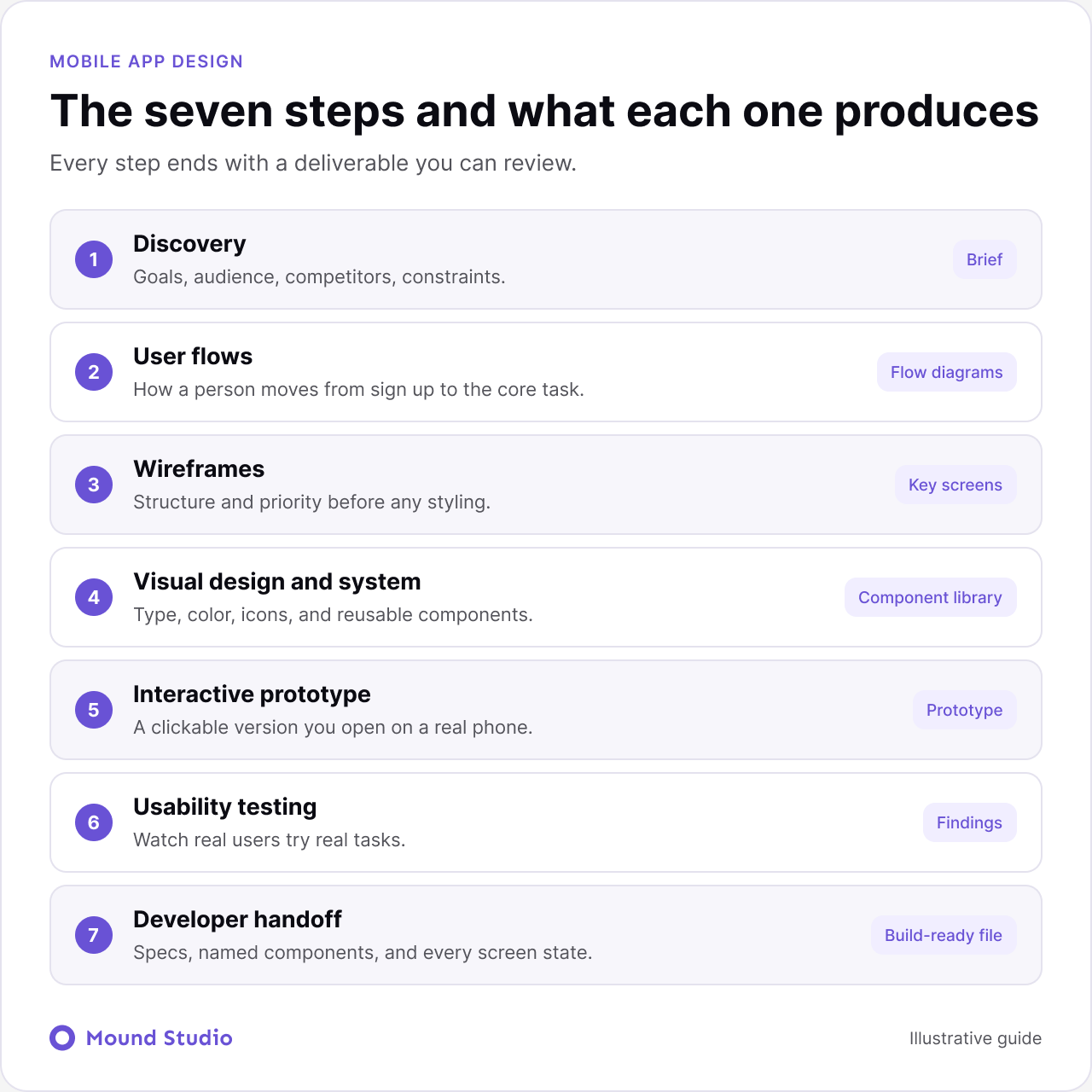
We start with questions, not sketches. Who is the user? What problem sends them to this app instead of a competitor's? What has to be true for the product to succeed? We also review competing apps and note what users already expect, so we know where to match and where to differ.
Good discovery also sets limits: platforms, launch date, budget, and integrations such as payments or maps. These decide what is realistic for version one.
Output: a short brief covering goals, audience, key features, and constraints.
Example: for a booking app, discovery might reveal that most users only ever want to reschedule. That tells you the reschedule flow is the product, and it deserves the most design attention.
Before any layout, we map how a person moves through the app. Signing up, completing the main task, coming back a week later. Flows show where steps can be cut and where people are likely to get lost. A screen is only a moment inside a flow, so designing screens without flows leads to nice pages that do not connect.
Output: flow diagrams for the core journeys.
Simple, low-detail screens focused on structure and priority. What goes at the top? What is one tap away? What can wait? Keeping them plain stops feedback from drifting toward colors before the structure is right. Pay attention to thumb reach too, since primary actions in the lower part of the screen are easier to use one-handed.
Output: wireframes for every key screen.
Take a typical booking app for a local service business. Discovery shows that customers book once, then mostly come back to move an appointment. The team writes that down as the main task.
In the flow stage, the reschedule journey turns out to take six taps from the home screen. Nobody planned that. It just grew as features were added. By reworking the flow, the reschedule action moves onto the home screen and the journey drops to two taps.
Only then do wireframes start. The home screen is drawn around one upcoming appointment with a clear reschedule button, and everything else moves lower down. When visual design begins, the structure is already proven, so the conversation is about type and color rather than about what the app should do.
This order is the point. Each step gives the next step something solid to stand on, and mistakes are caught while they are cheap to fix.
Now the interface takes shape: typography, color, icons, spacing, and components. We build these as a reusable system in Figma, so a button looks and behaves the same everywhere and developers can reuse it. We follow platform conventions from Apple's Human Interface Guidelines and Google's Material Design, since users expect an app to feel native to their phone. If you want the background, read what a design system is.
Output: high-fidelity screens and a component library.
Most of the product stays the same. The differences are in navigation, system controls, and small behaviors that users feel without noticing.
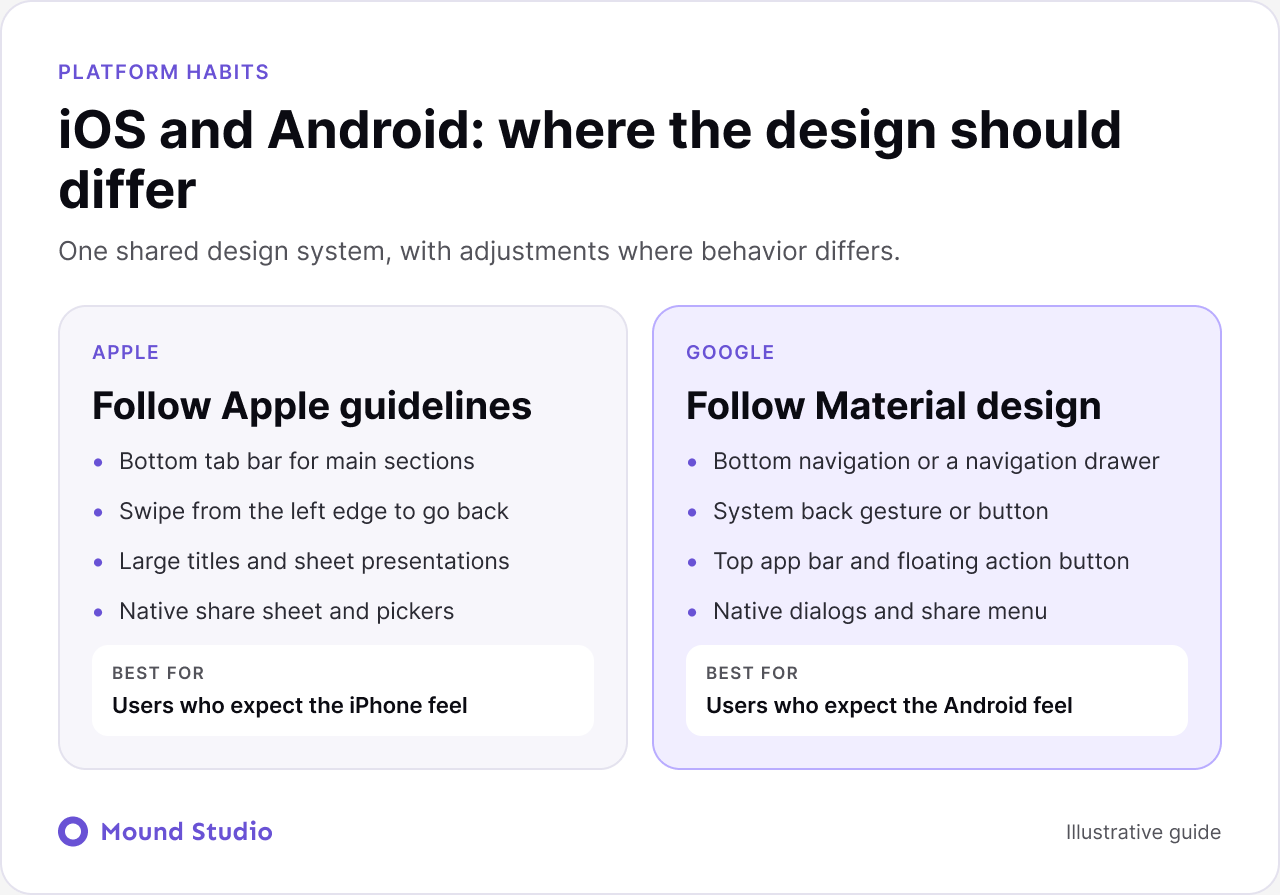
| Area | iOS habit | Android habit |
|---|---|---|
| Back navigation | Swipe from the left edge, and a back control in the top bar | System back gesture or button |
| Primary navigation | Tab bar at the bottom | Bottom navigation or a navigation drawer |
| Dialogs and sheets | Action sheets that slide up from the bottom | Centered dialogs and bottom sheets |
| Typography and icons | System font with its own icon set | System font with Material icons |
A clickable prototype lets you and your users feel the app before a line of code exists. Transitions, gestures, and navigation all become testable. It is also the fastest way to get stakeholders aligned, because everyone reacts to the same thing instead of imagining different versions.
Output: a Figma prototype you can open on a real device.
Put the prototype in front of five or so real users and watch them try to complete tasks. Where they hesitate is where the design needs work.
Fixing a confusing flow at this stage takes hours. After launch, it takes a release cycle.
Output: a list of findings and the design changes that follow.
The way you run a session changes what you learn. A few habits help a lot.
Look for patterns, not single comments. If one person dislikes an icon, that is an opinion. If three people miss the same button, that is a design problem. Fix the patterns first, and keep a short list of smaller issues for later rounds.
A clean handoff is what separates a design that ships as intended from one that drifts. That means organized files, named components, spacing and type specs, plus every state: empty, loading, error, and offline. We also cover behavior on different screen sizes, and we stay available while your developers build.
Output: a Figma file your engineers can build from, with notes.
The most useful decision in the whole process is what to leave out. A scope matrix helps you sort features quickly.
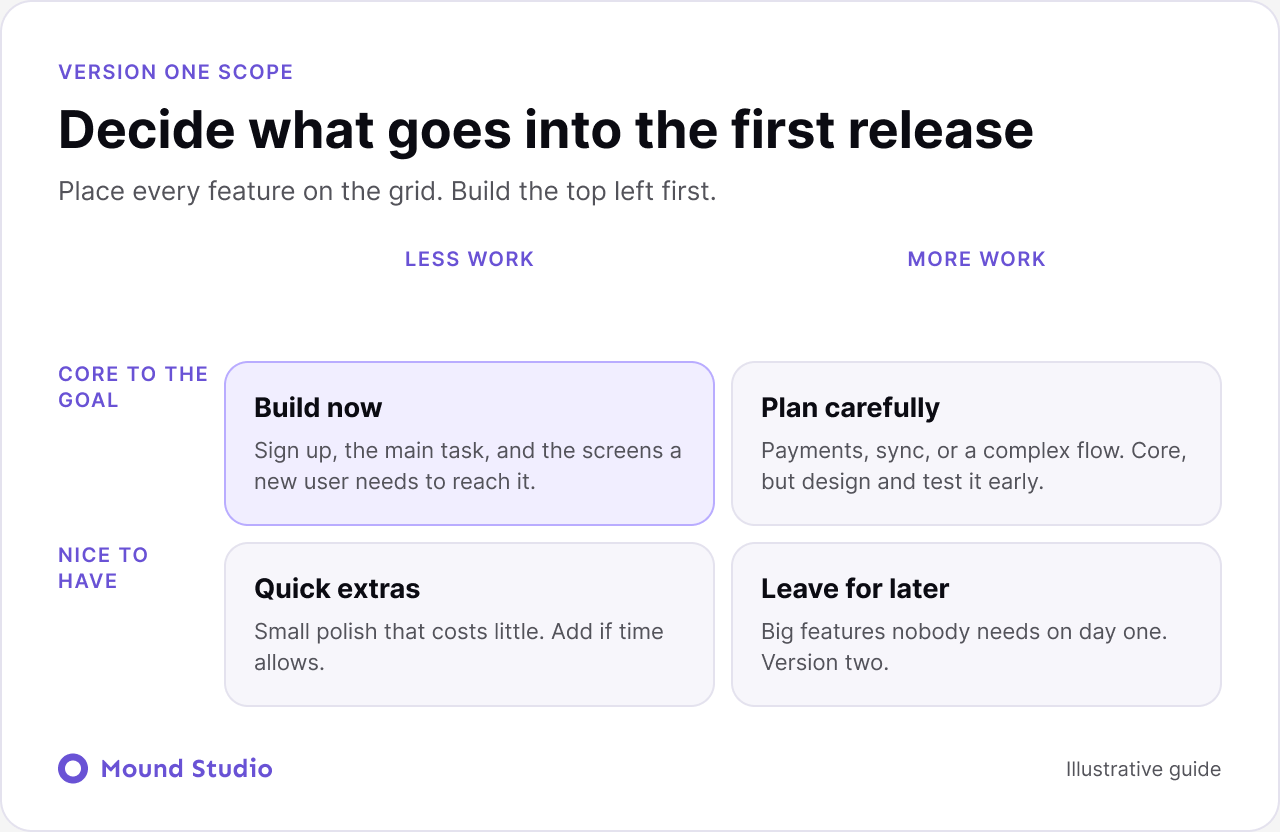
| Feature type | Value to users | Build effort | Decision |
|---|---|---|---|
| Core task | High | Any | Must be in version one |
| Quick win | High | Low | Include it |
| Big bet | High | High | Phase it. Launch a simple version first |
| Nice to have | Low | Low | Only if time is left |
| Distraction | Low | High | Cut it |
If you are building a product from scratch, our post on SaaS MVP development covers the same thinking for software products, and custom development vs no-code helps you decide how to build it.
If you are hiring outside help, a few questions show quickly whether the process above is real or just a slide.
Clear answers matter more than a long portfolio. Our guide on how to choose a web design agency goes through more questions worth asking, and much of it applies to app projects too.
Most of the mistakes above share a cause. The happy path is fun to design, and the rest is not. Empty screens, failed payments, and lost connections rarely appear in a pitch, so they get left for later. Later usually means a developer deciding alone, on a deadline.
A simple habit fixes this. For every screen, ask three questions: what does it look like with no data, what does it look like while loading, and what happens when something goes wrong. Write the answers next to the screen. It adds a little time to design and removes a lot of confusion during the build.
Usually yes, from one shared design system, with platform-specific adjustments where behavior differs. That keeps the product consistent without forcing one platform to imitate the other. If budget is tight, launch on the platform where most of your users are, then adapt the design for the second.
It belongs in every step, not in a final review. In discovery, note users who may rely on larger text, screen readers, or voice control. In visual design, check color contrast and make sure text scales without breaking layouts. In prototyping, confirm that tap targets are large enough for a thumb and spaced so people do not hit the wrong one.
Labels matter too. An icon with no text label can be unclear to everyone, and a screen reader cannot read it at all. Adding a short label costs almost nothing during design and a lot after release.
The same care applies to the first minutes inside the app. If you want to go deeper on that stage, read our guide to mobile app onboarding design.
A good mobile app design process is boring in the best way. Clear goals, tested flows, a proper system, and a handoff that leaves nothing to guess. The screens then take care of themselves.
Have an app idea and want to know what step one looks like for you? Let's talk it through. If cost is your main question, our guide on what UI/UX design costs shows what moves the number.
Discovery, user flows, wireframes, visual design with a design system, an interactive prototype, usability testing, and developer handoff.
Usually yes, from one shared design system, with adjustments where each platform behaves differently.
Around five people will usually reveal the most obvious problems in a flow.
Organized files, named components, spacing and type specs, and every screen state, so engineers can build without guessing.
The core task, plus quick wins that are cheap to build. Phase large features and cut anything that does not serve the main goal.


.png)