







.avif)
.avif)
.avif)

Product
Mobile App Design Process: 7 Steps From Idea to Developer-Ready Figma
The first minutes inside a mobile app decide whether someone keeps it or deletes it. Onboarding is the design work that carries a new user from the first tap to the first useful result. In this guide we walk through the flow we use, the patterns worth choosing between, when to ask for permissions, and the mistakes we see most often.
Mobile app onboarding design is the planning and layout of everything a new user meets before they get value from the app: the welcome, sign-up, permission prompts, setup questions and the first task. Good onboarding is short, specific to the app and honest about what happens next. It does not try to teach every feature. It gets the person to one useful result, then lets the product do the rest.
People often confuse onboarding with a product tour. A tour explains. Onboarding gets someone to do something. That difference shapes every decision below.
The short answer: a clear promise, only the permissions you need at the moment you need them, the minimum setup, and a first win. Everything else can wait. Here is the flow we start from on most projects.
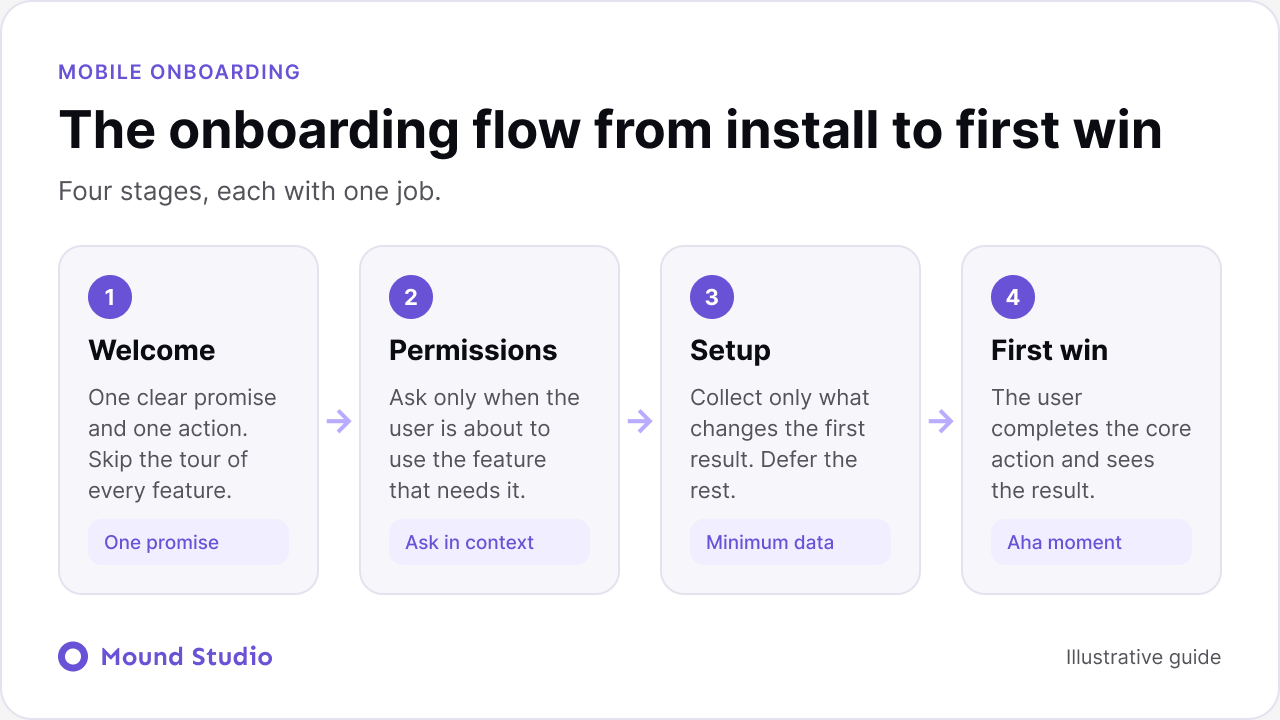
The welcome screen answers a single question: what will this app do for me? Write one sentence and show one image that supports it. Resist the urge to add three slides of features. If the app has a strong core action, put a button for that action on the first screen.
Permission prompts are the most expensive moment in the flow. Each one asks the user to trust you before you have earned it. Ask when the user is about to use the feature that needs the permission, and explain in one line what they get. We cover the timing for each type in the next section.
Every question in setup should change what the user sees next. If you ask about interests, the home screen should reflect them. If it will not, do not ask yet. Data you want for marketing or analytics can be collected later, after the user has had a good experience.
The flow ends when the user completes the core action and sees the outcome: the first workout logged, the first task added, the first transfer confirmed. Design this screen with care. It is the moment that proves the app is worth keeping, and it is often the screen teams forget to design.
There is no single best pattern. The right one depends on how complex the app is and how different your users are from each other. This table compares the patterns we use most.
| Pattern | Best for | Watch out for |
|---|---|---|
| Benefits carousel | Simple apps with one core idea | Users swipe past without reading |
| Interactive walkthrough | Gesture-heavy apps | Feels long when it cannot be skipped |
| Personalised setup quiz | Apps that serve different goals | Too many questions before any value |
| Progressive tips | Apps with many features | Tips that cover the screen |
| Setup checklist | Apps with several setup tasks | A checklist that never ends |
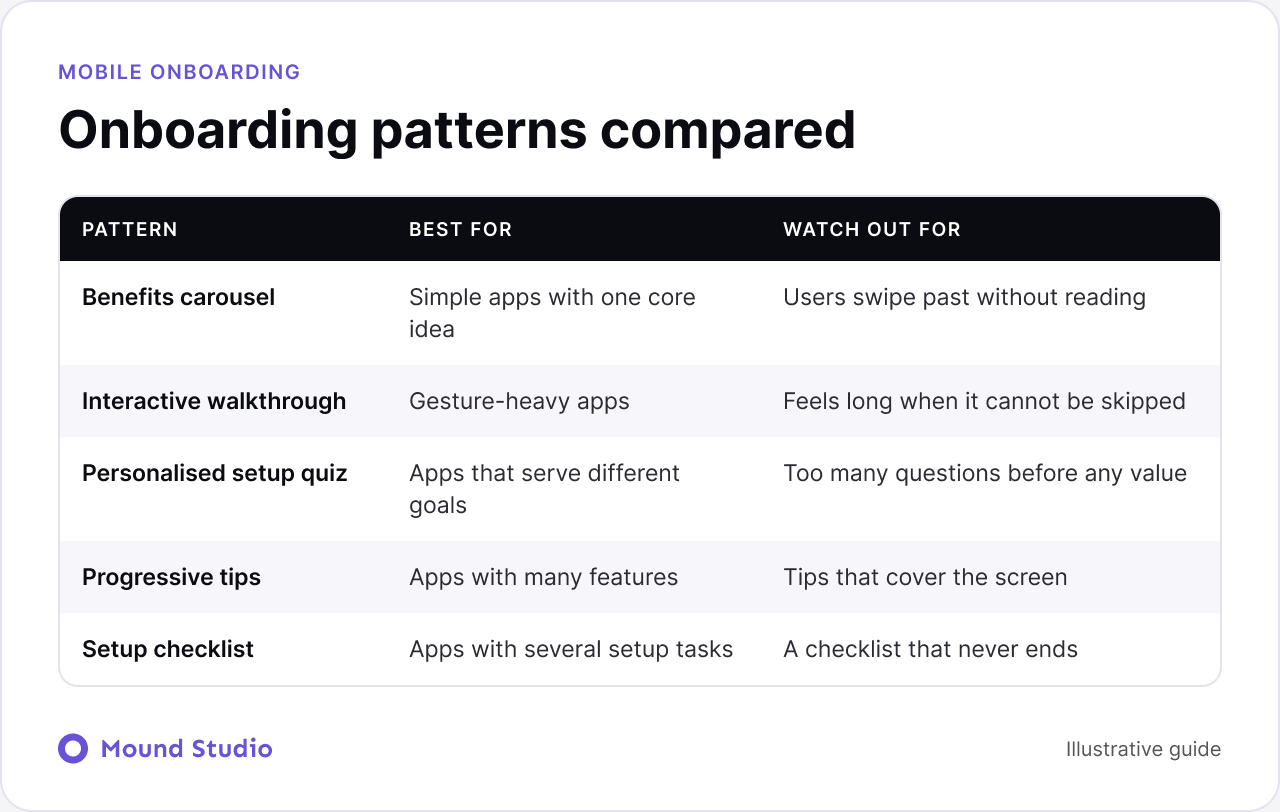
Many good products mix two of these. A short setup quiz followed by progressive tips is a common pairing. What matters is that each piece has a reason to exist, and that you can name what the user should have done by the end of it.
Sign-up is a wall, so make it as low as you can. Let people see the app before they create an account if the product allows it. When you do need an account, offer the sign-in methods your audience already uses on their phone, keep the form to the fields you truly need, and show a clear reason for each one.
Ask when the value is obvious to the user, not when it is convenient for the team. A phone shows the system prompt once, and a refusal is awkward to undo. So the moment before the prompt matters more than the prompt itself.

For sensitive permissions, add a short pre-prompt screen of your own. It should say what you want to access, why, and what the user gets. If the user declines your own screen, you have not spent the one-time system prompt, and you can ask again later in a better context.
Write like you are talking to one person who is in a hurry. Use the words your users use, not the words on your product roadmap. Lead with what the person gets, then the action. A button that says Start my first workout beats one that says Continue, because it tells the user what happens next.
The screen after onboarding is often empty because the user has not created anything yet. An empty state is part of onboarding. Use it to point to the next single action, show what the screen will look like when it has content, and offer a sample if that helps. A blank screen with a small label reads as broken.
Test it early on a real phone with people who have never seen the app. Ask them to install and start, then stay quiet. Watch where they hesitate, which words they misread and which taps they miss. A clickable prototype is enough for the first round. Fix what you see, then test again with new people.
We usually start from low-detail wireframes and move to a prototype once the order of screens feels right. If you are unsure how the stages differ, our post on wireframe vs mockup vs prototype explains what each one is for. After launch, review where new users stop, in the analytics and in short sessions with real users. If you already have an app in the store, a UX audit is a good way to find the friction in the first run.
The perfect path is only one of the paths. Before you hand the design to developers, check each of these and design a screen or a message for it.
These cases take a small amount of design time and prevent the support requests that follow launch. They also make the developer handoff clearer, because every state has a design.
Use this list at the end of design, before developers start building. It also works as a review tool for an app that is already live.
| Check | Question to ask | Pass when |
|---|---|---|
| Promise | Can a new user say what the app does after the first screen? | One sentence explains it |
| Permissions | Is each request tied to a feature the user just chose? | No prompt appears before value |
| Setup | Does each question change the first result? | Unused questions are removed |
| First win | Does the flow end on a real result? | The user completes the core action |
| Edge cases | Are denied permissions and offline states designed? | Every state has a screen or message |
| Copy | Do buttons name the result? | No screen relies on a bare Continue |
Pick a small set of signals and review them on a schedule. The first is how many new users complete the first meaningful action, and how long it takes. The second is where they stop, screen by screen. The third is which permission requests get accepted, and after which screen. Pair the numbers with a few short sessions. Numbers show where people leave. Sessions show why.
Change one thing at a time so you know what caused the result. Small copy changes and reordered steps often help more than a full redesign.
The same principles apply, but the emphasis changes. A finance app has to earn trust before it asks for personal details, so it explains security in plain words and shows what the user will see next. A fitness or habit app lives on motivation, so it gets to a first activity quickly and celebrates it. A marketplace or content app needs to learn taste, so a short setup quiz that changes the home feed pays off. A team tool has to deal with invitations and roles, so the flow covers both the person who creates the workspace and the person who joins one. Start from the first useful result for your specific app, then work backwards.
Great onboarding is short, specific and built around one first win. Choose a pattern that fits the app, ask for permissions in context, collect only the data that changes the result, and test with real people on a real phone. If you want help designing the first run of your app, talk to us about your mobile app. For the wider process, read our mobile app design process, and for a related product view see SaaS onboarding UX.
Mobile app onboarding is the set of screens and prompts a new user sees between opening the app for the first time and completing the first meaningful action. It includes the welcome, sign-up, permission requests, setup and the first result.
Use as few as the app needs to reach the first win. Many apps need only a welcome, a short setup and the first action. If a screen does not change what the user sees next, remove it or move it later.
Yes for tours and tips. Users who already know similar apps should be able to skip straight in. Only block the flow for steps the app truly cannot work without, such as creating an account for a banking app.
After the user has set up something worth being reminded about. Asking on the first screen gets a reflex tap on Do not allow, and on most phones that choice is hard to reverse.
Watch whether new users reach the first useful action, and where they stop. Combine that with short usability sessions, where you can see confusion the numbers cannot explain.



.png)