







.avif)
.avif)
.avif)

Product
SaaS Dashboard Design: 9 UX Best Practices for 2026

Signups are the easy part of a SaaS business. Keeping people is harder, and most of that work is design. This guide covers the UX practices that improve retention and feature adoption once a user is past the first session: navigation, the core task, empty and error states, feature discovery and feedback.
The best practices are to make the core task quick, keep navigation clear and predictable, handle empty, loading and error states with care, introduce features in context, and keep listening to users. Retention comes from a product that keeps being useful, not from more reminders.
We already cover the first session in our guide to SaaS onboarding UX. This article picks up after that point and asks a different question: why do people come back in week three, and what makes them stay in month six?
Every SaaS user passes through the same four stages: sign up, set up, first win and repeat. Onboarding covers the first three. Retention lives in the fourth, and it depends on how well the earlier stages prepared the ground.
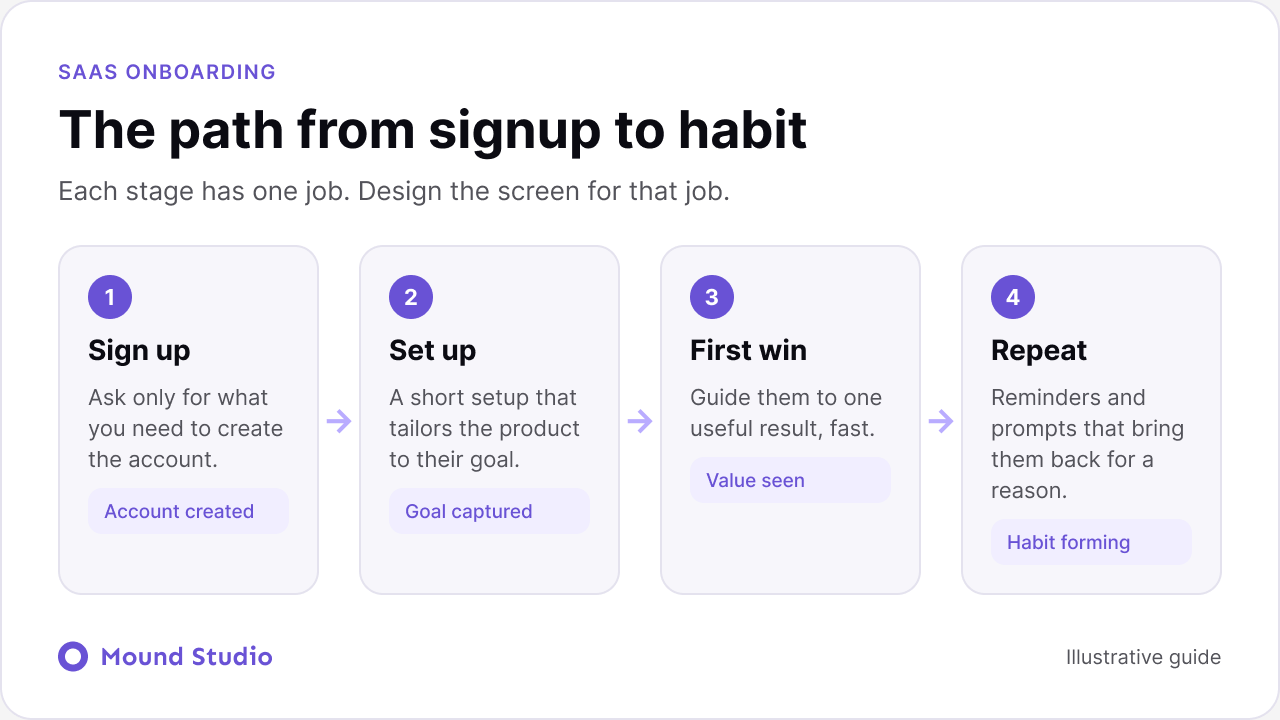
The point of the map is focus. If a screen has no clear job at its stage, it usually has three half jobs, and users feel that as clutter. Before redesigning anything, name the stage each screen serves and the single outcome it should produce.
Five design levers do most of the work. None of them is a trick. Each one removes friction or adds a reason to return.
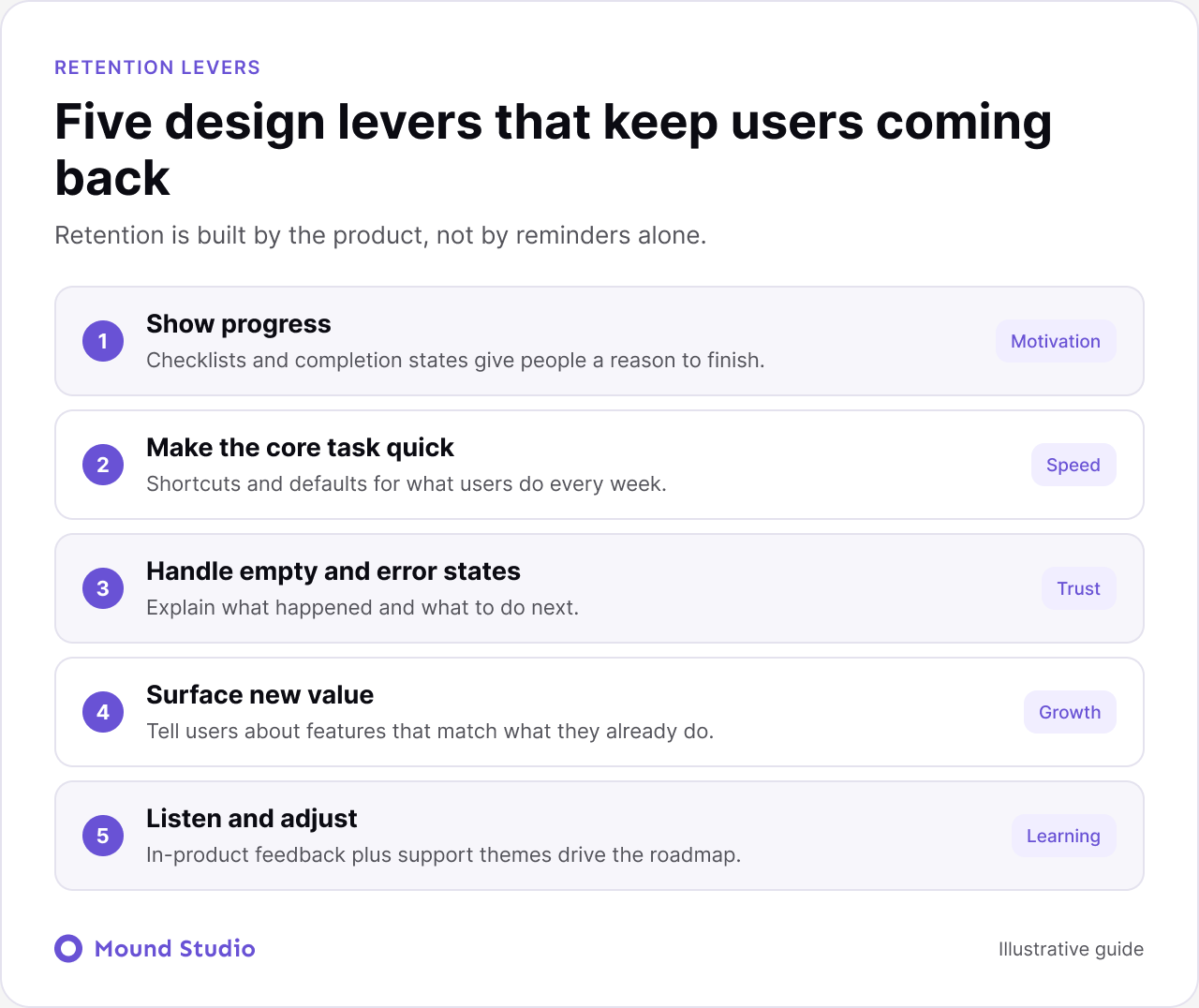
Let us walk through each one.
People finish what they can see. A checklist, a completion bar or a clear state such as draft, in review and published tells users where they are and what is left. Progress also makes the product feel like a place where work accumulates, which is a reason to return.
Keep it honest. Do not show a bar that stalls at ninety percent or a checklist with tasks users never needed.
Find the one action users repeat most, such as creating an invoice, logging a task or sending a report, and count the steps. Then cut. Use sensible defaults, remember the last choice, add keyboard shortcuts for frequent users and put the primary action where the thumb or cursor already is.
A product that saves thirty seconds on a weekly task earns loyalty that no email campaign can match.
They should explain what happened and what to do next. An empty screen that says nothing looks broken. An empty screen with a short explanation, a sample and one button looks like a guide.
Error messages need the same care. Say what went wrong in plain words, keep the user's work, and offer a fix. Trust is built in these small moments, and lost there too.
Users do not read release notes. Tell them about a new feature when it matches what they already do. A person who exports reports every Friday should see the scheduled export option, not a banner about a feature they will never use.
Feedback keeps the product honest. Short in-product prompts, tagged support themes and regular user calls show where people struggle. Feed the patterns into the roadmap. Retention improves when the team fixes the same friction users keep mentioning.
Navigation should mirror how users think about their work, not how your engineers built the features. If your team calls a module by an internal name, users will not find it.
For data-heavy products, layout choices matter just as much. Our piece on SaaS dashboard design best practices goes deeper on that side.
Picture a typical project management tool. The most common action is creating a task, and it takes six steps: open the project, open a menu, choose the type, fill in a long form, pick a list and save.
We would start by watching a few real users create tasks and noting every pause. Then we would cut. The type gets a default. The list is remembered from the last time. Only the title is required, and everything else can be added later. The primary button moves to where the user is already looking.
The result is a task created in two steps, with the long form still available for people who want it. Nothing was taken away. The common path just got shorter. That is the pattern to look for in any product: make the frequent action light and keep the rare action available.
Use this table to match a practice to the moment it matters most.
| Stage | Main goal | Practice to use | Warning sign |
|---|---|---|---|
| First week | Reach a first win | Starter content and one clear action | Blank screens, no next step |
| Weeks two to four | Form a routine | Fast core task and saved defaults | Users log in once and vanish |
| Month two onward | Widen usage | Contextual feature prompts | Only one feature ever used |
| Any time | Keep trust | Clear errors and honest progress | Support tickets about the same confusion |
Adoption is a design problem, not a marketing one. A feature that users cannot find or understand will not be used, however good it is.
Avoid the modal that greets every user with the same five announcements. It teaches people to click away without reading.
People forgive waiting when the product tells them what is happening. They do not forgive silence.
These small details decide whether a product feels dependable. Users rarely praise them, but they notice fast when they are missing.
Long-term users want speed. New users want guidance. A good product serves both without splitting into two products.
Start with the same screens for everyone, then add layers. Experienced users get shortcuts, bulk actions, saved views and a fast search. New users get short hints that disappear once they are used. Hints should fade with experience, so a person who has created ten tasks never sees the tip about creating one.
Watch for the middle group, too. People who use one feature well often never find the second. Gentle prompts tied to what they already do help them widen their use without a tour.
Most drop-off patterns are familiar. The map below pairs common leaks with a practical fix. It draws on the early journey, which our SaaS onboarding UX guide explores in full, but the same causes reappear later in the lifecycle.
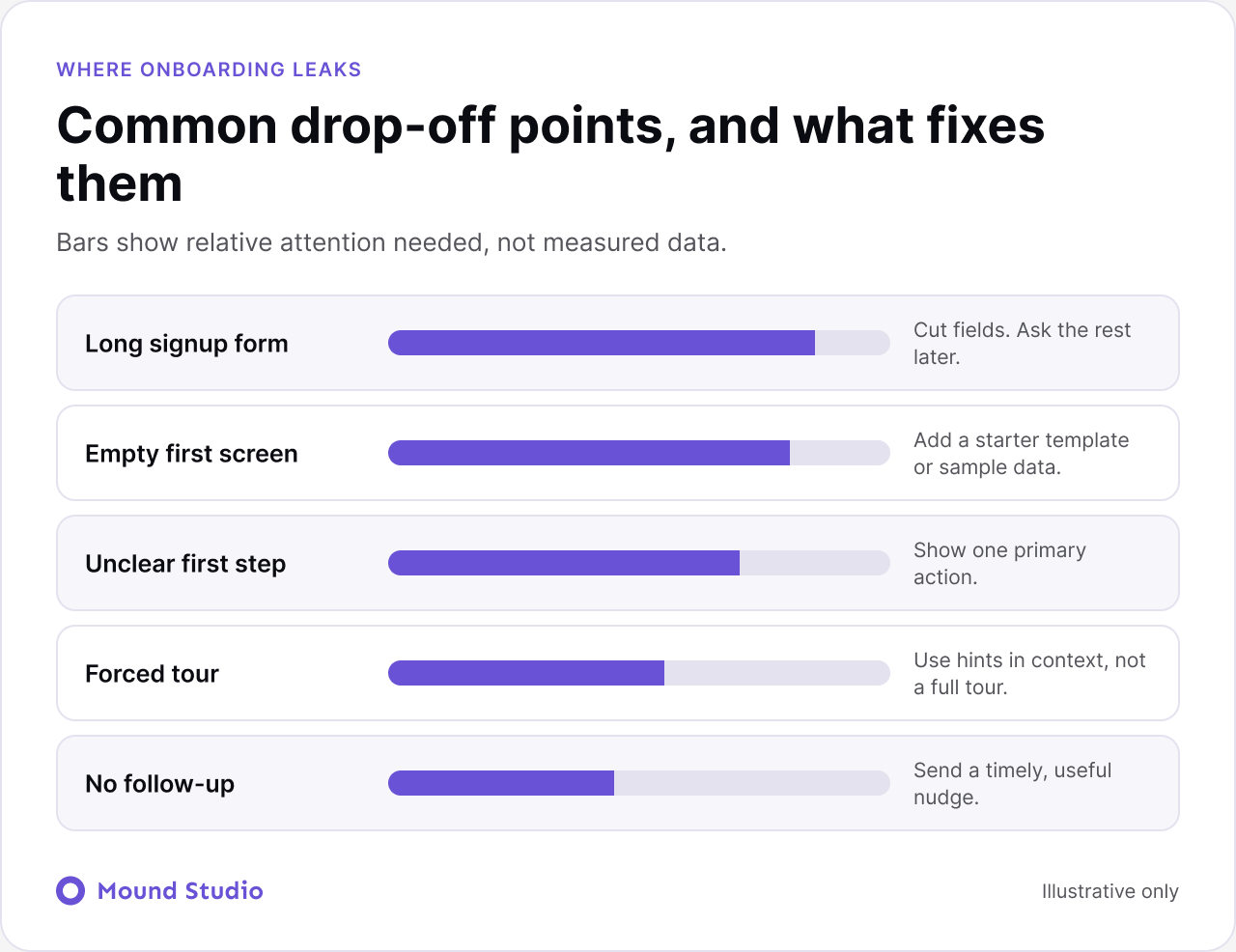
A long list of UX problems is normal. The skill is choosing the order. We sort every issue with three questions.
Fix the issues that are frequent and painful first. Leave the rare and mild ones for later, and write them down so they are not forgotten. When the list is ranked and short enough to act on, the team can actually finish it.
Combine numbers with observation. Track how many users repeat the core task, how many reach each key feature and where they stall. Then watch recordings and talk to a handful of users to learn why. If patterns of confusion keep appearing, a structured UX audit gives you a ranked list of fixes.
| Question | Signal to check | Likely fix |
|---|---|---|
| Do users return? | Repeat use of the core task | Shorten the flow, save defaults |
| Do they find features? | Reach of key screens | Clearer labels, contextual prompts |
| Where do they stall? | Last screen before exit | Simplify or explain that step |
| Do they trust it? | Error and support themes | Rewrite messages, protect user work |
If you are still shaping the first version, our guide to SaaS MVP development helps you decide what to build before you polish retention.
A review goes faster when the basics are ready. Gather these before you start.
Consistent parts also make fixes cheaper. If buttons, forms and messages differ from screen to screen, a shared library helps. Our guide to what a design system is explains how to start small. Menus and labels benefit from the same care, which we cover in the information architecture guide.
Accessibility belongs in the review too. A product that works with a keyboard and a screen reader is easier for everyone, so run through the website accessibility checklist while you are there.
Retention is what happens when a product stays useful, clear and trustworthy after the first session. Speed up the core task, tidy the navigation, care for the quiet screens and introduce features when they matter. If you want a partner to review or redesign your product experience, talk to Mound Studio about your SaaS product.
Make the task users repeat every week fast and clear. If the core job takes fewer steps and fewer decisions, people keep returning. Everything else supports that.
Onboarding gets a new user to a first useful result. Retention design keeps them coming back after that, through navigation, habits, feature discovery and trust. Our guide to SaaS onboarding UX covers the first part in depth.
Show a feature at the moment it matches what the user is already doing, explain the benefit in one line, and let them dismiss it. Broad announcements to everyone are easy to ignore.
Watch how many users repeat the core task, how many reach each key feature, and where they stall. Pair the numbers with session recordings and short interviews to learn why.
Rarely as a whole. Improve in small steps driven by evidence, and run a UX audit when patterns of confusion keep appearing.

.png)