







.avif)
.avif)
.avif)

Product
Mobile App Design Process: 7 Steps From Idea to Developer-Ready Figma
The most common SaaS dashboard mistake is treating it as a parking lot for every metric the team could measure. The result looks impressive in a screenshot and confuses people in real use. Nobody knows where to look first, so they stop looking.
A good dashboard does one thing well: it helps a specific person decide what to do next. The nine practices below come from that idea, and each one comes with an example and a common trap.
A good SaaS dashboard starts with one user and one decision, shows the most important number first, limits what appears at once, uses the right chart for each question, and designs every state including empty, loading, and error. Everything else is detail on top of those five habits.
Start with the job, not the data. Before drawing a single chart, write down who opens this screen and what they need to decide. A finance lead checking cash flow and a support agent triaging tickets need completely different dashboards, even inside the same product.
A useful exercise is to finish this sentence: "When [person] opens this screen, they want to know [question], so they can [action]." If you cannot finish it, the screen is not ready to design.
Common trap: building one dashboard for every role. It ends up useful to none of them. Two focused views beat one crowded one.
Users scan the top left first, so whatever answers the main question belongs there, large and unmistakable. Everything else supports it. Give it context too: compared to when, and is that good or bad? A number with no comparison is only a number.
Picture a subscription product with a customer success team. Their manager opens the dashboard every morning with one question: which accounts need attention today? A weak version shows total sign-ups, page views, revenue, support volume, and feature usage in ten equal cards. A strong version leads with a short list of accounts at risk, shows the trend in active usage beside it, and puts everything else one click away.
Nothing in the strong version is new data. The difference is order and emphasis. We usually get there by asking the team to rank every metric on the old screen from "I would act on this" to "I only look at this out of habit". The bottom half of that list rarely earns a place on the first view.
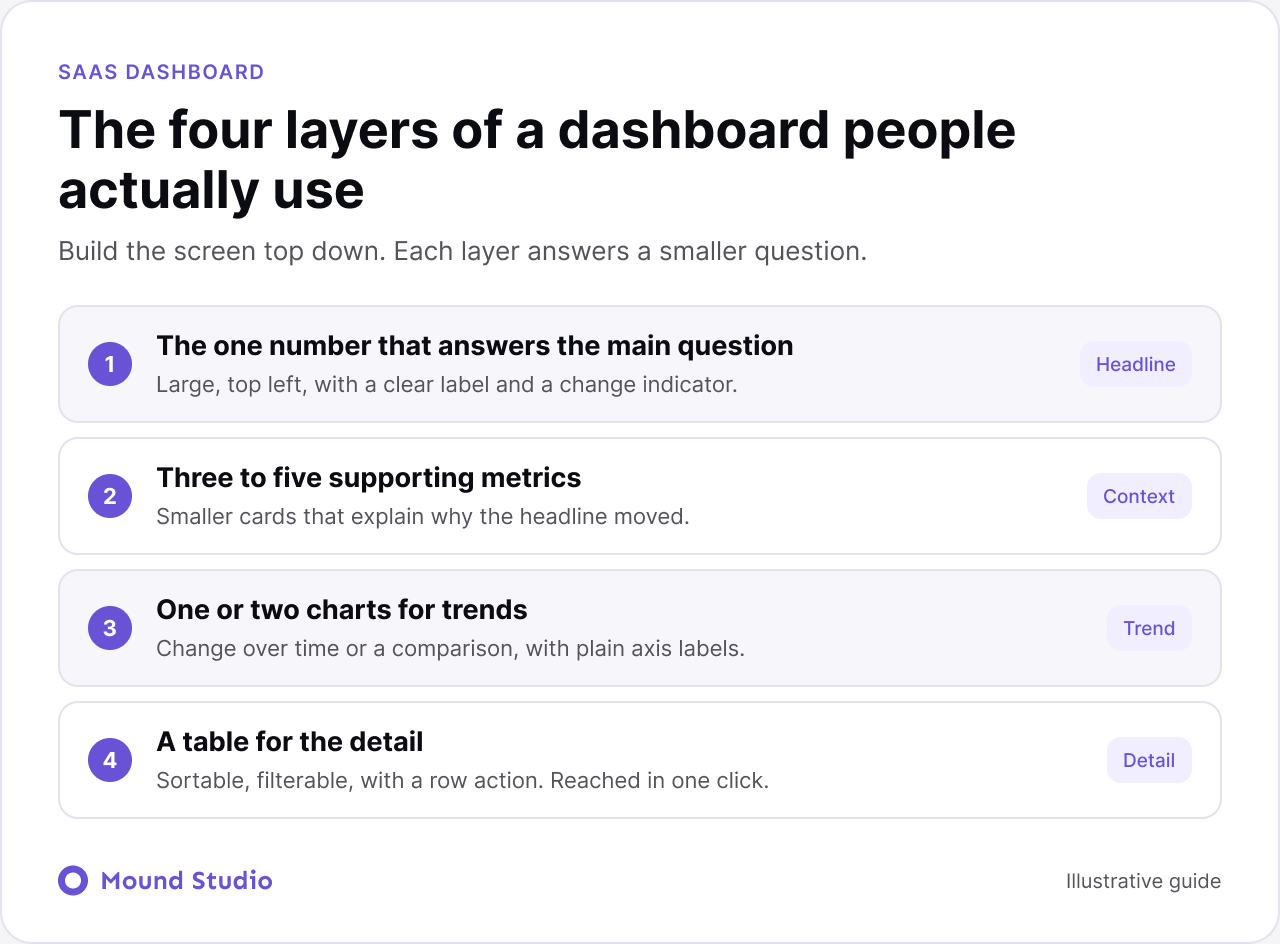
If the screen has ten equal-sized cards, nothing stands out. Aim for a clear hierarchy in three levels.
| Level | What belongs here | Example |
|---|---|---|
| Primary | The one number or view that answers the main question | Revenue this month against last month |
| Supporting | Three to five metrics that explain the primary one | New accounts, churned accounts, average plan value |
| Detail | Tables, filters, and breakdowns, opened on demand | Account list with status and renewal date |
Show the summary first. Let people drill into the detail when they want it. Filters, expandable rows, and side drawers keep the first view calm without hiding power from advanced users. The rule is simple: nobody should have to read detail they did not ask for.
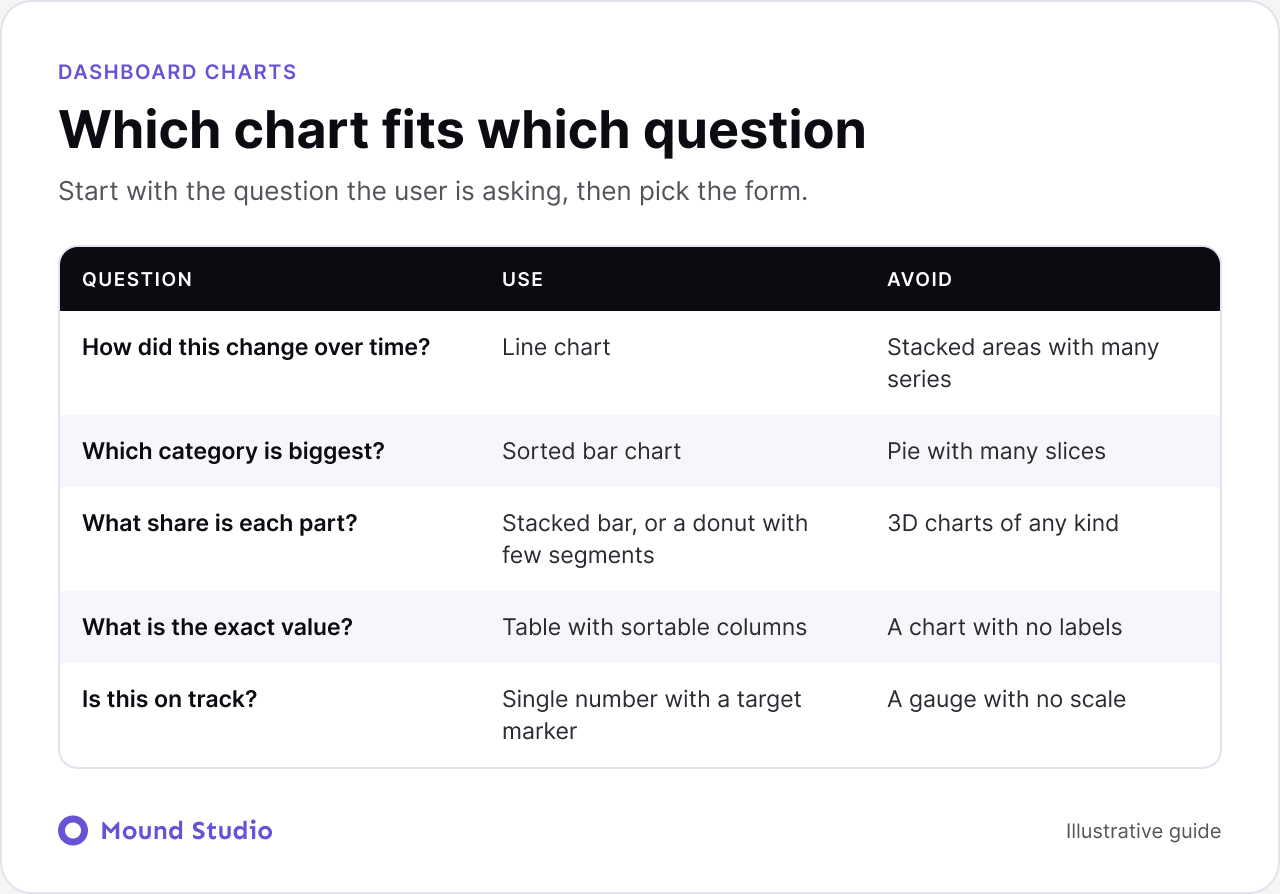
Pick the chart from the question, not from what looks good. The infographic below shows the common matches, and the table gives the short version.
| Question | Best fit | Avoid |
|---|---|---|
| How has it changed over time? | Line chart | Pie chart |
| How do categories compare? | Bar chart | 3D charts |
| What makes up the whole? | Simple stacked bar or donut with few segments | Donut with many slices |
| What are the exact values? | Table | Chart with no labels |
Two habits help here. Label the axes and units directly. And keep chart colors consistent, so the same metric has the same color on every screen.
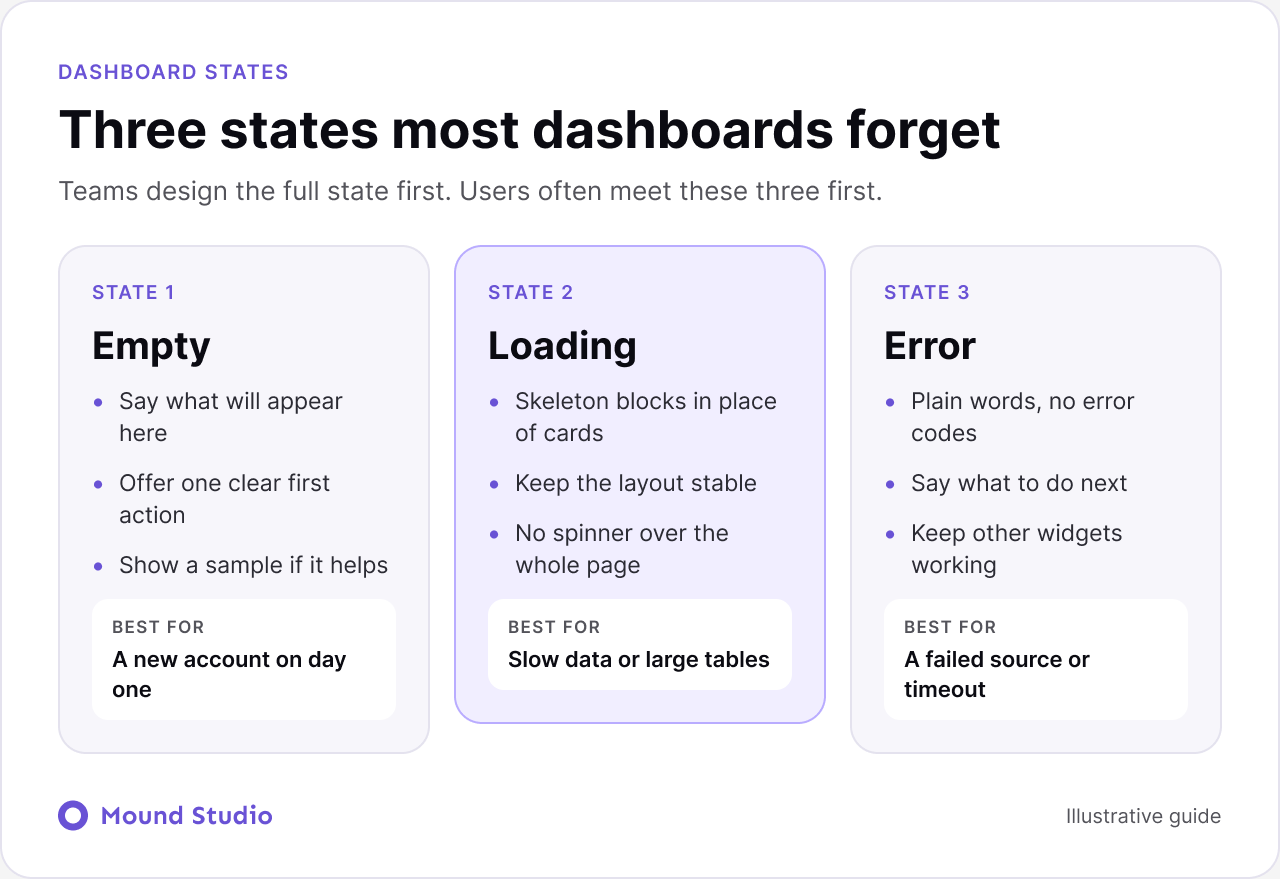
A new user will see an empty dashboard on day one. That screen is your first impression. Tell them what will appear here and give them one clear action to get started. Skeleton loaders and honest error messages matter just as much, because every real user meets them.
Most SaaS dashboards eventually turn into tables. Give them sortable columns, saved filters, sticky headers, and bulk actions. Keep row density adjustable for people who live in the data all day. Put the most important column first, align numbers to the right, and keep row actions in the same place on every row.
Cutting is the hardest part of dashboard design, because every metric has someone in the company who cares about it. A few questions make the conversation easier and less personal.
Cut items are not deleted from the product. They move to a secondary view, an export, or a scheduled email. Saying that out loud usually calms the room.
Dashboards are read quickly, so the words matter as much as the charts. Use the names your users already use, not internal jargon. Show units next to every number. Round large values so they can be read at a glance, and keep the exact value available on hover or in the table.
Be consistent about time. If one card shows the last seven days and the next shows this month, say so clearly, or better, let one date control drive the whole screen. Mixed time ranges are a quiet source of wrong decisions.
Buttons, spacing, chart colors, and terminology should behave the same way on every screen. This is where a proper design system pays off, and it makes developers faster since they reuse components instead of rebuilding them. If you are not sure what belongs in one, read what a design system is.
Color alone should never carry meaning. Use labels, icons, or patterns alongside it. Check contrast, support keyboard navigation, and make sure charts have readable text alternatives. Status colors such as red and green are the classic failure, since many people cannot tell them apart.
Some mistakes are worth a closer look because they look reasonable during design and only fail in real use.
Auto-refreshing without telling anyone. Numbers that change while someone is reading them cause doubt. Show a "last updated" time and let people refresh on their own terms.
Hiding the filters. When filters are tucked away, users forget that a filter is on and misread the numbers. Show active filters as visible chips with a clear reset action.
Designing only with sample data. Tidy sample data hides the real problems: very long names, huge values, zeros, and missing fields. Test the layout with awkward data before handoff.
Dashboards have more moving parts than most screens, so the handoff needs more care. Document each component with its states, the rules for truncating long text, and what happens when data is missing. A short note on which numbers are calculated, and how often they refresh, saves many questions later. Our Figma developer handoff checklist covers the rest of what to prepare.
For the wider picture of product design decisions around a dashboard, see our guide to SaaS UX design best practices.
Launching is not the finish line. Watch how people actually use the screen. Which cards do they click? Which filters do they set every time? Which parts do they never touch? Usage patterns show what to promote and what to remove. If most people apply the same filter on arrival, that filter should probably be the default.
Also listen. A few short conversations with regular users will tell you more than any chart of clicks. Ask what they check first, what they export to a spreadsheet, and what they wish they could see. Exports are a useful signal: whatever people copy out of the product is often something the dashboard should have answered itself.
On a phone, the primary metric and the one or two most useful supporting numbers should come first, followed by a short list of items that need action. Wide tables rarely work on a small screen. Turn rows into stacked cards, or show only the key columns with a way to open the full record. Decide this early, since retrofitting a desktop dashboard onto a phone leads to cramped, unreadable charts.
Test it with real users on real tasks, and watch where they look first. Then hand it over with every state documented. If your product is still early, our notes on SaaS MVP development help you decide which dashboard views belong in version one. And if you want to review an existing product first, how to do a UX audit is a good starting point.
Dashboards succeed when they reduce decisions, not when they display more data. Start from the user's job, keep the hierarchy honest, and design every state, not just the happy one.
Working on a SaaS product and stuck on the dashboard? Let's look at it together.
It helps a specific person decide what to do next. It has a clear hierarchy, a small number of well-chosen metrics, and details available one click away.
Use a line chart for change over time, a bar chart to compare categories, a simple stacked bar for parts of a whole, and a table when people need to read exact values.
There is no fixed number. One primary metric, a few supporting ones, and details on demand is a good structure. If nothing on the screen stands out, there are too many.
At least empty, loading, error, partial data, and no results. New users meet the empty state first, so it deserves real attention.
Never rely on color alone. Add labels or icons, check contrast, support keyboard navigation, and give charts text alternatives.


.png)