







.avif)
.avif)
.avif)


Product
Figma to Developer Handoff: A Practical Checklist for Product Teams
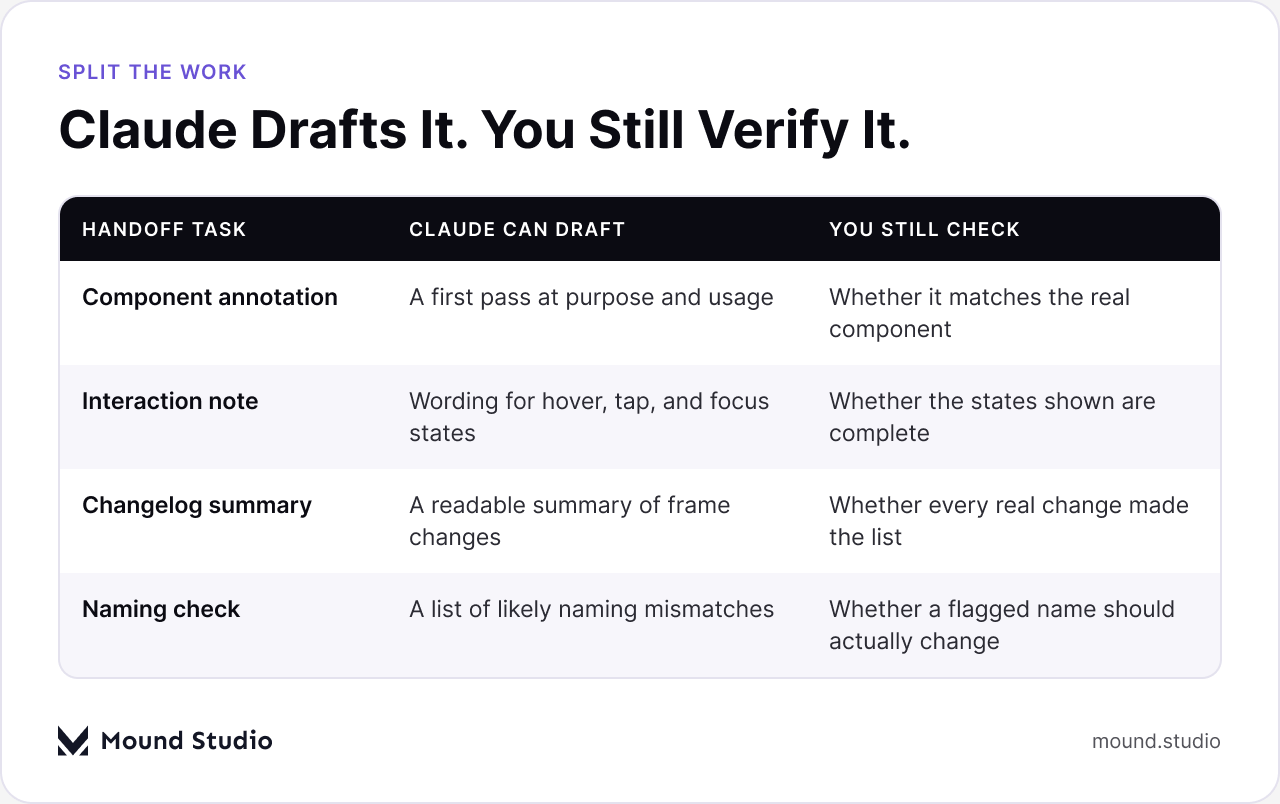
Claude can draft the written parts of a handoff that usually get rushed or skipped: component annotations, interaction notes, edge-case explanations, changelog summaries for a pull request, and a check on whether your naming is consistent. It writes fast, readable drafts from what you paste in or describe. It does not open your Figma file on its own, does not know your actual component behavior, and can't confirm that a build matches the design. Someone on your team still has to check the draft against the real frame before it goes out.
Use Claude to write the notes, not to verify the work. Give it the structure of a frame, a description of a state, or two versions of a file to compare, and ask for a plain-language draft. Read the draft against the actual design before it becomes part of your handoff. That one review step is what separates a note that sounds right from a note that is right.
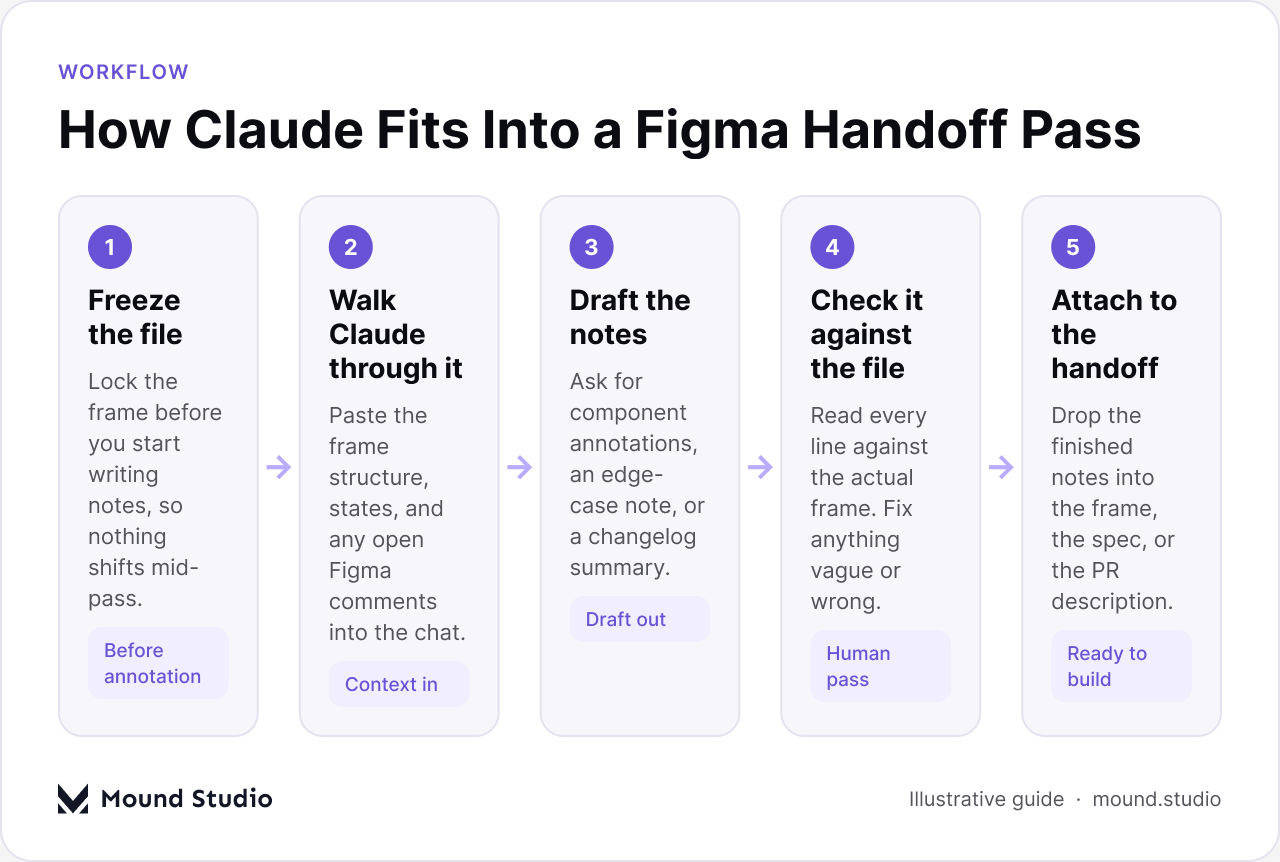
A design file can be finished and still be hard to build from. The screens are there, the components are named, and the flow makes sense to the person who designed it. What is missing is everything that lived in that designer's head while they worked: why a button is disabled in one screen and not another, what the empty state looks like when a list has never been used, or which of three similar components is the one developers should actually reuse.
Writing that down takes time, and it is the kind of writing that gets pushed to the end of a sprint, when there is the least time left to do it well. That is the gap Claude is useful for. It won't tell you what the edge case should be. It will help you turn a two-line thought ("this state only shows if the account has no data yet, and it needs a slightly different message than the empty search state") into a note a developer can actually read and act on. If you want a wider view of what a full handoff needs before you get to the writing, our Figma handoff checklist covers the file-prep side of this in more detail.
The pattern shows up the same way on almost every project we work on. The designer knows every reason behind every small decision, and most of that reasoning never makes it into the file, because writing it down felt like a separate task from designing. By the time handoff day arrives, the file looks finished, and the thinking behind it is still only in one person's head. A short pass with Claude, done while the file is fresh, is a cheap way to get that reasoning written down before it's forgotten.
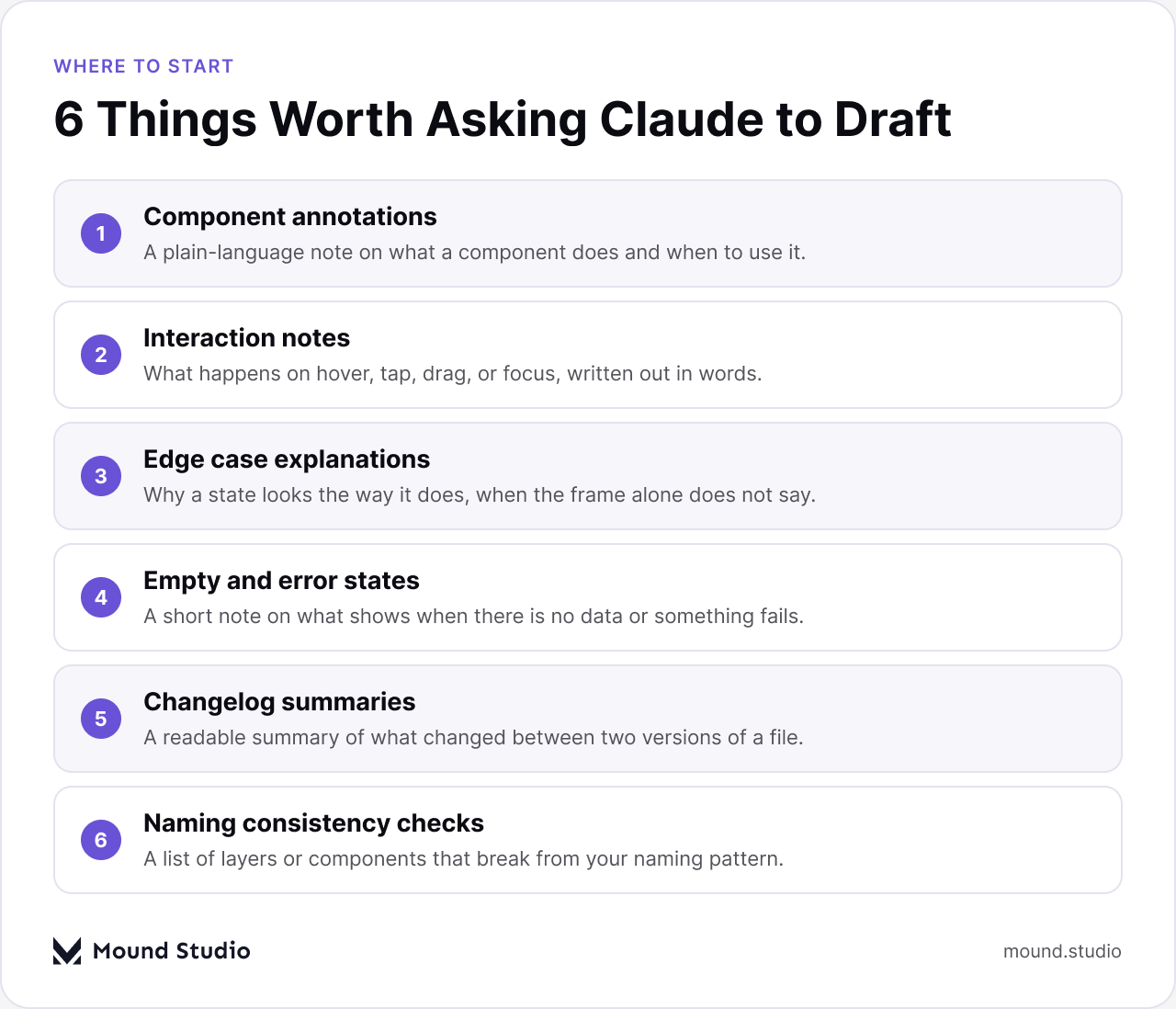
Start narrow. Ask for one thing at a time, tied to one part of the file, rather than asking for a full handoff document in a single pass. A few types of notes come up in almost every handoff, and each one has a different shape.
| What you're asking for | Example prompt | What you get back |
|---|---|---|
| Component annotation | "Explain what this component does and when someone should use it." | A short usage note to drop under the component |
| Interaction note | "Describe what happens on hover, tap, and focus for this button." | Plain wording for each interaction state |
| Edge case note | "This state looks different from the others. Explain why, based on what's in the frame." | A one or two line explanation a developer can read fast |
| Changelog summary | "Compare these two frames and summarize what changed for a PR description." | A short, readable changelog draft |
For a component, describe the states you can see (default, hover, disabled, error) and ask Claude to draft a short note explaining what each one is for and when a developer would trigger it. Keep the prompt specific to the actual component in front of you rather than asking a general question. A note written against a real button, with its real states named, reads very differently from a generic paragraph about "how buttons work."
The same goes for interactions. If a card expands on click, or a menu closes on an outside tap, say so and ask Claude to write it up as a short annotation. This is the kind of detail that a developer would otherwise have to guess at, or ask you about in a message thread days into the build.
Every file has a handful of states that only make sense with a sentence of context: a loading skeleton that looks almost identical to the empty state, a warning banner that only shows for one user role, a card that truncates text after a certain length. Describe the case in your own words, paste in whatever detail you have (the frame name, the condition, a rough note), and ask Claude to turn it into a clear explanation. This is one of the places where a good note saves the most time, because these are exactly the details that get missed in a fast handoff and cause a round of back-and-forth after the build starts.
When a design changes after the first round of handoff, someone has to explain what moved. Paste in a short description of the before and after (or a couple of screenshots described in words) and ask for a plain summary written for a PR description or a changelog entry. This is useful for anyone reviewing the change later, including a developer who wasn't in the room when the update was discussed, or a teammate checking the file weeks after the fact.
Keep the summary factual. Ask Claude to list what changed, not why it's an improvement — the "why" is often a judgment call that belongs to the designer, and it reads better in your own words than in a drafted paragraph.
Naming drift is one of the quieter problems in a Figma file. A component gets duplicated and renamed slightly differently, a layer keeps an old label after the design changes, or two similar components end up with names that don't describe what makes them different. None of this breaks the design. All of it slows down a developer who is trying to work out which layer is the real one.
Paste in a list of your component and layer names and ask Claude to flag ones that look inconsistent, duplicated, or unclear. It won't know your project's naming convention unless you describe it, so give it a short example of the pattern you want ("cards are named Card / [context] / [state]") and ask it to check the list against that. Treat the result as a list of things to look at, not a list of things to rename automatically.
This is worth being direct about: Claude helps write the notes. It does not verify the actual implementation. It can't open your Figma file and inspect the real component tree, it can't see whether the shipped build actually matches the frame, and it can't confirm that an edge-case note is accurate unless you gave it the accurate information first. A confident-sounding draft is not the same as a correct one, and the two are easy to mix up when the writing reads well.
A wrong note is worse than no note, because a developer is more likely to trust something written down than to double-check it against the file. If a draft describes a state, an interaction, or a change you're not fully sure about, that's exactly the spot to slow down and confirm it against the design before it goes anywhere near a handoff document. The time it takes to check one uncertain line is much shorter than the time it takes to fix a build based on a note that turned out to be wrong.
| Handoff style | What developers get | What usually goes wrong |
|---|---|---|
| No written notes | The Figma file on its own | Developers guess at intent and rebuild after the fact |
| A few scattered comments | Some states explained, most left out | Coverage depends on who remembered to write a comment |
| Claude-drafted, unreviewed | Fluent notes attached to the file | Confident wording that doesn't match the real behavior |
| Claude-drafted, reviewed | Clear notes checked against the frame | Still takes a review pass, but the drafting is faster |
Not every line in a handoff needs a drafting pass. A quick way to decide is to ask how much explaining the note actually needs.
The rule of thumb: the more a note has to explain, the more a first draft saves you. The shorter and more obvious the note, the less a drafting step adds.
Before a set of Claude-drafted notes goes into a handoff file or a PR description, run through a short list:
If a note fails any of these, it needs another pass, either from Claude with better context or from a person editing it directly. This kind of pass fits naturally alongside the rest of an agency's day-to-day use of the tool — for teams building this into a wider habit, our piece on bringing Claude into a design agency's workflow covers where else it tends to help, and using Claude alongside Webflow looks at a related but separate part of the build, once the file is already in code.
Claude is a fast way to write the parts of a handoff that usually get thin: annotations, edge-case notes, changelog summaries, and a check on your naming. It writes the words. Your team still has to check them against the real file, because that verification step is not something a drafting tool can do for you. Used that way, it takes time off the writing without adding risk to the build. If you want a second pair of eyes on your handoff process or the file itself, talk to us about your project.
No. Claude can help you write the notes that go with a handoff, but it can't open your file, inspect the actual layers, or confirm a build matches the design. That check still needs a person looking at the frame.
Paste in the structure of one component and ask for a plain-language note on what it does and when to use it. Read the draft against the actual component before you use it, then repeat the pattern on the next one.
Draft it in pieces instead. A single component annotation or one changelog summary is much easier to check carefully than several paragraphs written in one pass.
No. A note explains one frame or one change. A design system defines the pattern itself. Claude can help write notes about either one, but it doesn't replace the system.
Figma comments work fine for a quick call-out. Claude is more useful when you need to explain something at length, such as an edge case, a set of interaction states, or a summary of several changes, without writing it from scratch every time.


.png)