







.avif)
.avif)
.avif)

Product
UI vs UX Design: What's the Difference? A Plain Guide
You can polish every screen of a product and still watch users hunt for the one thing they came for. That is rarely a visual problem. It is a structure problem: the content is in the wrong place, under the wrong name, or behind one click too many.
Information architecture, or IA, is the work that prevents this. It decides what goes where, what it is called, and how people move between pages. This guide explains what IA is, the four parts it is made of, and a step-by-step process we use to build a structure that holds up before any visual design starts.
We will keep it practical. You will get a process, two comparison tables, the mistakes we see most, and a checklist you can run against your own site or app.
Information architecture is the practice of organizing, labeling, and connecting content so people can find what they need and understand where they are. It covers the structure behind menus, page hierarchies, categories, and search. It is not the look of the interface. It is the skeleton the interface hangs on.
A simple way to picture it: a library. The building can be beautiful, but if books are shelved randomly, nobody finds anything. IA is the shelving system, the signs on the ends of the aisles, and the catalog at the desk.
IA is one layer of UX design, not a synonym for it. UX design covers the whole experience, including research, flows, interaction, and visuals. Navigation is what users see and click, such as the main menu and breadcrumbs. IA is the thinking underneath that decides what the menu should contain in the first place. If you want the wider picture, our post on the difference between UI and UX design shows where each discipline starts and stops.
Every structure you design is made from the same four parts. When something feels confusing, one of these is usually the cause, so it helps to check them one at a time.
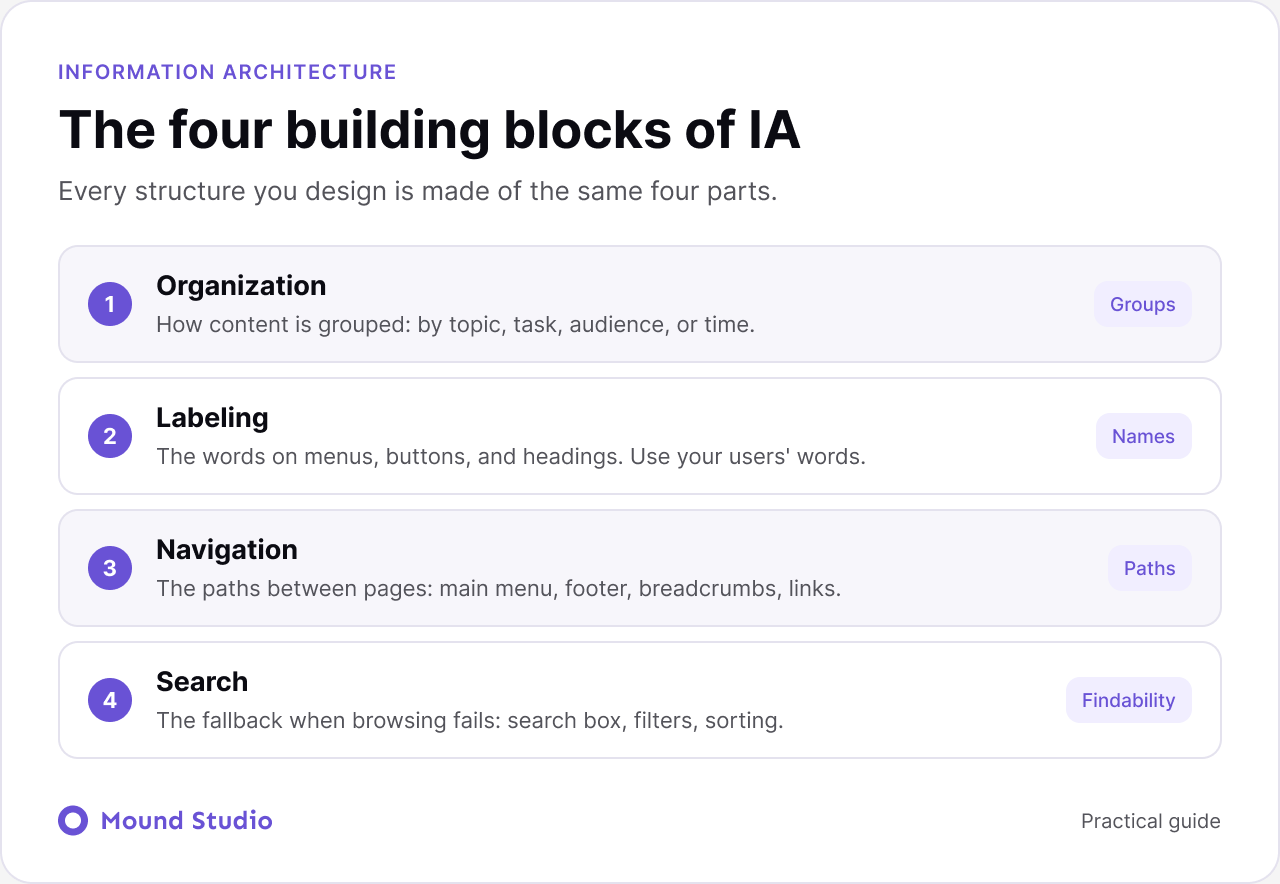
Organization is how content is grouped. You can group by topic, by task, by audience, or by time. A software product might group by task ("Create invoice", "Send reminder") while a news site groups by topic and date. The right scheme depends on how your users think about the content, not how your company is structured. Internal team names are the most common wrong answer here.
Labeling is the words on menus, buttons, and headings. Good labels are short, specific, and match the words your users already use. "Solutions" tells nobody anything. "Pricing" or "Invoicing software" does. When in doubt, use the term your customers type into a search box.
Navigation is the set of paths between pages: the main menu, footer links, breadcrumbs, in-page links, and related content. Good navigation answers three questions at any moment: where am I, where can I go, and how do I get back.
Search is the fallback when browsing fails. It includes the search box, filters, and sorting. Search does not fix a weak structure, but on large sites it is often how people with a clear goal get there fastest. Treat it as part of the architecture, not an add-on.
Start with the short answer: audit what you have, group it with real users, draw the structure, then test the structure before designing screens. Each step ends with something you can review and test, which makes the process easy to explain to stakeholders.

Before drawing anything, list every page and piece of content you have or plan to have. This is your content inventory. For each item, note who needs it and why. At the same time, write down the top tasks users come to do. On a services site those might be "see what you offer", "check prices", and "book a call". Everything in the structure should serve one of those tasks.
This step also shows what to cut. If a page has no audience and no purpose, it does not need a place in the menu. If you are reworking an existing site, our website redesign checklist pairs well with this audit.
Next, find out how your users expect content to be grouped. The best method is card sorting. You write each topic on a card, ask participants to sort the cards into groups that make sense to them, and let them name the groups. Five to ten participants is usually enough to spot clear patterns, and you should treat the results as a strong signal, not a vote.
Look for cards that almost everyone puts together, and cards that land all over the place. The second kind usually means the label is unclear or the item belongs in two places.
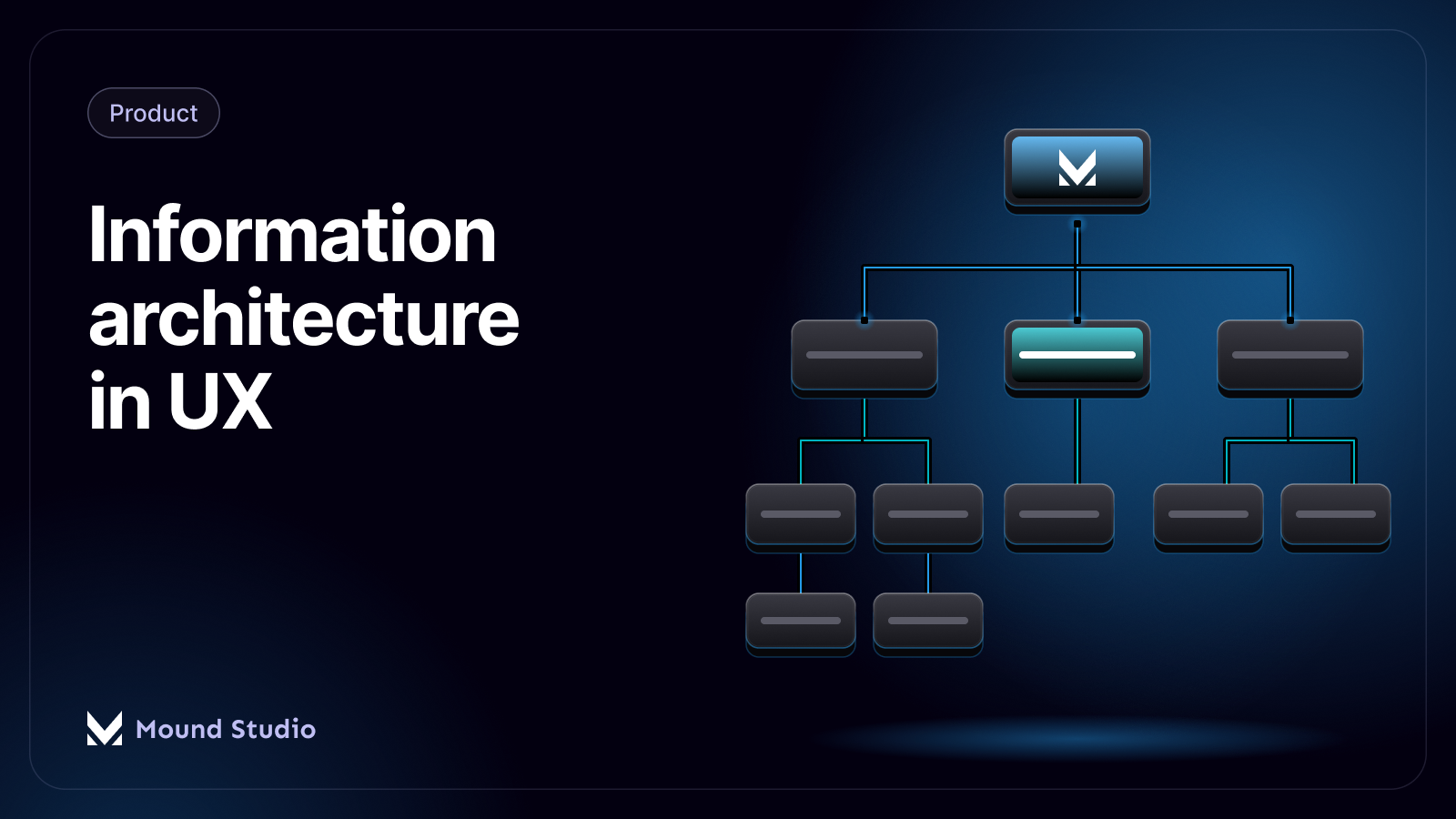
Now draw the hierarchy from the home page down to the deepest page. This is your sitemap. Keep these rules in mind:
Before you design a single screen, test the structure in plain text. A tree test shows participants only the menu hierarchy, with no visuals, and asks them to find specific items. Because there is no layout to help them, every wrong turn points at a structural problem: a bad label, a wrong group, or a buried page.
Fix what the test shows, then test again if the changes were big. It is far cheaper to move a menu item in a spreadsheet than in a finished design and a built page.
They answer different questions. Card sorting builds the structure. Tree testing checks it. Most projects use both, in that order.

| Method | Question it answers | When to use it | What you get |
|---|---|---|---|
| Open card sort | How do users group and name this content? | New site or a full restructure | Groups and label ideas in users' own words |
| Closed card sort | Does our content fit these groups? | When categories are already fixed | Which items users place in the wrong group |
| Tree test | Can users find things in this structure? | After the sitemap draft | Success rates per task and the exact wrong turns |
If time is short, do a small card sort and a tree test rather than a big card sort alone. A rough structure that has been tested beats a careful one that has not.
Different content calls for different grouping. The table below shows the schemes we reach for most often and the situations where each one works.
| Scheme | How it groups | Works well for | Watch out for |
|---|---|---|---|
| By topic | Subject matter | Blogs, help centers, learning content | Topics that overlap and confuse people |
| By task | What the user wants to do | Apps, dashboards, tools | Vague verbs that hide the real action |
| By audience | Who the user is | Sites serving very different groups | Users who do not know which group they are in |
| By time | Date or sequence | News, updates, step-by-step guides | Older content getting buried |
Many products mix schemes. A SaaS site might group its main menu by task and its resource section by topic. That is fine, as long as each area is consistent inside itself.
Imagine a design studio site with these pages: home, about, services, five service detail pages, case studies, blog, pricing guide, contact, and a careers page. A first draft built around the company's internal structure might list "Divisions" in the menu, with design, development, and strategy underneath.
A card sort would probably show that visitors think in terms of what they need: "I need a website", "I need an app design", "I want to see past work". So the revised structure puts "Services" and "Work" at the top, keeps the blog under "Resources", and moves "Careers" to the footer, since it serves a different audience. The contact page stays visible in the header because it is the top task for most visitors.
A tree test then checks tasks such as "Find out if they design mobile apps" and "Find an example of a fintech project". If people go to "Resources" for the second one, the label "Work" may need to become "Case studies". A five-minute fix in text, before any screen exists.
Labels are the smallest part of IA and often the most damaging when they go wrong. A few habits help:
A clear structure helps beyond usability. Search engines and AI assistants read your headings, URLs, and internal links to understand what each page is about and how pages relate. A logical hierarchy and descriptive labels make that easier. Consistent naming across the site also fits well with a design system, because navigation components can be reused without reinventing labels on every page.
| Your situation | Recommended approach |
|---|---|
| Small site, under about ten pages | Quick audit, a short sitemap, and a tree test with a few people |
| Growing site with a blog or help content | Full audit, an open card sort, and a tree test |
| Large product or complex app | Audit, card sorts per area, tree tests, and a review after launch |
| Redesign of an existing site | Audit with analytics, a tree test of the current structure, then a card sort to fix the gaps |
Good information architecture is invisible. Users find what they need and never think about why. Build it in four steps, audit, group, structure, and validate, and test it before you design a single screen.
Planning a website or product and want the structure right from the start? Talk to us about your project and we will map it with you.
It is the way content is organized, named, and connected so people can find what they need. Think of it as the shelving system and signage of a library, not the building's decoration.
Navigation is what users click, such as menus and breadcrumbs. IA is the thinking behind it: what the groups are, what they are called, and how pages relate.
Five to ten participants is usually enough to see clear patterns. Treat the results as a strong signal to guide decisions, not as a vote.
Do both when you can. A card sort helps you build the structure, and a tree test checks whether people can find things in it. If time is short, run a small version of each.
Review it whenever the content grows, a new product or service is added, or analytics and support questions show people cannot find something.


.png)