






.avif)
.avif)
.avif)


Website
Website Accessibility Checklist for 2026: A Practical WCAG 2.2 Guide

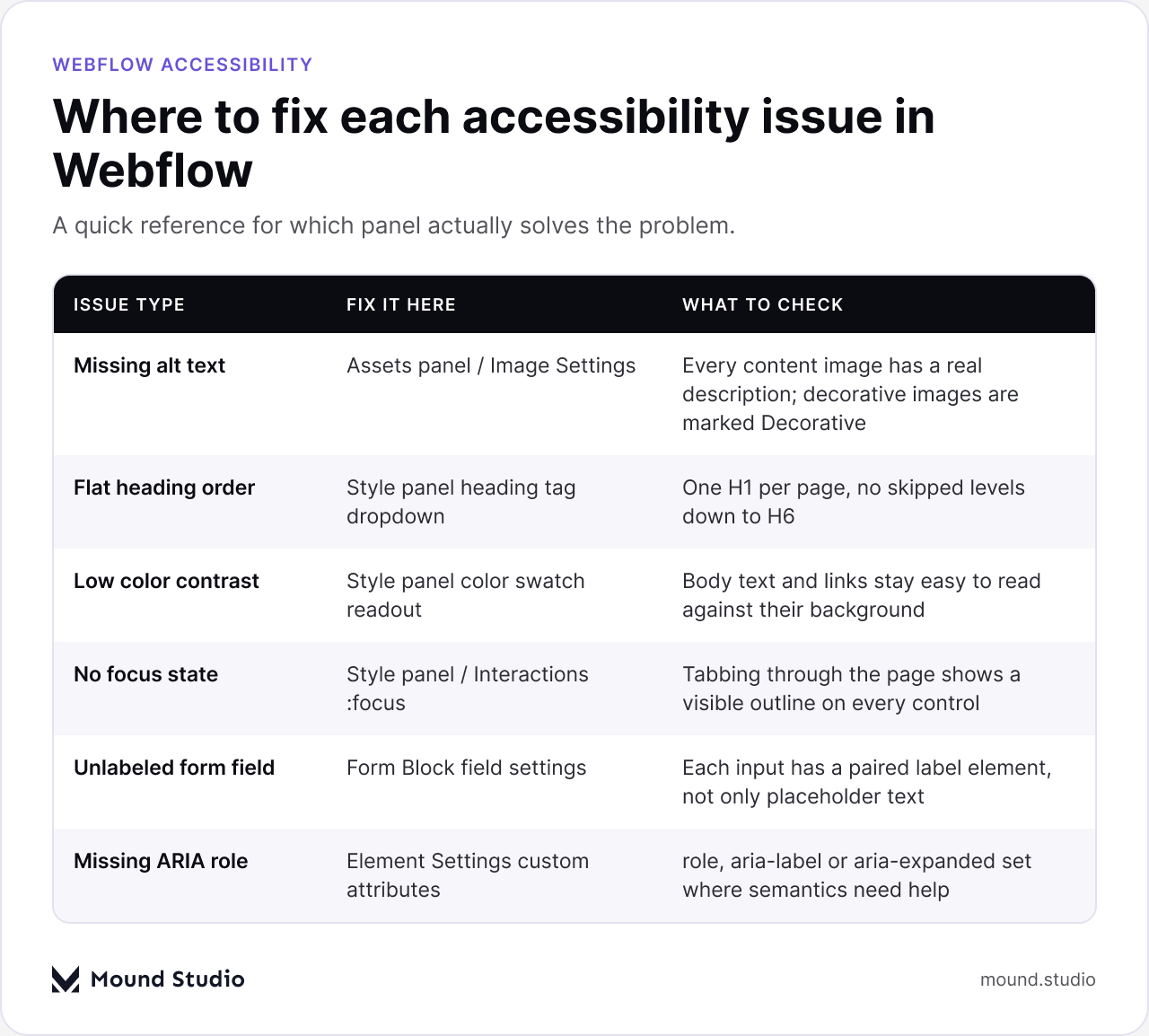
You do it inside the Designer, not with a separate plugin: write real alt text in the Assets panel and on CMS Image fields, assign heading levels and landmark elements from the Style and Add panels, read the computed contrast ratio off the color swatch, style a visible focus state instead of deleting it, label every form field, add ARIA attributes through the custom attributes field in Element Settings, and walk the published page with a screen reader before you hand it off. None of this needs a third-party accessibility plugin. It needs you to use the panels Webflow already gives you, in the right order, every time.
We build and rebuild client sites in Webflow every week, and accessibility gaps show up in almost the same few places: unlabeled images pulled from a CMS collection, headings picked for their font size instead of their rank, buttons with no visible focus ring, and forms with placeholder text standing in for a label. Below is how we close each of those gaps directly in the tool, plus the checks we run before a project ships.
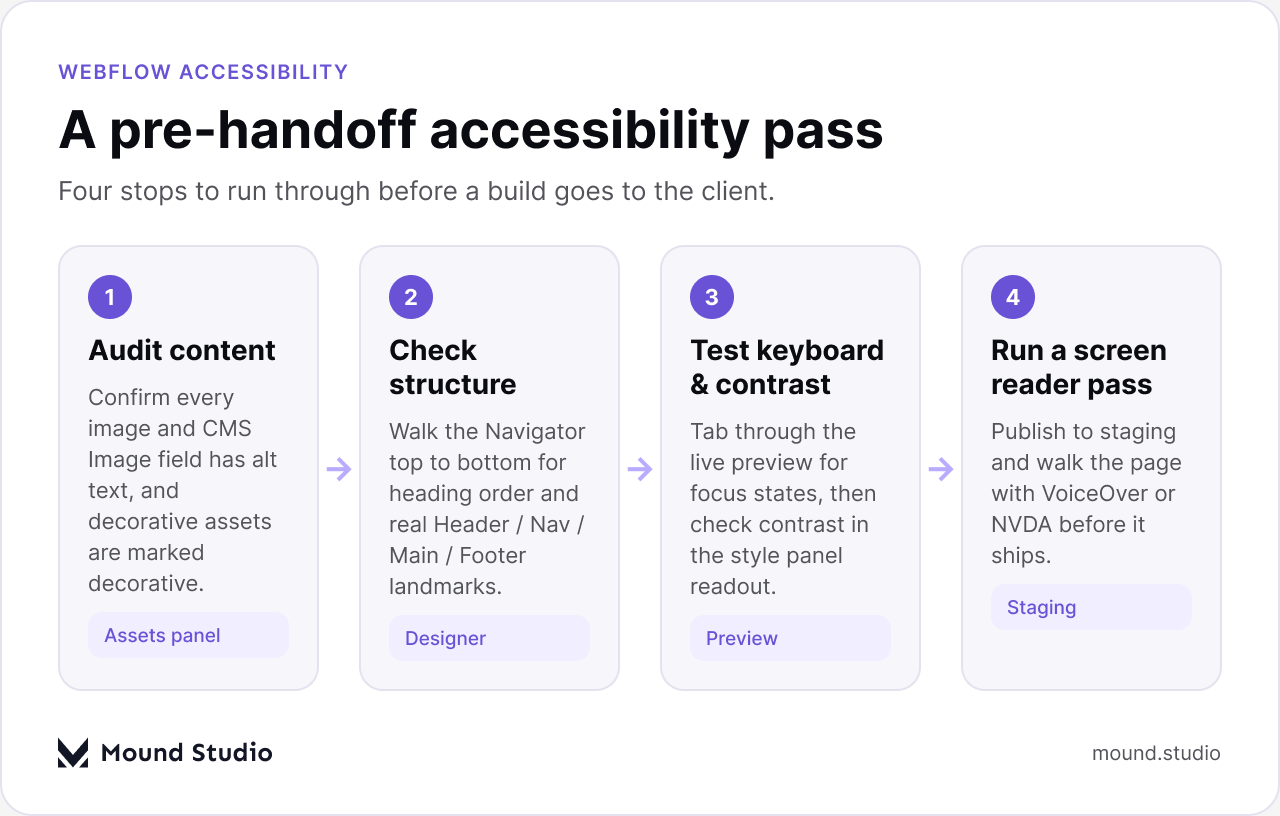
Alt text is the first thing to fix because it is the easiest to skip. In the Designer, open the Assets panel, select an image, and click the small settings icon that appears on hover. That opens a field labeled Alt Text, separate from the file name. Write a short, specific description of what the image shows or does - "team reviewing a wireframe on a whiteboard," not "image1." If the image is purely decorative - a background texture, a divider graphic - mark it Decorative instead of leaving the field blank. A blank field is not the same as marking it decorative: some screen readers fall back to reading the file name when a required alt attribute is simply empty.
CMS-driven images need the same treatment, but in a different place. Every CMS Image field used inside a Collection List or Collection Page has its own Alt Text setting, usually bound to another text field in the collection (an "image-alt" field is a common pattern) so editors fill it in when they add a new item. Set that binding once when you build the collection, and alt text becomes part of the content workflow instead of a thing someone has to remember after launch.
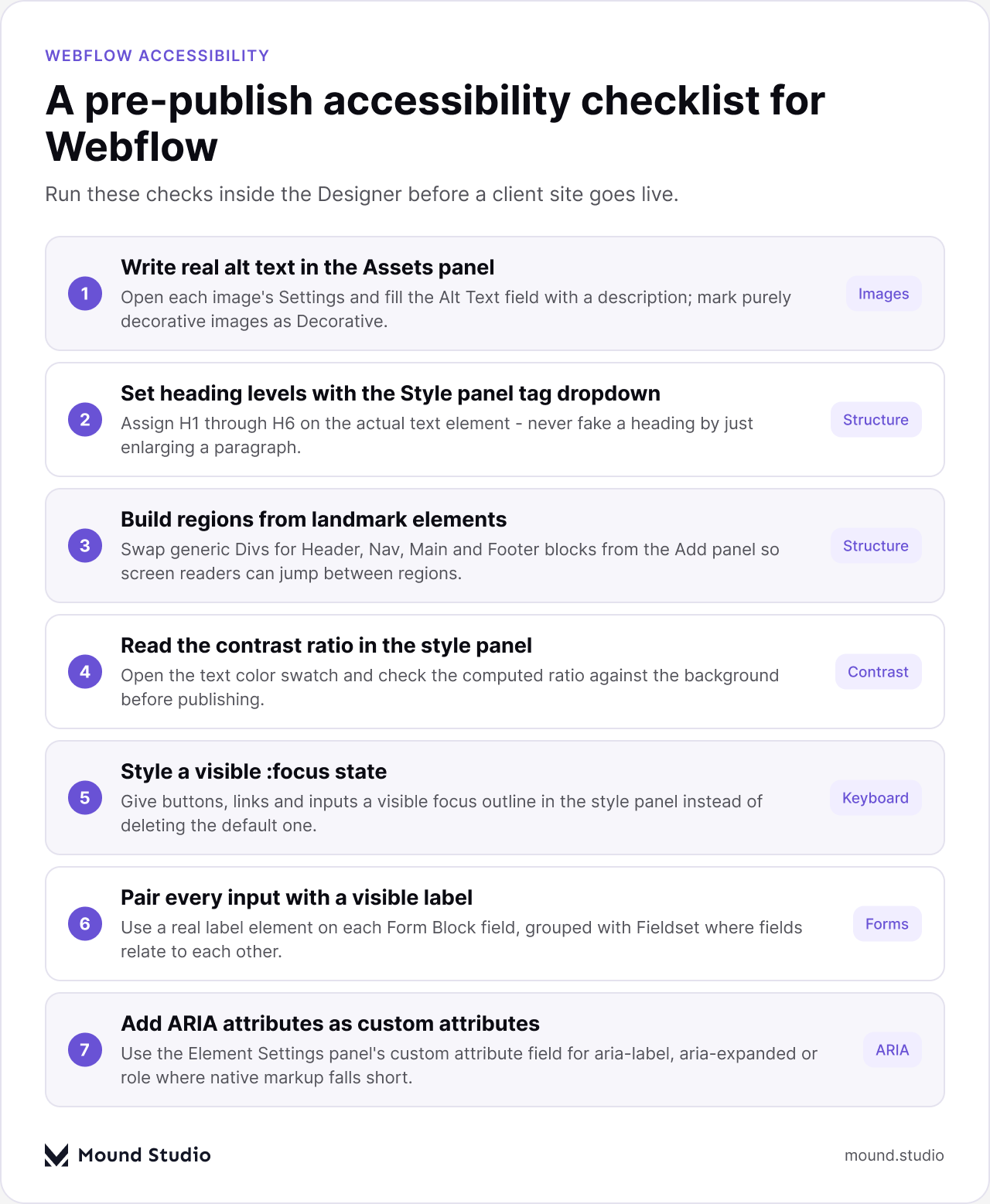
Every text block in Webflow has a Tag dropdown in the Style panel - Paragraph, H1 through H6, and a few others. That dropdown is what actually creates the semantic heading, and it is separate from font size. A common mistake is styling a paragraph to look big and bold and calling it a heading visually, while the underlying tag stays a Paragraph. A screen reader user navigating by headings never sees it. Set the tag first, then style it; never the other way around.
Keep the order sane: one H1 per page (usually the page title), then H2s for main sections, H3s nested under the H2 they belong to, and so on. Don't skip from H2 straight to H4 because the H4 size happens to look right - change the size with a class, not by borrowing the wrong tag.
Landmark elements work the same way. The Add panel has dedicated Header, Nav, Main, Footer, Section and Aside blocks sitting right next to the plain Div Block. Swapping a few Divs for the matching landmark element costs nothing visually - they're unstyled by default - but it gives screen reader users a way to jump straight to the navigation or the main content instead of tabbing through the whole page. On a typical Webflow page, that's a Nav for the navbar, a Main around the page's primary content (outside the header and footer symbols), and a Footer for the footer symbol.
| Element | Use it for |
|---|---|
| Header | Top-of-page banner or the global navbar wrapper |
| Nav | The actual link list inside the navbar or a sidebar menu |
| Main | The page's unique content, once per page |
| Section | A distinct content block worth naming, like "Pricing" or "FAQ" |
| Footer | The global footer symbol |
You don't need to leave the Designer to check contrast. Click a text element, open its color swatch in the Style panel, and Webflow shows the contrast ratio against the background color directly underneath the swatch, along with a pass or fail indicator for standard text sizes. Check this on body copy, links, button labels, and form placeholder or helper text - anything a visitor needs to read.
Two places this breaks in practice: text sitting on a background image or gradient (the swatch can only check against a flat background color, so verify those manually against the darkest and lightest parts of the image), and light gray "muted" text styles that look fine to a designer on a bright monitor but fail against an off-white background. When a ratio comes back borderline, darken the text or lighten the background by one or two steps rather than leaving it as a judgment call.
Every interactive element - links, buttons, form inputs, custom dropdown triggers - needs a focus state a keyboard user can actually see. Webflow lets you style the Focus state from the state dropdown at the top of the Style panel, the same place you'd set Hover. Give it a visible outline or a distinct border and background shift; don't just leave the browser default, but also don't remove it with outline: none and replace it with nothing.
Where this goes wrong with Interactions specifically: an interaction built to trigger "While hovering" alone and nothing else leaves keyboard users with no way to see that a card or menu has opened. Add a matching trigger on focus (or build the interaction off a click/tap trigger instead of hover) so a tab-and-enter user gets the same feedback a mouse user does. Dropdowns and custom toggles built from Divs instead of native form elements are the riskiest case - test every one of them with the mouse put away and only the Tab and Enter keys in hand.
Webflow's Form Block generates a real label element for each field by default when you use the built-in field names - keep that label visible. Swapping it for placeholder text alone is the single most common accessibility regression we see on client forms: placeholder text disappears the moment someone starts typing, and it isn't read reliably by every screen reader in every browser.
Native HTML elements carry most of the semantics you need automatically, but a few interactive patterns - accordions, custom tabs, modals built from Divs - need ARIA to fill the gap. Webflow exposes this through Element Settings: open the panel (the gear icon), scroll to Custom Attributes, and add a name/value pair. No code embed required.
| Attribute | What it does | Typical use in Webflow |
|---|---|---|
| aria-label | Gives an element an accessible name when there's no visible text | An icon-only button, like a close "X" or a search icon |
| aria-expanded | Tells a screen reader whether a collapsible panel is open or closed | FAQ accordion triggers, dropdown menu buttons |
| aria-hidden | Hides a purely decorative element from screen readers | A decorative icon sitting next to text that already says the same thing |
| role | Tells assistive tech what kind of control a generic Div is acting as | A custom-built button or tab made from a Div instead of a native element |
Set these once on the element (or on the Symbol, so every instance inherits it), and keep values in sync with the Interaction that actually opens or closes the panel - an aria-expanded value that never updates is worse than not having it at all, because it actively tells screen reader users the wrong state.
Automated checks and a visual pass catch maybe half of what matters. The rest only shows up when you actually listen to the page. Publish the build to a staging subdomain, then walk through it with VoiceOver (built into macOS, Cmd+F5 to toggle) or NVDA (free, for Windows). You don't need to be fluent in either - run through the homepage and one or two key templates using just Tab, Shift+Tab, and Enter, and listen for three things: does every link and button announce something meaningful, does the heading order make sense when you jump by headings, and does focus ever get trapped or disappear entirely inside a modal or menu.
Do this pass on a CMS template page too, not only static pages - a Collection List that looks fine with real content can still have an empty alt text binding or a missing heading tag that only shows up once you listen to it rather than look at it.
Use this as a last pass, template by template, before you move a project to Ready to Publish.
| Check | Looks like a pass | Looks like a fail |
|---|---|---|
| Images | Every content image has alt text; decorative ones are marked Decorative | Alt fields left blank or filled with the file name |
| Headings | One H1, logical H2/H3 nesting, no level skipped for size | Headings chosen because of how big the text looks |
| Contrast | Style panel shows a pass on body text, links and button labels | Light gray text sitting on an off-white card background |
| Keyboard | Tab order is logical; every control shows a visible focus state | Focus outline removed globally; custom dropdowns untestable by keyboard |
| Forms | Visible labels, grouped fields, specific error text | Placeholder-only fields; generic red border with no message |
| Screen reader | A VoiceOver or NVDA pass confirms announcements make sense | Never tested with a screen reader before launch |
Doing all of the above makes a site meaningfully easier to use for people relying on a screen reader, a keyboard, or a low-vision setup - it does not, on its own, mean a site has been tested against the full WCAG standard or certified as compliant with any accessibility law. Treat this as the baseline you build on top of in the Designer, not as a substitute for a dedicated accessibility audit when a client specifically needs one for legal or procurement reasons. We build the baseline into every project; for sites with stricter obligations, we recommend pairing it with a specialist review.
Webflow accessibility work mostly lives in panels you already use every day: Assets for alt text, the Style panel's tag dropdown and color swatch for structure and contrast, the state dropdown for focus, the Add panel for landmark elements and form fields, and Element Settings for ARIA attributes. Run the checklist above before every handoff and most of the common gaps close themselves before a client ever sees them. If you want a second pair of eyes on an existing Webflow site, or a new build set up with this baked in from the first page, talk to us about your project.
Related reading: see how this fits into our broader Webflow CMS best practices, how accessible structure affects site speed, and what we check in a full UX audit.
Webflow doesn't ship a single built-in audit tool, but it gives you the pieces to check accessibility yourself: a contrast ratio readout on every color swatch, an Alt Text field on every image and CMS Image field, and a Tag dropdown that sets real heading levels. Using those consistently covers most of what a standalone checker would flag.
Open the collection's schema, add or confirm an Image field, and bind its Alt Text setting to a plain text field in the same collection - something like "image-alt" - so every new CMS item carries its own description without a developer touching the template again.
You can remove the default outline, but only if you replace it with another visible focus style on the Focus state in the Style panel. Removing it and leaving nothing in its place makes the site unusable for anyone navigating by keyboard.
Select the element, open Element Settings, and add a Custom Attribute with the ARIA name (like aria-label or aria-expanded) and its value. No code embed or custom code is required for most patterns.
No. It closes the most common gaps we see on client sites and makes a build meaningfully easier to use, but compliance with a specific standard or law is a separate, formal audit - don't present this work as a compliance guarantee.



.png)