







.avif)
.avif)
.avif)

Webflow
Webflow vs WordPress in 2026: Which Should You Choose?

Start with the heaviest things on the page, not the smallest. On most slow Webflow sites the cause is oversized images, too many font files, stacked third-party scripts, or heavy animation, roughly in that order. Fix images and fonts first, remove scripts nobody uses, simplify motion, then test on a real phone. Webflow gives you a fast starting point, so when a site is slow, it is nearly always something added on top.
This guide walks through the 8 fixes we check first when a client asks why their site feels slow, in the order that tends to help most. It also covers how to measure, what to leave alone, and the mistakes that waste the most time.
A slow page makes people leave before they read anything. On a marketing site that means fewer enquiries, and on a shop it means fewer orders. Speed also shapes how the site feels: pages that jump around while loading look untrustworthy, even when the content is good.
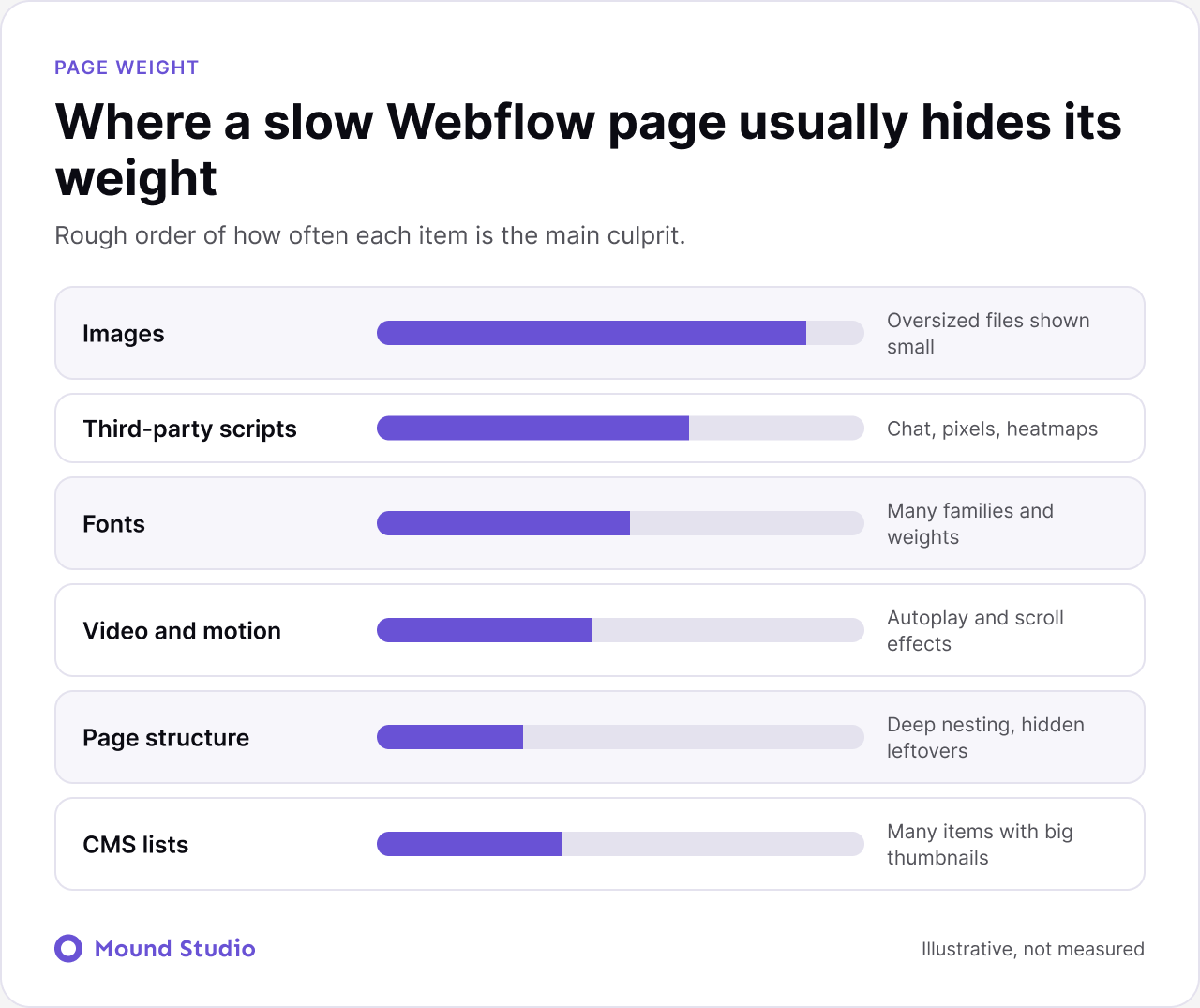
Before changing anything, find out where the weight sits. The infographic below shows where slow Webflow pages usually hide their load. The bars are a rough guide to how often each item is the main culprit, not measured data.
Measure first so you can prove the fixes worked. Use two kinds of tools together, because each shows something different.
| Tool | What it shows | When to use it |
|---|---|---|
| PageSpeed Insights | Mobile and desktop scores, plus a list of specific warnings | Before and after every round of fixes |
| Lighthouse in Chrome | The same checks, run on your own machine with more detail | While you work on one page |
| A real phone on mobile data | How the page feels to a visitor on a normal connection | Final check before you call it done |
Write down the slowest pages and the top three warnings. Test the homepage and one page of each template, such as a blog post and a service page. A slow template affects every page built from it.
Images are the biggest culprit by far. A photo exported at full camera size and shrunk on the page still downloads at full size. Before uploading:
Check background images too. A full-width hero that is bigger than any screen only slows the page down.
Yes, for anything below the fold. Set lower images to load lazily, so the browser fetches them only when someone scrolls near. Keep the main image at the top of the page on eager loading, so it appears without delay. Getting this backwards is a common mistake: a lazy loaded hero image makes the page feel slower, not faster.
One or two families is usually plenty. Every family and every weight is a separate file. A site loading four families in six weights each is doing far too much work. Pick the weights you actually use, such as regular and bold, and drop the rest. Fonts you host, or load from a trusted source with proper display settings, also avoid text that jumps when the font arrives.
Chat widgets, analytics, heatmaps, pop-ups, and tracking pixels all run on top of your page. Open your site settings and custom code, and ask of each script: do we still use this, and does anyone look at the data? Remove what nobody checks, and load the rest as late as possible. A tool a previous marketer installed and nobody remembers is the classic example.
They can, especially on phones. Scroll effects and autoplaying video look great and cost a lot. Keep motion purposeful, avoid animating dozens of elements at once, and use compressed video or a still poster image instead of a large file playing on load. Test animations on a mid-range phone, not only on a fast laptop.
A deep, heavily nested layout with hundreds of elements takes longer to render. Reuse classes and components, remove hidden or leftover sections, and avoid stacking many wrappers when one will do. A tidy build is faster and easier for the next person to maintain.
A collection list that loads dozens of items with large images on one page adds up fast. Limit items per page, use pagination or a "load more" pattern, and make sure thumbnails are sized properly. Blog index pages are the usual offenders.
Your laptop on office wifi hides problems. Open the site on a real phone with mobile data. Watch how long until the main content appears, and whether things shift while loading. Then run PageSpeed Insights again and compare with your first result.
Picture a services site with a homepage, a handful of service pages, and a blog. It feels slow on a phone. The homepage has a full-width hero photo, a background video, three font families, a chat widget, and an analytics tag from an old campaign. Nothing on the list is unusual, and that is the point: slow sites are rarely broken, they are crowded.
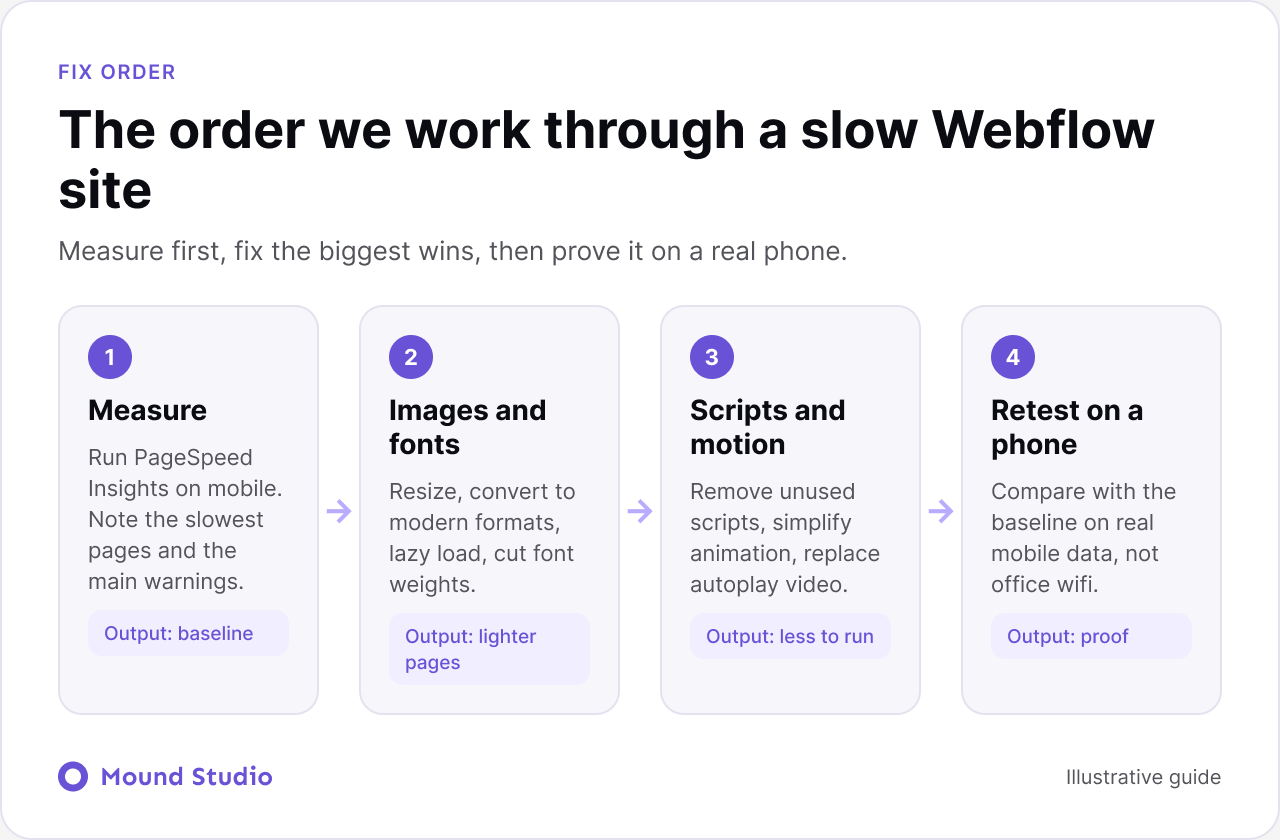
We would work through it in this order. First, measure the homepage and one blog post on mobile and write down the warnings. Second, replace the hero photo with a properly sized file and keep it on eager loading. Third, swap the background video for a poster image with a short clip on demand. Fourth, cut the fonts to two families. Fifth, remove the old analytics tag and load the chat widget later. Then measure again. Each step is small, and together they change how the site feels.
Look at both the numbers and the experience. The score should move in the right direction, but the more useful check is watching the page load on a phone. Does the main content appear quickly? Does anything jump while loading? If the answer is yes to the first and no to the second, the fix worked, whatever the exact score says.
Some scripts cannot be removed. Analytics, consent banners, and booking tools are often needed. For these, the goal is to reduce the cost, not to delete them.
Keep a short list of every script on the site, who asked for it, and why. That list makes the next review take minutes instead of hours.
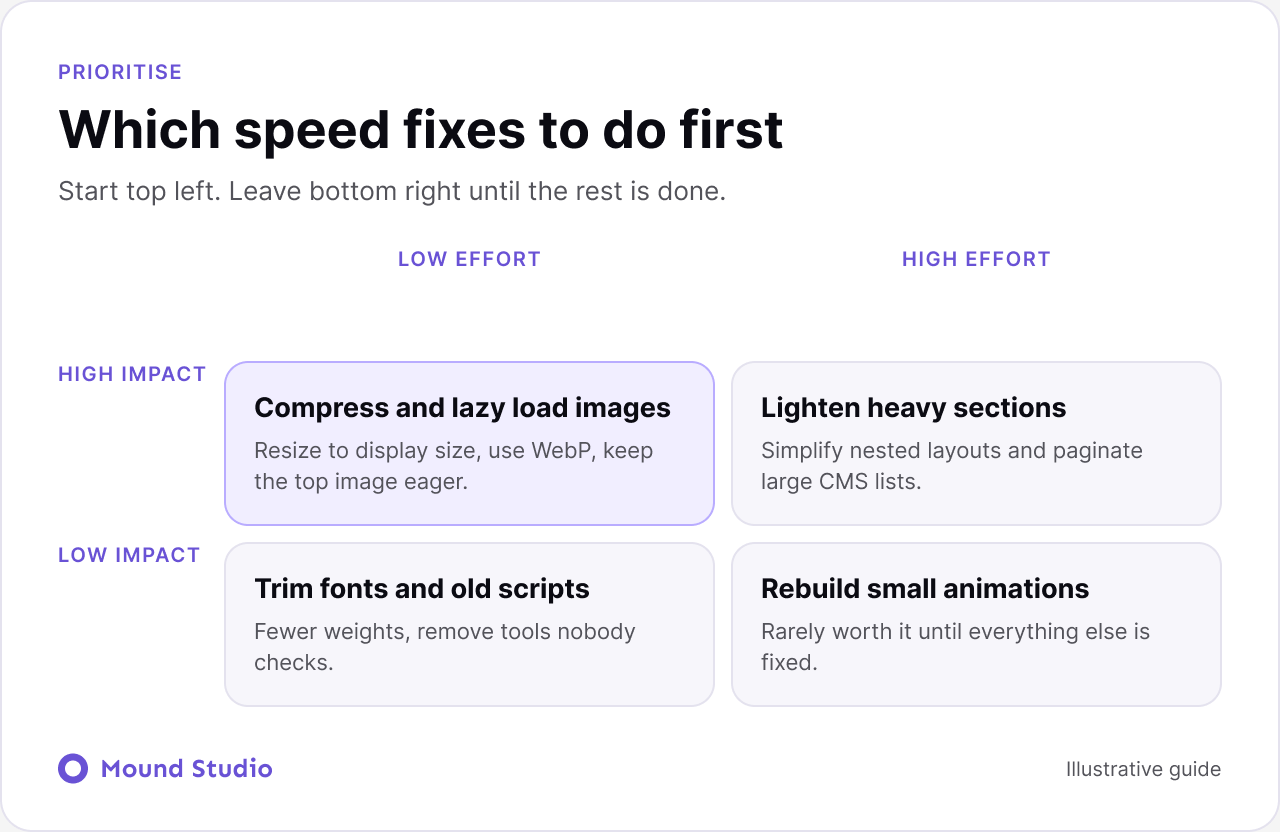
Not every fix is worth the same effort. Sort them by impact and effort, and start with the top left.
Use this table as a quick reference when you review a page.
| Asset | Common problem | Fix |
|---|---|---|
| Photos | Full camera size shown small | Resize to display size, use WebP |
| Hero image | Lazy loaded, so it appears late | Set to eager, keep the file light |
| Fonts | Many families and weights | Keep one or two families, few weights |
| Video | Large file autoplays on load | Compress, or use a poster image |
| CMS lists | Dozens of items with large images | Paginate, size thumbnails properly |
| Scripts | Old tools nobody checks | Remove, or load them later |
Compressing until the image looks poor. Smaller is not always better. If a hero image looks blurry, visitors notice that before they notice a faster load. Aim for a file that is light and still sharp at its display size.
Hiding the problem with a loading screen. A spinner that covers the page while it loads does not make the site faster. It adds a step before the content appears. Fix the cause instead.
Optimizing one page and forgetting the template. If a blog template loads a heavy image or script, every post inherits it. Fix the template once and every page improves.
Speed sits alongside structure, content, and search. A fast site with confusing pages will not do much, and well-written pages on a slow build lose readers early. When you work on speed, it is a good moment to review your titles, descriptions, and headings too, and our Webflow SEO checklist lists what to check. If motion is part of your design, our Webflow animations guide explains how to keep it light.
Check after every large change: a new section, a new plugin, a batch of blog posts with big images, or a redesign. Between those moments, a quick check once a quarter is enough for most sites. If you have several people adding content, add one simple rule to your publishing routine: resize images before uploading. That single habit prevents more slowdowns than any later clean-up.
Speed helps users and gives search engines a better experience to reward, but it does not replace good content or clear messaging. A fast page that says nothing useful still will not convert. If the whole build is heavy and hard to edit, a rebuild may be faster than patching, and our website redesign checklist shows how to plan one. If you also want your site easier for AI tools to read, our guide on optimizing for AI search covers that side. And if you are still choosing a platform, see Webflow vs WordPress.
Most Webflow speed problems are fixable without a rebuild. Start with images and fonts, remove what you do not need, and test on a real phone. Small, steady fixes add up.
Want a second opinion on why your site feels slow? Send it over and we will take a look.
Usually because of oversized images, many font files, third-party scripts, or heavy animations. Check those before anything else, starting with the images on your homepage.
Webflow serves sites from a global network, which gives a solid baseline. Most speed problems come from what is on the page, not the hosting.
PageSpeed Insights and Lighthouse are common choices. Compare results on mobile, since that is where slow pages show up most, and confirm with a real phone.
Speed is one signal among many. It helps user experience, which is a good reason to fix it either way. Content and structure still matter more.
No. Lazy load images below the fold, and keep the main image at the top on eager loading so it appears immediately.



.png)