







.avif)
.avif)
.avif)

Webflow
Webflow Site Speed: 8 Practical Fixes to Improve Performance

Yes. Webflow produces clean code, hosts sites on a fast global network, and gives you direct control over titles, meta descriptions, sitemaps, redirects, and structured data without plugins. But good tools do not rank a site on their own. Many Webflow sites launch with missing descriptions, duplicate titles, and CMS pages that all share the same snippet.
This checklist walks through the settings that make the biggest difference, in the order we check them on client projects. Use it before launch, and again after any big redesign.
To optimize a Webflow site for SEO, make sure indexing and the sitemap are on, give every page a unique title and meta description, connect SEO fields to your CMS templates, use a clean heading structure, keep pages fast, add alt text, set up 301 redirects for moved URLs, and add structured data where it fits.

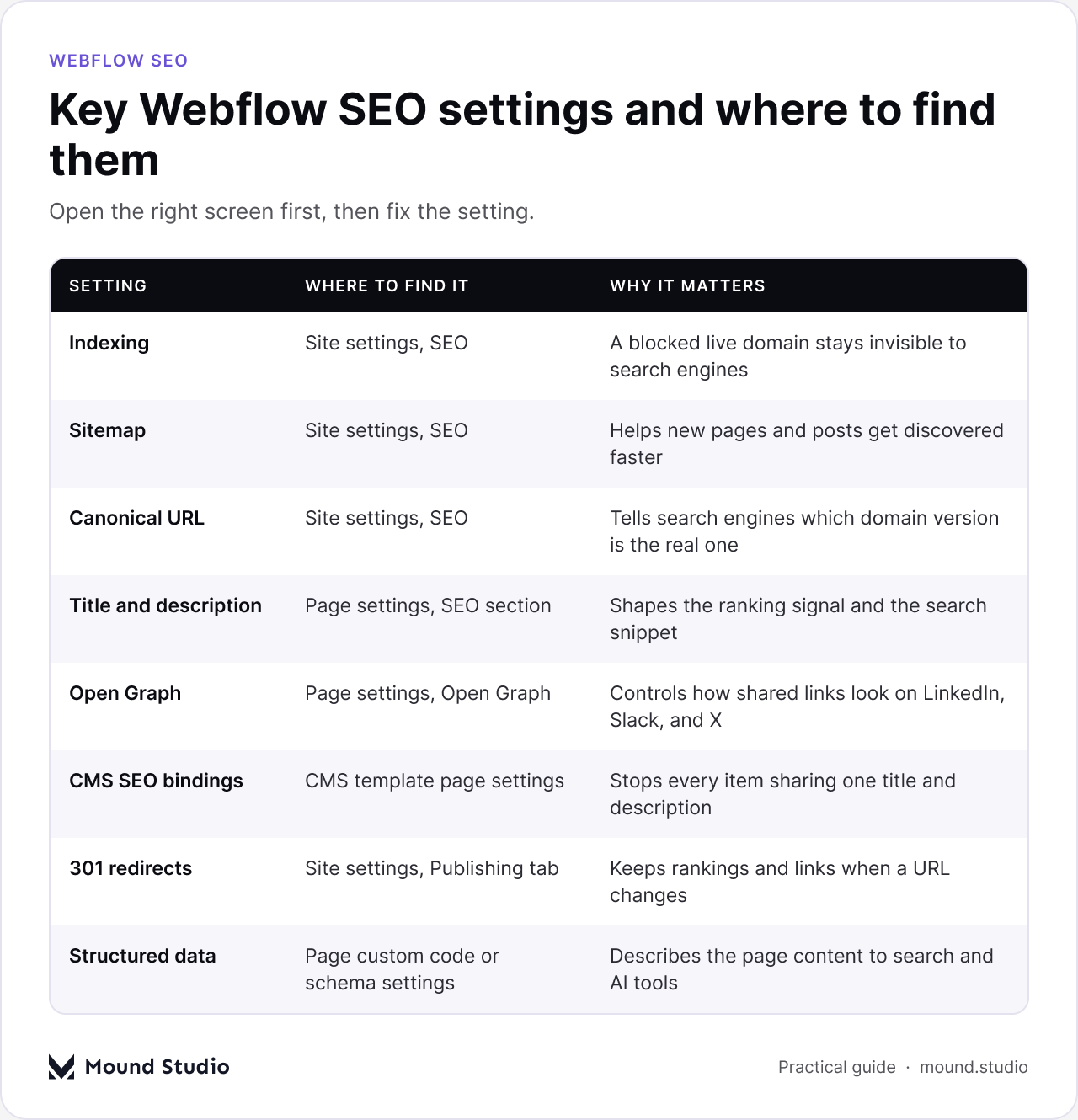
In Site settings, check that search engine indexing is not disabled for your live domain. It is common to block indexing on a staging domain during the build and forget to switch it back. If a new site gets no impressions after a few weeks, this is the first thing to check.
Webflow can generate and update a sitemap automatically. Turn it on, then submit it in Google Search Console so new pages and blog posts are discovered faster.
Choose one version of your domain, with or without www, and set it as the default. Add the global canonical URL in the SEO settings so search engines know which version is the real one. Also confirm that your staging address is not indexed as a duplicate of your live site.
The title tag is one of the strongest on-page signals, and the meta description shapes your search snippet. Keep titles around 50 to 60 characters with the main keyword near the start. Keep descriptions under about 155 characters and write them as a clear promise, not a list of keywords.
A simple formula works for most pages. For the title, use the main topic first, then a short qualifier, such as "Webflow Development for SaaS Teams". For the description, say what the page covers, who it is for, and what they can do next. Read it out loud. If it sounds like a list of keywords, rewrite it.
Open Graph settings control how your page looks when it is shared on LinkedIn, Slack, or X. A clear image and title make shared links more likely to be clicked.
Use short, lowercase slugs with hyphens that describe the page, such as /webflow-development. Avoid changing slugs after launch. If you must, add a redirect.
The table below summarizes what good looks like for the main page-level elements, and the mistakes we see most often.
| Element | Good practice | Common mistake |
|---|---|---|
| Title tag | Unique, keyword first, about 50 to 60 characters | The same title on many pages |
| Meta description | Clear promise under about 155 characters | Left empty, or stuffed with keywords |
| Open Graph image | A clear image set for every key page | No image, so shared links look blank |
| Slug | Short, lowercase, describes the page | Long slugs or changed after launch |
| H1 | One per page, states the main topic | Several H1 tags, or none at all |
| Alt text | Short sentence describing the image | Empty, or the file name |
This is the step most Webflow sites miss. On each CMS template page, bind the SEO title, meta description, and Open Graph image to fields in the collection. Otherwise every blog post or case study can end up with the same title and description. Add dedicated SEO title and meta description fields to the collection so editors can write them for each item.
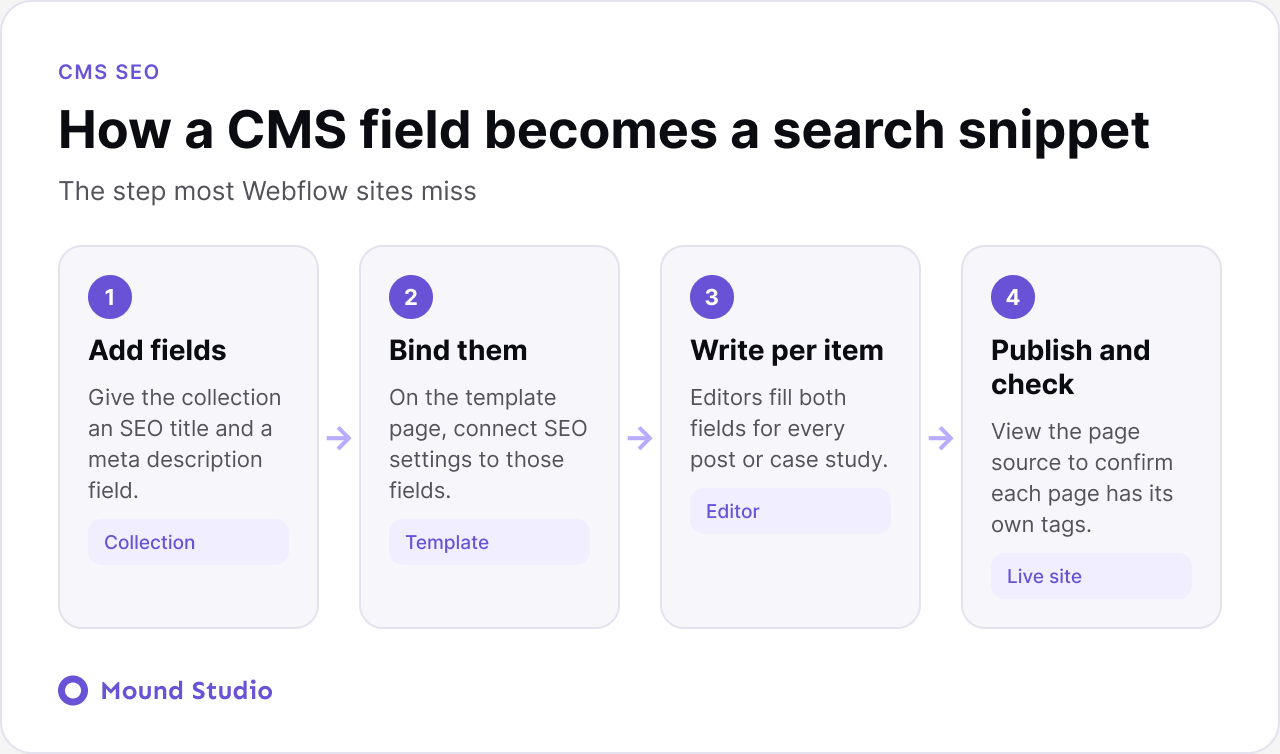
After you bind the fields, open two or three published items and check the page source. Each one should show its own title and description. If they match, the binding is not connected yet.
Take a typical blog on Webflow with about forty posts. Every post was published with only a name and a body, so the site falls back to the same default title pattern and no description. In search results the posts look almost identical, and Google picks its own snippet from the page text, which is rarely the one you would choose.
The fix takes four steps. First, add an SEO title field and an SEO description field to the collection. Second, bind those fields on the template page, with a fallback to the post name if the SEO title is empty. Third, have an editor fill in the two fields for the posts that matter most, starting with the ones that already get visits. Fourth, view the source of three published posts and confirm each one shows its own title and description.
You do not need to rewrite all forty at once. Work through them in order of value, and make the fields part of the publishing routine so new posts never go out without them.
Each page should have one H1 that states the main topic, followed by H2 and H3 headings that break the page into clear sections. Webflow makes it easy to style text to look like a heading without using a heading tag, so check the tags, not just the look.
Alt text helps screen reader users and gives search engines context for images. Describe what the image shows in a short sentence. Decorative images can be marked as decorative.
Internal links help visitors and search engines understand how your content fits together. Link blog posts to related posts and to the service pages they support. Use descriptive link text, such as "Webflow site speed guide", instead of "click here".
Compress images, use modern formats like WebP, limit custom fonts, and be careful with third-party scripts and heavy animations. Our Webflow site speed guide covers the most common fixes.
Whenever a URL changes or a page is removed, add a 301 redirect in the Publishing tab of Site settings so you keep the rankings and links that page earned. Then add JSON-LD structured data, such as Organization, Article, or FAQ schema, where it matches the content on the page.
Redirects matter most during a rebuild. If you are moving from another platform, our guide to WordPress to Webflow migration explains how to map old URLs to new ones.
Decide the destination for every old URL before you publish. The goal is to send each visitor, and each search engine, to the closest matching page. Never send everything to the home page.
| Situation | What to do | Watch out for |
|---|---|---|
| Slug changed | 301 from the old path to the new one | Add it the same day you publish |
| Page removed, close replacement exists | 301 to the most related page | Do not point it at the home page |
| Page removed, no replacement | Redirect to the parent section or let it return a 404 | Keep the 404 page helpful |
| Site rebuilt or moved platforms | Map every old URL to its new match in a list | Test the whole list after publishing |
After publishing, click through ten or so old URLs from your list and confirm each lands on the right page in one step. Chains of redirects slow pages down and waste the value of the old link.
You can catch most problems without special tools. Set aside an hour and follow this order.
Write down what you find and fix the items that affect the most pages first. A missing title on a template affects every item, while a missing alt tag affects one image.
Most of them come from how a site is built. During a build, the team looks at the design, not the source. The staging domain is blocked from search on purpose. Content is placeholder text. Then launch day arrives and the checklist is squeezed into the last hour.
The way around it is to treat SEO as part of the build, not a step after it. Add the CMS fields when you create the collection. Write real titles as you write real copy. Plan redirects when you plan the new structure. If you are unsure how the site should be organized, our information architecture guide is a good place to begin.
Small habits also help. Give one person the job of running this checklist before every launch, and keep the list somewhere the whole team can see it.
Launching is the start of the work, not the end. A simple routine catches problems early.

Run the full list before launch and again after any redesign, migration, or change to your CMS structure. In between, a lighter check every few months is enough for most sites. Look at the Pages report in Search Console, review titles on pages with many impressions and few clicks, and confirm new CMS items have their SEO fields filled in.
Two related areas are worth checking at the same time. Accessibility work such as alt text, heading order, and link text helps search engines as well as people, and our website accessibility checklist covers it in detail. If you plan to add schema markup beyond the basics, read structured data for AI search first, so the markup matches what is on the page.
AI assistants increasingly answer questions before people click. The same basics help there: clear headings, direct answers near the top of the page, FAQ sections, and structured data. Read our guide to optimizing your website for AI search for the next step.
Webflow gives you the controls, and the ranking comes from using them on every page. Want an expert review of your setup? Our Webflow development team can audit your site and fix what is holding it back, and you can get in touch to start.
Yes. Webflow offers clean code, fast hosting, and built-in control over titles, meta descriptions, sitemaps, redirects, and structured data. Results still depend on content and correct setup.
Open the page settings, go to the SEO section, and enter the meta description. For CMS templates, bind the description to a CMS field so each item has its own.
Yes. You can turn on the auto-generated sitemap in Site settings under SEO. Submit it in Google Search Console after launch.
Go to Site settings, open the Publishing tab, and add 301 redirects from the old path to the new one. Publish the site for them to take effect.
Yes. You can add JSON-LD structured data in the page custom code or the page schema settings, and use CMS fields to generate it dynamically for collection pages.


.png)