






.avif)
.avif)
.avif)

Webflow
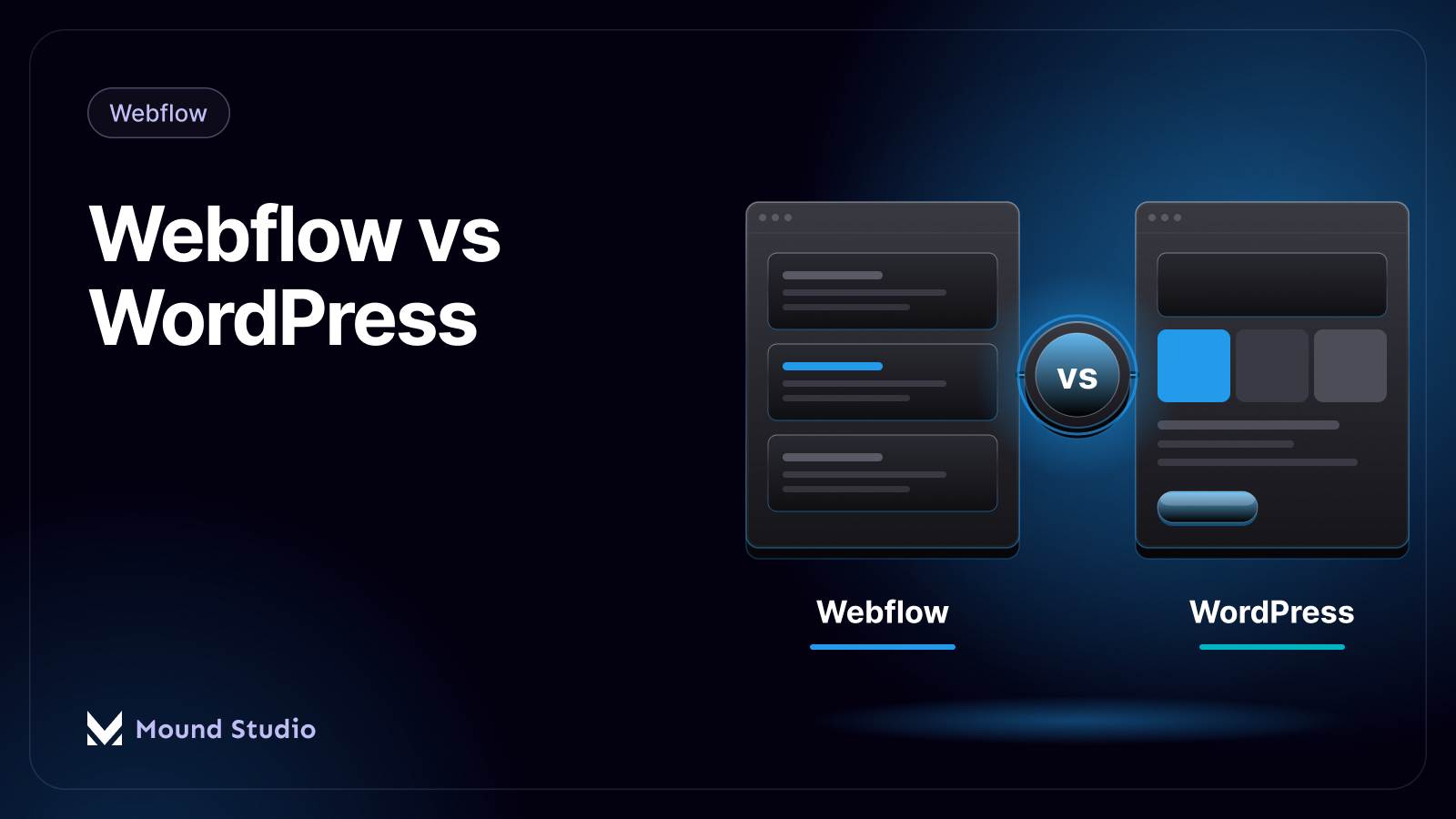
Webflow vs WordPress in 2026: Which Should You Choose?
You migrate in four stages: audit the old site, map every URL, rebuild and import the content, then redirect and launch. The work is not hard, but it is unforgiving about order. Skip the audit and you forget a plugin. Skip the URL map and you lose rankings. This guide walks through the process we follow, with the tables and checklists we use on real projects.
People move from WordPress to Webflow for a few common reasons: they want more control over design, they are tired of updating plugins and fixing security problems, or they want their marketing team to edit pages without breaking the layout. If those sound familiar, migration can be a good move.
If your site depends on a very large content library, memberships or deep plugin features, check that Webflow can cover them first. Our Webflow vs WordPress comparison helps you decide, and it is worth reading before you commit budget.
Most of the risk sits in the first two stages and the last one. The middle stage, the rebuild, is the part everyone pictures, and it is rarely where migrations fail.

| Stage | What you do | Output |
|---|---|---|
| Audit | List pages, plugins, forms, tracking | Content inventory |
| Map | Pair old URLs with new ones | URL map |
| Rebuild | Design, CMS, import, cleanup | Staging site |
| Launch | Redirects, tests, domain switch | Live site |
Before you touch Webflow, write down what you have.
The audit shows what to keep, rewrite, merge or drop. A migration is a good time to remove pages nobody needs. Old thin posts do not deserve a place on the new site just because they exist.
A simple spreadsheet is enough. Give each page one row and add these columns:
This sheet becomes the source for your URL map and your CMS plan, so the time spent on it is not wasted.
Create a spreadsheet with two columns: old URL and new URL. Decide for each page whether it keeps the same address or moves. Wherever an address changes, you need a redirect. This map is the single most important document for protecting your rankings, and it is the one people most often skip.
A useful habit is to add a third column with the action: keep, redirect, merge or remove. It makes the launch day redirect list almost automatic.
A 301 redirect tells browsers and search engines that a page has moved for good. Each old address points to the most relevant new page, not just the home page. If a removed post covered a topic that now lives inside a bigger guide, send it to that guide. If nothing on the new site is close, a redirect to the nearest section is better than a dead end.
Watch for common traps. Trailing slashes, upper case letters and old query strings can all create addresses you forgot. Test a sample of each kind before launch.
Decide how content will live in Webflow. Blog posts become a CMS collection. Case studies, team members and services can each be their own collection. Plan the fields for each one: title, image, category, author, date and so on. Good planning here makes editing easier for years.
If you have many categories, authors or related content, think about references between collections. It is a strength of Webflow's CMS, and it is much easier to set up before you import than after.
Rebuild the design, or use the move as a reason to refresh it. Build a small set of reusable components and styles so pages stay consistent and easy to update. Keep an eye on speed as you go. Our guide to Webflow site speed lists what to watch, and it is far easier to build fast than to fix slow later.
Do not copy the old layout section by section out of habit. Ask which sections earned their place. Migration is the cheapest moment you will ever get to simplify.
Export your posts and pages from WordPress, clean them up and import them into the Webflow CMS, usually through CSV files. Expect to check the following by hand.
Import a small batch first. Fix what breaks, then import the rest. Finding a formatting problem on ten posts is much better than finding it on two hundred.
Imported content rarely lands perfectly. A calm, repeatable routine works best:
Do one collection at a time and keep a short log of what you fixed, so the next batch goes faster.
Go back to your plugin list. Give every job a new home before launch. The table below covers the common ones.
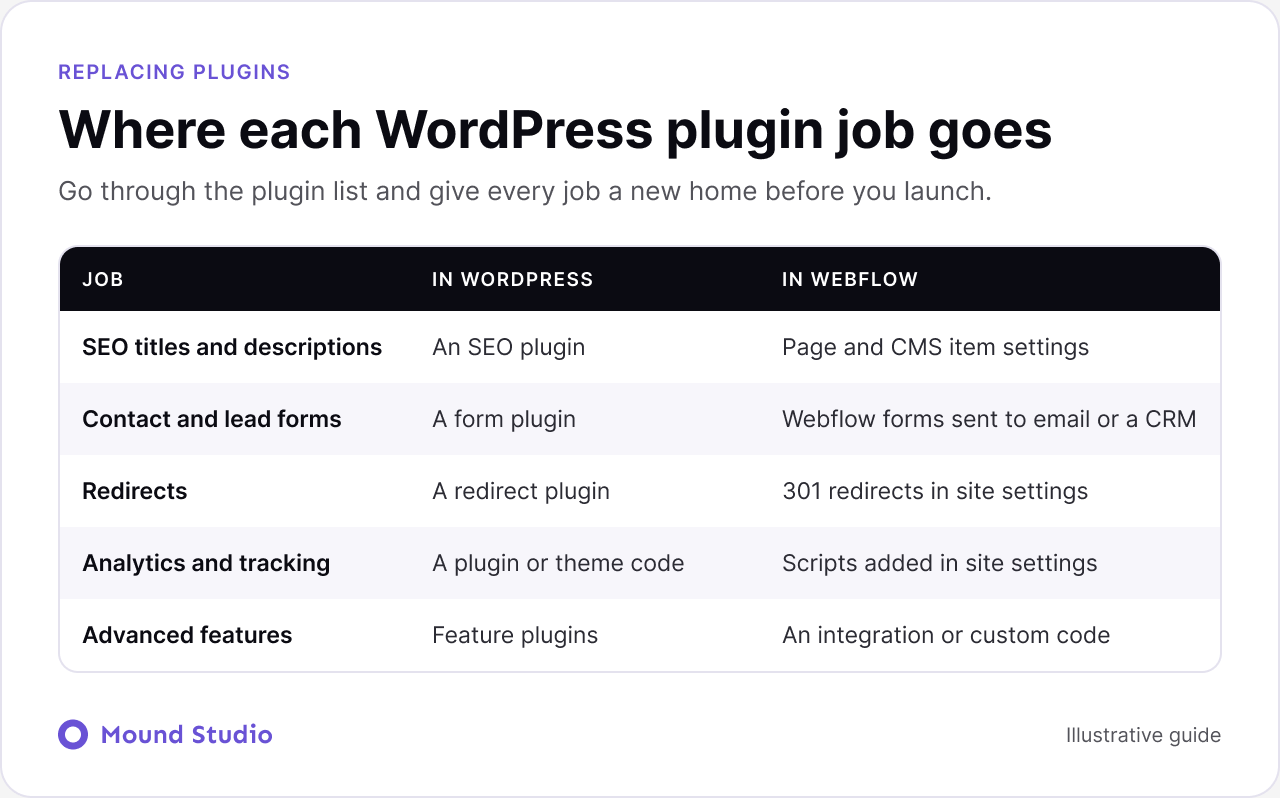
| Job | In WordPress | In Webflow |
|---|---|---|
| SEO titles and descriptions | An SEO plugin | Page and CMS item settings |
| Contact and lead forms | A form plugin | Webflow forms sent to email or a CRM |
| Redirects | A redirect plugin | 301 redirects in site settings |
| Analytics and tracking | A plugin or theme code | Scripts in site settings |
| Advanced features | Feature plugins | An integration or custom code |
For anything in the last row, decide early whether an integration is enough or whether you need custom work. Our post on custom development vs no-code can help you draw that line.
On the staging site, test every form, link and key page on desktop and phone. Add all your 301 redirects from the URL map. Confirm titles, descriptions and social images. Then connect your domain and publish.
Small misses here cause the biggest ranking and lead losses, so run the five checks below before you switch the domain.

Expect small movements in search results in the first weeks. A steady drop that does not recover usually points to a missing redirect or blocked indexing, so check those first.
Plan the month, so nothing depends on memory.
Small dips are normal while search engines learn the new structure. A clear plan lets you tell normal movement from a real problem.
Imagine a consultancy with sixty pages and a blog of one hundred and twenty posts. The audit shows that about a third of the posts get no visits and repeat each other. The team merges those into a few stronger guides, maps each old address to the new guide, and moves only the useful posts into the CMS. The result is a smaller, faster site with fewer redirects to manage, and every page that mattered kept its address or redirect. That is the point of the audit: fewer pages, better pages.
After the move, your team edits content in the Webflow Editor or CMS, without worrying about plugin updates or hosting. Plan a short handover so everyone knows how to add a post, change a page and publish safely.
A new platform changes daily habits, so prepare the people as well as the pages. Show editors how the Editor and CMS work before launch, and let them publish a test post on staging. Agree who approves changes and who owns the redirect list. Write down where the design files and component rules live.
If search visibility is a priority, pair the move with a pass through our Webflow SEO checklist. If you are still unsure how your content should be structured, our guide on how to choose a CMS explains what to weigh. And if you plan to freshen the design at the same time, the website redesign checklist keeps the two projects from colliding.
Many small sites can be moved by a careful in-house team. Bring in help when the site has hundreds of posts, complex forms, memberships, or a lot of traffic that you cannot afford to lose. A second pair of eyes on the URL map and the launch checks is often the most useful part.
A WordPress to Webflow migration goes well when you plan the content and URLs first, rebuild carefully and test before switching the domain. Most of the risk sits in redirects and forgotten details, and both are easy to manage with a checklist. Thinking about moving your site? Talk to us and we will map the migration with you.
Not if you keep or redirect every URL, carry over titles and descriptions, and check the site after launch. Problems come from broken or missing redirects.
Content can be exported from WordPress and imported into Webflow as CSV files. Rich text usually needs cleanup, and images need checking.
List what each plugin does. Many functions, such as forms, SEO fields and redirects, are built into Webflow. Others need an integration or custom code.
It depends on page count, how much content needs cleanup and how many plugins you rely on. Planning up front is what keeps it short.
Keep a backup for a while after launch, so you can check content or restore something you missed. You do not need to keep it running publicly.

.png)