







.avif)
.avif)
.avif)

Webflow
Webflow vs WordPress in 2026: Which Should You Choose?

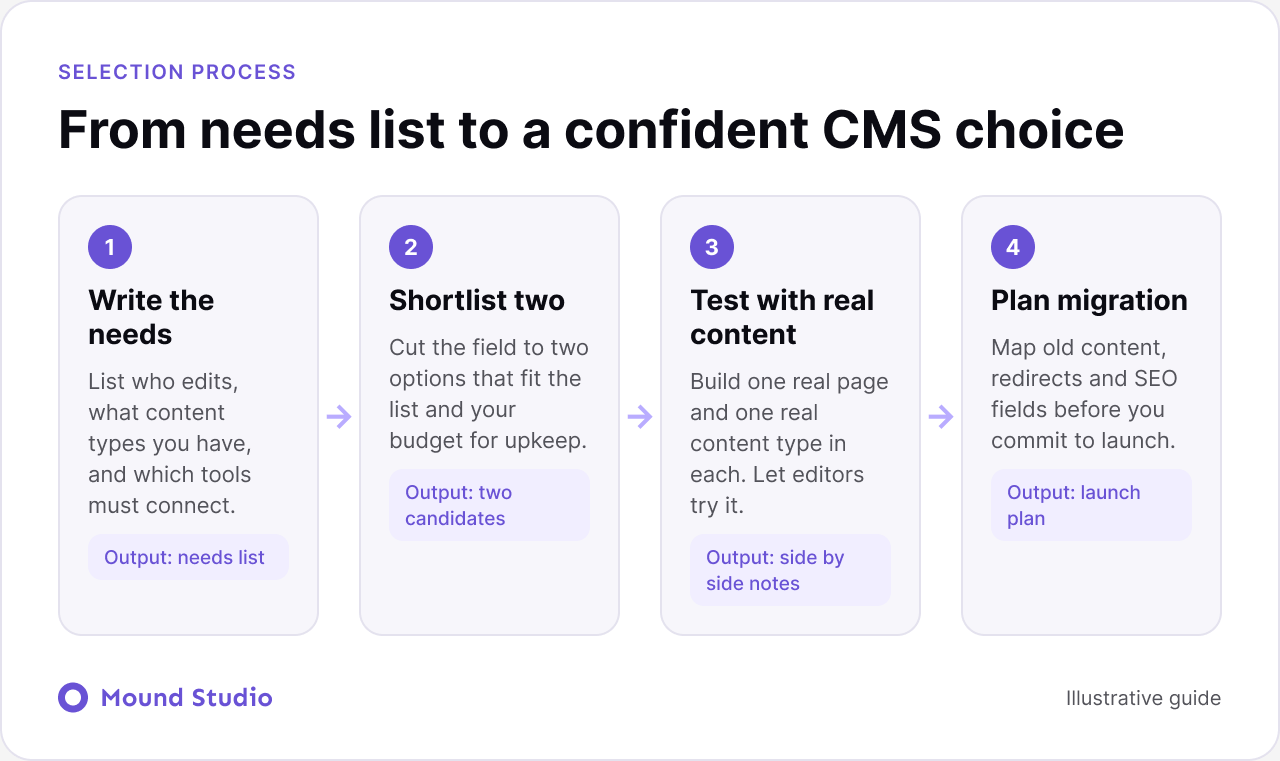
The best way to choose a CMS is to start with your people and your content, not with the tool. Decide who will edit, what types of content you publish and which systems must connect. Then shortlist two platforms, test both with real content, and check who will own upkeep.
Most CMS regrets come from skipping that order. Teams pick a popular name, build on it, and find out months later that editors are stuck or that a key integration is a workaround. This guide walks through the criteria we use with clients, compares the main routes, and lists the mistakes we see most often.
A content management system separates content from design. It gives your team a place to create, edit, organise and publish pages, posts and structured data without touching code. A good CMS also controls things that quietly affect results: URLs, metadata, redirects, media handling, user permissions and publishing workflows.
That is why the choice matters beyond the launch date. The CMS shapes how fast your team can publish, how easily a designer can change layouts, how well the site can be found in search, and how expensive changes become over the years.
Before you open a single comparison page, answer four things in writing. This takes an hour and saves weeks.
If you cannot answer the fourth question, treat that as a finding. It usually points toward a platform that reduces upkeep.
Picture a services company with a marketing lead, one part-time developer, and a blog that should publish every week. The team is split between a familiar plugin-based system and a visual platform.
Once the needs are written down, the answer gets clearer. The marketing lead publishes alone and wants to preview changes on the page. There are only a few content types: pages, posts, and case studies. The developer has limited time and does not want to manage updates. Those facts point toward a managed platform with a visual editor, and the plugin route drops down the list.
Change one fact and the answer changes too. If the same company needed a complex editorial workflow with many authors and approval steps, the plugin route would move up. The tool did not get better or worse. The needs decided.
Feature lists are long and mostly identical. These seven criteria separate options that work in practice from options that only look good in a demo.
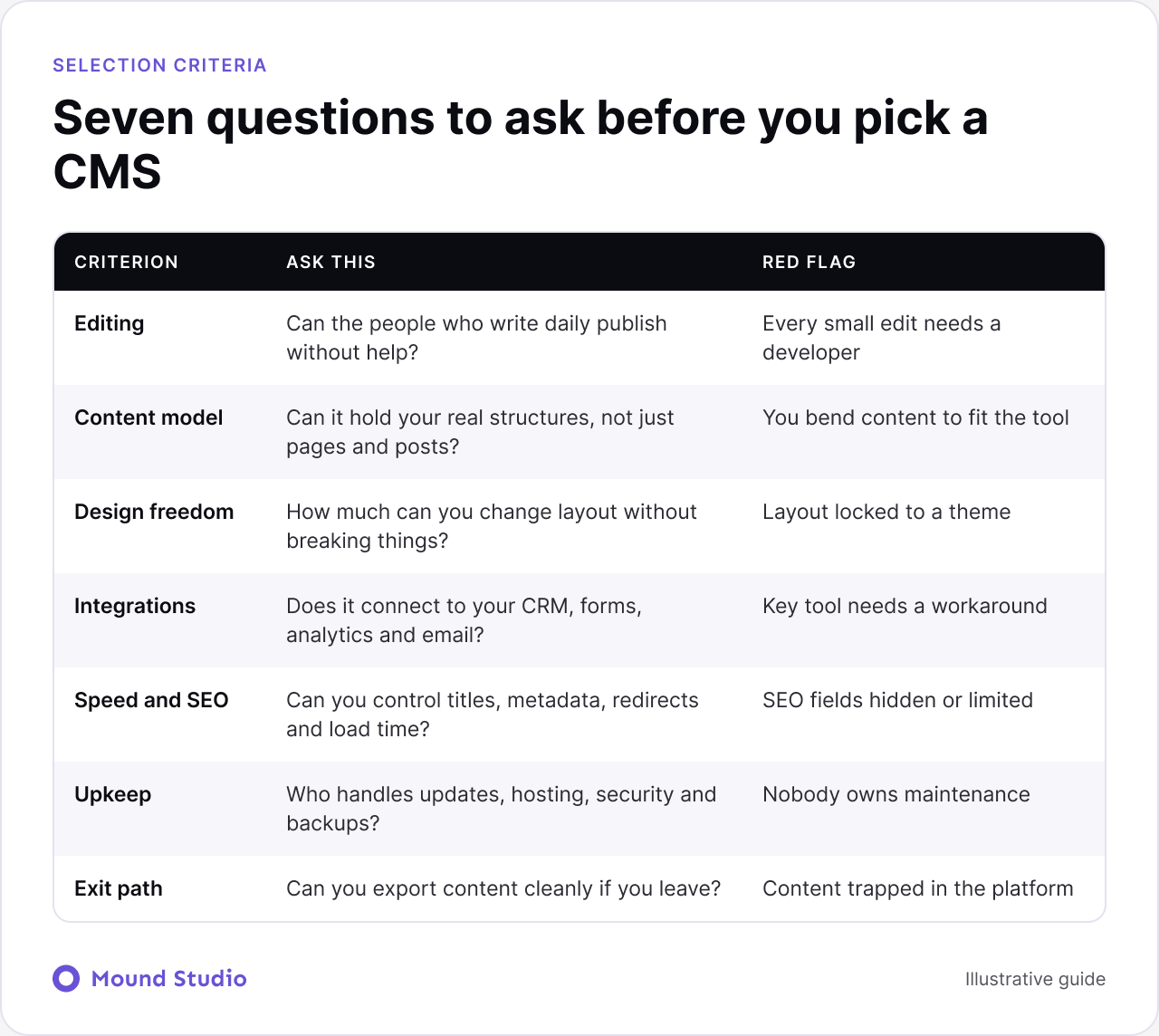
Ask your actual editors to try it. A CMS that impresses developers can still frustrate a marketing team. Look at how a writer adds a post, swaps an image, edits a section and previews before publishing. If common tasks need a developer, publishing will slow down quickly.
Pages and posts are not the whole story. If you publish case studies, team members, locations, resources or products, you want custom content types with their own fields and relationships. A flexible content model keeps your content organised and makes it reusable across the site.
Some platforms are theme driven, which is fast but limits layout changes. Others let designers control layout and styling directly. If your brand needs a distinct look, check how much you can change without hacks or fragile overrides. Our work on design systems shows why consistent components make this easier to manage.
Check native integrations first, then the quality of the API or automation options. A workaround is fine for a rarely used tool. It is a problem for anything your sales or support team depends on every day.
You need editable titles, descriptions, headings, image alt text, canonical tags, structured data and redirects. You also need a setup that loads quickly. Performance depends on the platform, the theme or template, and how the site is built, so ask how each part is handled.
Self-hosted systems give you control, along with the job of keeping software, plugins and servers current. Managed platforms take much of that off your plate. Neither is wrong. The mistake is not deciding who is responsible.
Every platform has some lock-in. The question is how painful it is. Check whether you can export content in a usable format, keep your URLs and move your media. A clear exit path is a sign of a healthy choice.
A trial only helps if both options get the same test. Set it up before you start, so the result is not shaped by which tool you like more.
Compare the notes side by side. The winner is rarely the tool with the longest feature list. It is the one where your editors finished the tasks without asking for help.
Most projects come down to three routes. Each is a reasonable choice for the right situation.
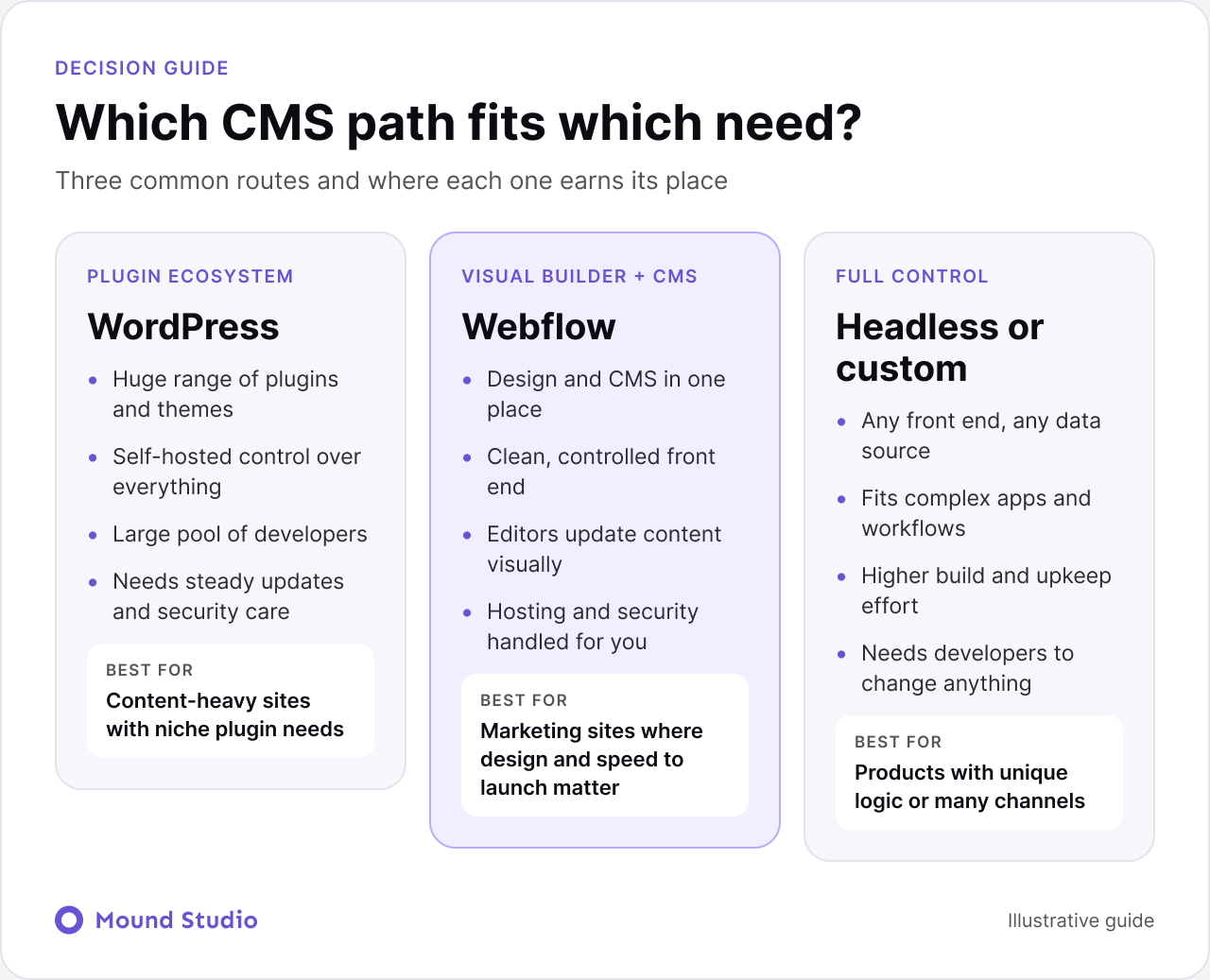
WordPress has a huge ecosystem of plugins, themes and developers. It suits content-heavy sites, publishers, and projects that need a specific plugin or a deep editorial workflow. In return, you take on hosting choices, updates, plugin compatibility and security. A well maintained WordPress site is solid. A neglected one becomes a liability.
Webflow combines a visual design environment with a built-in CMS and managed hosting. It suits marketing sites, SaaS websites, portfolios and content sites where design quality and speed to launch matter. Designers can build custom layouts, and editors can update content without breaking them. It is less suited to complex application logic or heavy custom back ends. We compare the two in depth in Webflow vs WordPress.
A headless CMS stores content and delivers it through an API, so any front end can display it. A custom build goes further and creates the system around your exact needs. These routes suit products with unique logic, content that feeds several channels, or engineering teams that want full control. They also cost more to build and maintain, and every change needs developers. For the wider trade-off, read custom development vs no-code.
| Factor | WordPress | Webflow | Headless or custom |
|---|---|---|---|
| Editing | Familiar dashboard | Visual, on-page | Depends on the build |
| Design control | Theme or custom code | Full visual control | Anything, via code |
| Upkeep | You or a partner | Mostly managed | Your engineers |
| Extending | Plugins | Integrations and apps | Custom code |
| Best fit | Content-heavy sites | Marketing sites | Complex products |
Use this quick guide as a starting point, then test it against your needs list.
| If you need | Lean toward | Watch out for |
|---|---|---|
| A polished marketing site, launched quickly | Webflow | Very complex logic |
| A large publishing workflow with many authors | WordPress | Plugin sprawl |
| Content shared with an app and other channels | Headless | Higher build effort |
| Unique product behaviour | Custom development | Ongoing developer dependence |
| Low upkeep and a small budget for maintenance | Managed platform | Limits on deep customisation |
A simple four-step process keeps the decision grounded and easy to explain to stakeholders.
The way you organise content decides how much your CMS has to do. A site with a clear structure, consistent page types, and sensible categories is easier to build on any platform. A site with unclear structure is hard on every platform.
That is why we suggest mapping your content before you compare tools. List each content type, the fields it needs, and how items relate to each other. Our guide to information architecture shows how to do this well. Once the map exists, it becomes obvious which platforms can model it cleanly and which need workarounds.
Search settings should be part of the same conversation. Confirm where titles, descriptions, and redirects live, and use our Webflow SEO checklist as a reference for what a well configured site needs.
Migration is where good choices go wrong, so plan it early. Start with a content inventory: every page, post, image and file worth keeping. Decide what to move, merge or retire. Map each content type to fields in the new system, and keep your URLs where possible. Where they change, prepare a redirect list before launch.
Then check the details that affect search and usability: titles, descriptions, headings, alt text, internal links, forms and tracking. If you are moving from WordPress specifically, our guide to WordPress to Webflow migration covers the steps in order. A site that is due for a bigger change may also need the checks in our website redesign checklist.
Run through this list before you sign off on a platform.
When two options score similarly, look at the cost of being wrong. Which choice is easier to change later? Which one lets you launch sooner and learn from real visitors? Usually the answer is the platform that your editors prefer and that needs less ongoing care. Choose that one, document why, and move on.
Choosing a CMS is a decision about people, content and upkeep first, and technology second. Write your needs, shortlist two, test with real content, and plan the migration before you commit. If you want a second opinion on the shortlist, talk to us at Mound Studio and we will help you pick and build the right fit.
There is no single best CMS. For most small business marketing sites, a visual platform like Webflow or a well maintained WordPress setup works well. Pick the one your editors can use comfortably and that someone will actually maintain.
It depends on the project. WordPress suits sites that need a wide plugin ecosystem and deep content workflows. Webflow suits teams that want design control, clean output and hosting handled for them. Our Webflow vs WordPress comparison covers the trade-offs in detail.
You need one when content must feed several channels, when your product has logic a standard platform cannot model, or when your engineering team wants full control of the front end. Otherwise it adds cost and upkeep you may not need.
Yes, but it takes planning. Content has to be exported and mapped, URLs redirected and SEO settings carried over. Choosing a platform with clean export options makes a future move much easier.
Usually a few working sessions: one to write your needs, one to shortlist, and a short trial with real content. Rushing this step is the most common source of costly rebuilds.

.png)