







.avif)
.avif)
.avif)


Webflow
Webflow CMS Best Practices for Content-Heavy Sites

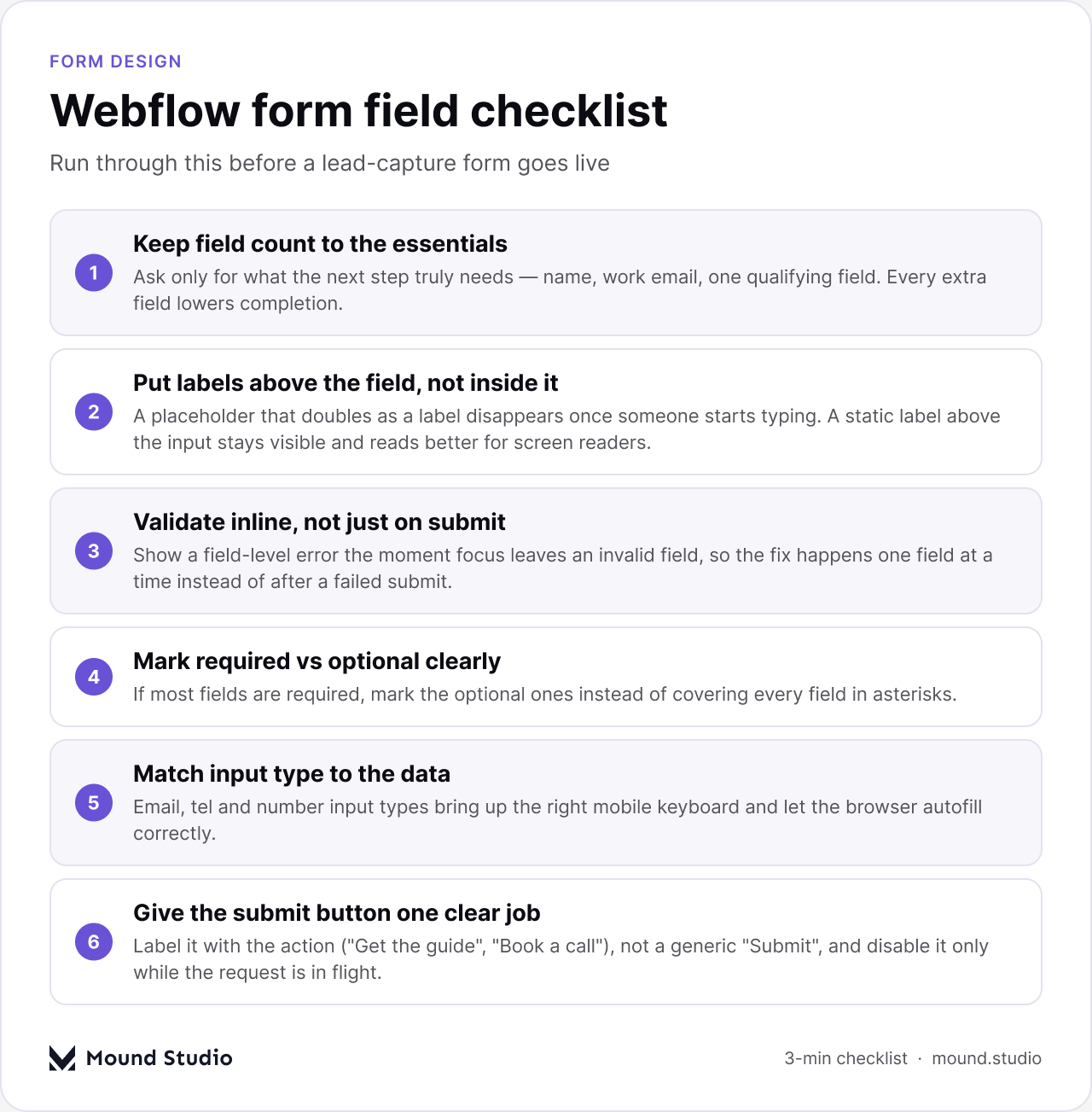
The best Webflow forms for lead capture ask for the fewest fields the next step actually needs, put a visible label above each input instead of inside it, validate a field the moment someone leaves it instead of waiting for a failed submit, and route the entry to wherever the team actually works from — Webflow's native form handler for plain lead capture, or a connected backend when the submission needs to reach a CRM or trigger a multi-step sales process. Get those four decisions right and almost everything else in this guide is refinement, not repair.
Conversion on a lead form comes down to how much it asks and how clearly it asks for it. Every additional field is a reason to stop, so before a field goes into the Designer it should earn its place: does the next step in the funnel actually need it, or is it there because someone might want the data later? A name, a work email, and one qualifying field (company size, budget range, or "what are you looking for") is usually enough to route a lead; anything past that belongs on a follow-up call or a gated content form where the visitor has already committed.
Label placement matters more than most teams expect. A placeholder that doubles as the only label disappears the moment someone starts typing, so by the time they glance back up to confirm what they're filling in, the label is gone. A static label above the field — built as its own text element in the Designer, not baked into the input's placeholder attribute — stays visible the whole time and gives screen reader users something to anchor to as well. Inline validation closes the loop: flagging an invalid email or a missing required field as soon as focus leaves it means someone fixes one mistake at a time, instead of submitting a long form and getting a wall of errors back. Finally, the submit button should describe the action — "Get the guide," "Request a quote," "Book a call" — rather than a generic "Submit," and it should only disable or show a loading state while the request is actually in flight.
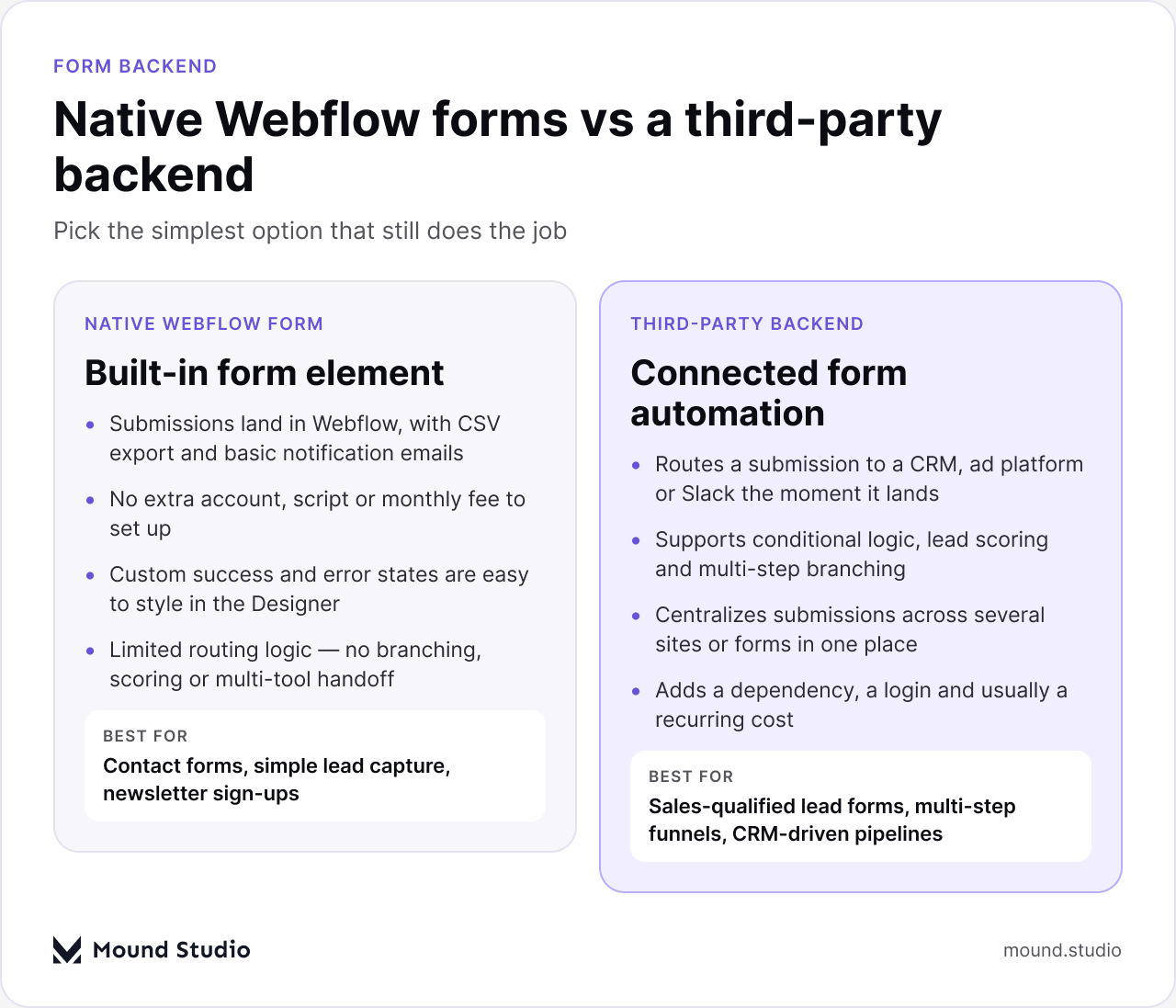
Webflow's built-in form element already does a lot: every submission lands in the project's Forms panel, exports to CSV, and can trigger a basic notification email, all without adding an account or a script to the page. For a contact form, a simple lead-capture form, or a newsletter sign-up, that is usually the entire backend a site needs — it is also the fastest option to style, since custom success and error states are just elements in the Designer rather than something controlled by an external tool.
A connected backend — a native Webflow integration, or a tool like Zapier or Make sitting between the form and a CRM — earns its added complexity once the lead needs to go somewhere the moment it arrives: a CRM record, a Slack alert to sales, an ad platform's conversion event, or a scoring step that decides which sequence a lead drops into. It also supports logic a native form cannot: conditional branching, multi-step forms that adapt based on an earlier answer, or submissions from several sites feeding one pipeline. The tradeoff is a login to maintain, a connection that can silently break, and usually a recurring cost, so it is worth confirming the native form truly cannot do the job before adding that layer. Teams already managing their blog or resources through the CMS, as covered in our Webflow CMS best practices guide, often reach for the same kind of connected automation for their forms once submission volume grows.
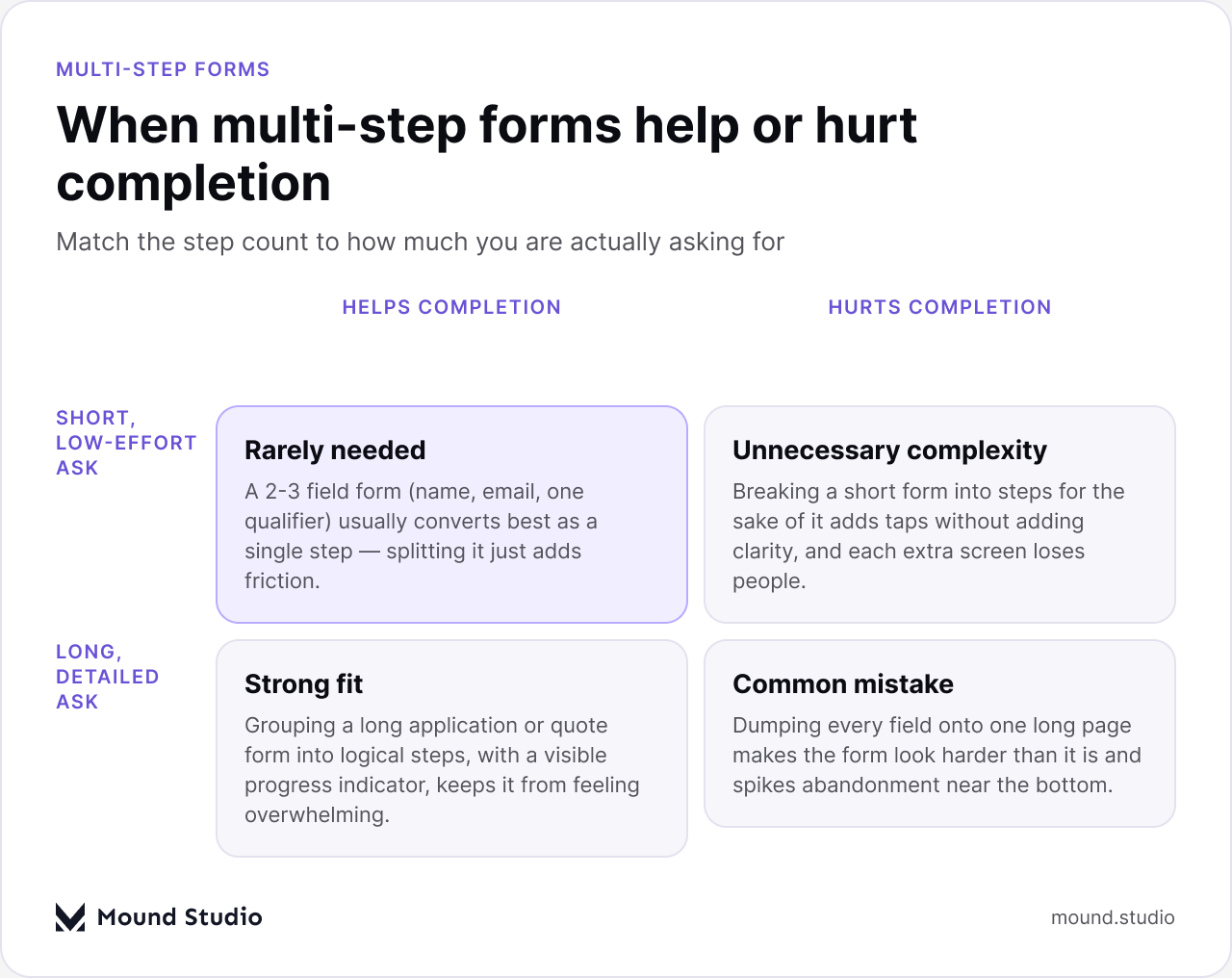
Multi-step forms get reached for more often than they should be. A short form asking for two or three fields — name, email, one qualifier — almost always converts better as a single screen; splitting it into steps adds taps and page transitions without making the form any easier to understand, and each extra screen is another place to lose someone. The fit reverses once the form is actually long: a detailed application, a quote request with branching questions, or an onboarding form with ten or more fields benefits from being grouped into logical steps with a visible progress indicator, because it keeps the form from reading as one intimidating page.
When a multi-step form does make sense in Webflow, build it as a single form element with grouped sections shown and hidden through interactions, rather than several separate form elements chained together — that keeps one submission event instead of several partial ones. Keep the step transitions quick and purposeful; if motion on the page is part of the plan, our Webflow animations guide covers how to keep interactions like step transitions quick rather than distracting. Whatever the step count, show where someone is in the process and let them go back without losing what they already entered.
Accessible forms start with the label-to-input relationship. Webflow generates a matching "for" and "id" pair when a form field is added through the Designer's form block, but that link breaks if a label is duplicated, detached, or replaced with a plain text element — so it is worth checking, in the published page's code, that every input still has a label pointing at it. Group related fields (like a full name split into first and last) inside a fieldset with a legend when the grouping itself needs explaining, and keep the tab order matching the visual order by building the form top to bottom rather than relying on absolute positioning.
Error messaging needs to be visible to more than sighted users scanning for a red border. Pairing a color change with text that actually states the problem — "Enter a valid email address," not just a red outline — means the error reads correctly for anyone using a screen reader or who has trouble distinguishing color. Where a custom validation message is written into the page rather than relying on the browser's default, mark it so assistive technology announces it immediately rather than silently updating the DOM. Focus states deserve the same attention: a visible focus ring on every field and the submit button, not just a browser default that a global reset might have removed, is what lets someone navigating by keyboard track where they are on the form.
Webflow's form element ships with a built-in success message and a built-in error message, both fully editable in the Designer, and for most lead forms that built-in state is the right tool: write a specific confirmation ("Thanks — we'll follow up within one business day") rather than the default placeholder text, and style it to match the rest of the page instead of leaving Webflow's default gray box. A redirect to a dedicated thank-you page is worth the extra setup when the next step matters on its own — tracking a conversion event cleanly, showing a calendar booking widget, or handing off to gated content the form just granted access to.
Error states deserve the same specificity. A generic "Something went wrong" at the top of the form tells someone nothing about what to fix; where the integration allows it, showing the error next to the field that caused it, in plain language, turns a failed submission into a one-step fix instead of a guess. Test the error state deliberately — submit the form with a missing required field, an invalid email, and on a slow connection — rather than assuming it will only ever be seen in the easy case.
Webflow's native form settings include a reCAPTCHA toggle that blocks most automated bot traffic without adding a separate tool, and for a public lead-capture form it is worth turning on by default — the cost to a real visitor is low and the volume of junk submissions it filters out is usually high. A honeypot field (a hidden input that only a bot would fill in) is a lighter-weight option worth pairing with it, since it catches simple scripted submissions without showing a visible challenge to anyone.
Forms connected to a third-party backend pick up whatever spam filtering that tool offers on top of Webflow's own — email verification steps, submission rate limits, or domain blocklists are common additions once a form is routing into a CRM. Whichever combination a site uses, it is worth checking the Forms panel periodically for patterns in rejected or flagged submissions, since spam behavior shifts over time and a setting that was enough at launch may need a second layer later.
Most form problems we see in review trace back to a short list of repeatable mistakes rather than anything unusual to the project:
| Mistake | Fix |
|---|---|
| Too many required fields | Cut every field the next step does not strictly need; make the rest optional and clearly marked |
| Placeholder text used as the only label | Add a persistent label above the field, separate from the placeholder |
| Generic error messaging | Write field-specific messages that state what to fix, not just that something failed |
| No mobile testing before launch | Submit the form on an actual phone, checking keyboard type, tap targets, and layout at narrow widths |
| Default, unstyled success message | Replace it with a specific confirmation or a dedicated redirect page |
| Spam protection left off | Turn on reCAPTCHA or a honeypot field before the form goes live, not after spam shows up |
Before a lead-capture form goes live, run through its actual purpose and failure points rather than just how it looks on a desktop screen:
| Checklist item | Why it matters |
|---|---|
| Confirm every field is necessary | Each unnecessary field is a measurable drop in completion |
| Check label and input pairing in published code | A detached label breaks accessibility even if it looks fine visually |
| Test inline validation on every field | Catches fields where validation silently did not get set up |
| Write a specific success message or redirect | A generic default message undercuts an otherwise good form |
| Submit the form on a real phone | Keyboard type, spacing, and tap targets behave differently than on desktop |
| Confirm where notifications and submissions land | A form nobody is monitoring quietly loses every lead it captures |
| Enable spam protection | Junk submissions crowd out real leads in the Forms panel over time |
Once the form itself is solid, it is worth checking that the page around it is pulling its weight too — our Webflow SEO checklist covers the page-level basics that help a lead-capture page actually get found.
Use the shape of the form, not a general preference, to pick the setup:
A Webflow form earns its conversion rate by asking for little, labeling and validating clearly, matching its step count to its length, and routing submissions somewhere a real person will see them — the backend and the step count are choices to make deliberately, not defaults to leave untouched. If a lead-capture form on your site needs a second look, get in touch with our team and we'll help you work through it.
Only if the form is actually long or detailed. A short form with two or three fields usually converts best as a single step; multi-step layouts help once a form has enough fields that grouping them with a progress indicator makes it feel less overwhelming.
In most cases, yes — Webflow's native form handler stores submissions and sends notification emails, but routing a lead into a CRM, scoring it, or branching its path usually requires a connected automation tool sitting between the form and that system.
Turn on Webflow's built-in reCAPTCHA option in the form's settings, and consider pairing it with a hidden honeypot field. If the form is connected to a third-party backend, that tool's own filtering adds a second layer.
Something specific to what happens next, such as confirming a follow-up timeline or linking to a resource, rather than leaving Webflow's default placeholder text in place. A redirect to a dedicated page works well when the next step needs its own tracking or content.



.png)