





.avif)
.avif)
.avif)

Webflow
Webflow Site Speed: 8 Practical Fixes to Improve Performance
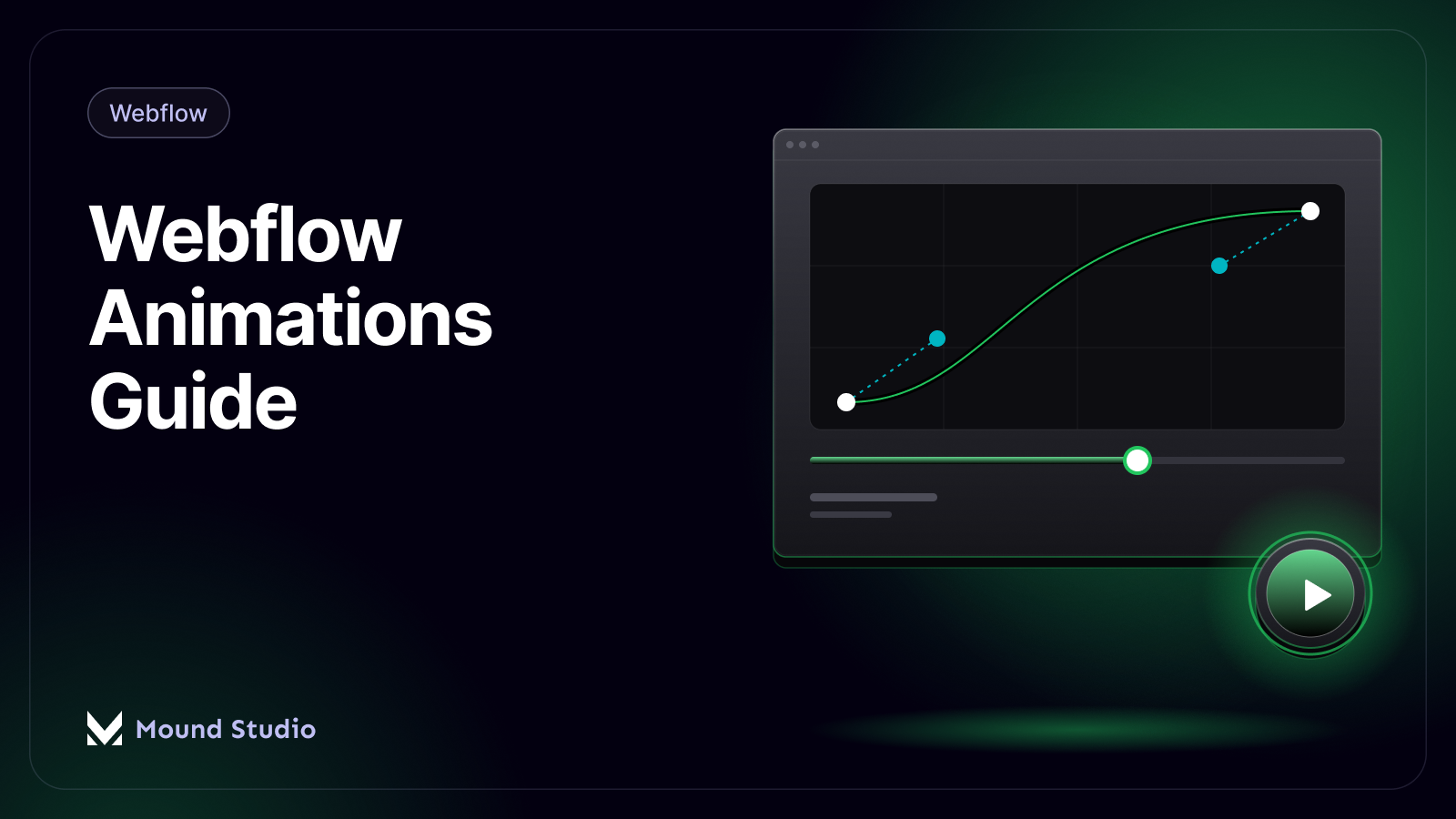
Most visitors will never say they loved your animations. They will say the site felt clear, or that it felt cheap. Motion is one of the quiet things that shapes that impression. Done well, it points to what matters, confirms that a click worked, and makes a page feel alive. Done badly, it slows people down, hides content, and makes the site feel like a demo.
This guide covers Webflow animations from the practical side. We explain what interactions are, the five triggers you can use, how we build one from start to finish, and how to keep motion fast and accessible. It is written for founders, marketers, and designers who want animation that helps the page do its job.
Webflow animations are motion effects you build visually in the Designer, without writing code. An interaction is the rule: when something happens (a trigger), an element changes (an action). The animation is the motion that plays as a result, such as a fade, a slide, a scale, or a colour change.
Every interaction has three parts. A trigger says what starts it. A target says which element moves. An action says how it moves, how long it takes, and how it eases. Once you think in those three parts, every animation on a site becomes easier to plan and to fix.
Use the simplest animation that explains the interface. A fade and small upward move on scroll reveals content well. A gentle hover change shows that something is clickable. A click interaction opens a menu or an accordion. Anything beyond that should earn its place by helping the visitor understand or act.
Webflow gives you a small set of triggers. Each one fits a different visitor behaviour. Choosing the right one is half the job.

Plays once when the page opens. We use it for the hero: the headline, the supporting line, and the button arrive one after another. Keep it quick. Visitors came for content, not for a show, so anything they cannot read within a moment is too slow.
Fires when an element enters the screen. This is the workhorse for reveals: cards, statistics, testimonials, and section headings that fade and rise slightly into place. It gives long pages a sense of rhythm. Use the same effect across the site so it feels like a system, not a collection of tricks.
Tied to scroll position, so motion moves forward and backward as the visitor scrolls. It suits progress bars, subtle parallax, and elements that shift with the page. Use it sparingly. Scroll-linked motion can feel heavy on older phones and can make reading harder.
Reacts when a pointer sits over an element. It is ideal for buttons, cards, and link arrows. Remember that phones and tablets have no hover. Any information you show only on hover must also be available another way.
Changes a state when someone presses an element. Menus, tabs, accordions, modals, and toggles all use it. Because the visitor caused the change, these interactions feel earned, and they are usually the most useful ones on the page.
| Trigger | Best use | Watch out for |
|---|---|---|
| Page load | Hero entrance, logo intro | Long delays before content appears |
| Scroll into view | Section and card reveals | Content that stays hidden if the effect fails |
| While scrolling in view | Progress bars, light parallax | Heavy motion on phones and hard to read text |
| Mouse hover | Buttons, cards, link arrows | No hover on touch devices |
| Click or tap | Menus, tabs, accordions, modals | Missing focus and keyboard support |
We follow the same routine on every project. It keeps motion consistent and makes handover easy for clients who edit the site later.

A common bug is content that appears for a moment and then disappears before animating in. It happens when the starting state, such as hidden and shifted down, is not set before the page loads. Set the initial state inside the interaction so the element starts hidden and animates in, rather than the other way around.
Small interface changes such as hover states should feel almost immediate. Reveals can take a little longer, but still well under a second. Longer motion is for rare moments, such as an opening hero. When everything is slow, nothing feels special.
Picture a services homepage. The headline, supporting line, and button fade up one after another as the page opens. Scrolling down, each section heading and card rises slightly into place, using the same effect every time. Buttons shift colour on hover, and the mobile menu slides open when tapped. That is all. There are no floating shapes, no spinning logos, and nothing that blocks the visitor from reading.
The page feels polished because the motion is consistent and quiet. If you removed every animation, the page would still work. That is a good test: motion should improve a page that already functions, not rescue one that does not.
Plan motion in the design stage, not after the build. A short motion note in the design file saves a lot of guessing later.
This also helps handover. When a client edits the site later, a small set of named effects is far easier to keep consistent than dozens of one-off interactions. If you work from design files, our Figma developer handoff checklist shows how to pass motion details on clearly.
The list below shows the effects we use again and again, and the job each one does.
Webflow interactions are the right default. Custom CSS suits tiny touches, and a code library or Lottie suits detailed scenes. Move to the right only when the design requires it, because every step adds weight and makes the site harder for your team to edit.
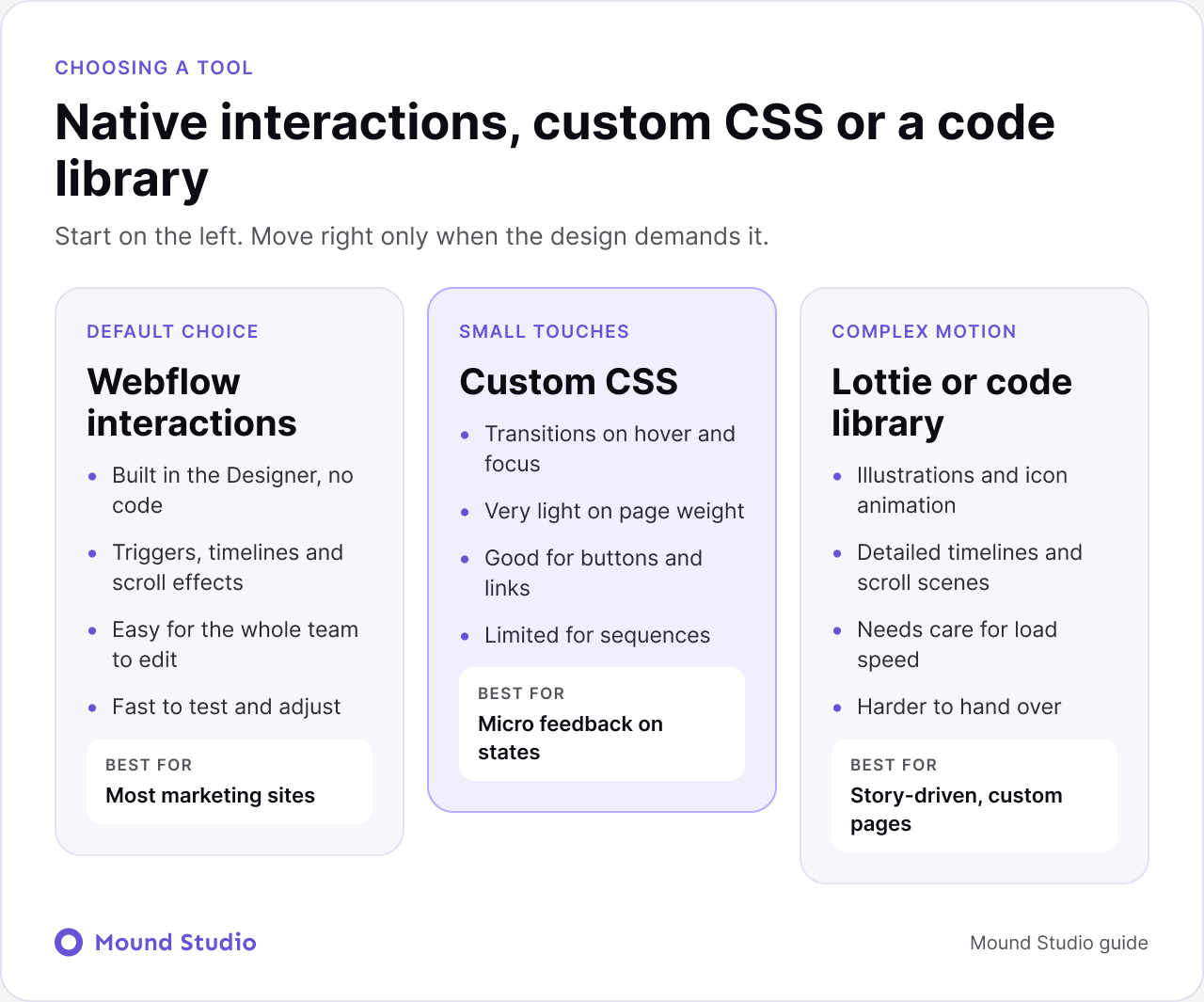
| Approach | Strong when | Trade-off |
|---|---|---|
| Webflow interactions | Reveals, menus, tabs, and scroll effects that the whole team should be able to edit | Less control over very custom scenes |
| Custom CSS | Hover and focus transitions on buttons, links, and cards | Not suited to sequences or scroll timelines |
| Lottie or code library | Illustrations, animated icons, and complex scroll stories | Extra weight, more testing, harder handover |
If you are still choosing a platform for animation-heavy work, our comparison of Webflow vs Framer explains where each tool is stronger. And if you are weighing code against visual building, read custom development vs no-code.
Animations should never be the reason a page feels slow. A few habits keep motion light.
Our guide to Webflow site speed optimization covers the wider picture, including images, fonts, and scripts.
Some visitors get dizzy or distracted by movement. Others use a keyboard or a screen reader. Good animation works for all of them.
Motion can help a page convert when it directs attention to the next step, such as a clear button that responds on hover. It hurts when it delays the message or distracts from the call to action. Our guide on how to design a website that converts explains where attention should go on a page, and animation should support that path.
For search, the main concern is that content stays present in the page and loads quickly. Text that only appears after a heavy animation can be a problem. Our Webflow SEO checklist covers what to check, and it pairs well with the speed and accessibility habits in this guide.
Using motion to hide weak content. An animated headline does not make a vague headline clear. Fix the message first, then add motion if it helps.
Copying effects from other sites. An effect that suits a portfolio may slow a lead-generation page. Ask what job the motion does on your page and for your visitors.
Ignoring what happens when the effect fails. Scripts can be blocked and connections can be slow. If a section stays invisible until an animation runs, some visitors will never see it. Always check that content appears without the animation.
Run through this list before you publish a page.
| Check | What to look for |
|---|---|
| Purpose | Each animation guides attention, confirms an action, or shows a change |
| Consistency | The same reveal, hover, and timing are used across the site |
| Speed | Nothing blocks reading and nothing feels slow |
| Fallback | Content is visible if an interaction fails |
| Touch | Hover effects have a tap or always-visible alternative |
| Reduced motion | A calmer version exists for visitors who need it |
| Classes | Interactions are attached to classes, not single elements |
Good Webflow animation is quiet. It guides the eye, confirms actions, and gets out of the way. Start with the five triggers, follow the same four steps, and cut anything that does not help the visitor. If you want a site where motion supports the design instead of competing with it, talk to us about your Webflow project and we will show you what fits.
Not by themselves. Animating opacity and position is light. Speed problems come from heavy media, large animation files, and too many effects on the same screen. Keep motion short and test the page on a phone.
Yes. Webflow interactions let you set triggers, targets, and timings in the Designer with no code. Code only becomes useful for very custom scenes.
An interaction is the rule: when this happens, do that. An animation is the motion the rule plays. In the Designer you build both in one place.
Avoid large, fast movement, never hide essential content behind an animation, keep focus states visible, and offer a calmer version for visitors who prefer reduced motion.
Use Webflow interactions for interface motion such as reveals, hovers, and menus. Use Lottie when you need a detailed illustration or icon animation drawn in another tool.

.png)