







.avif)
.avif)
.avif)


Website
Signs It's Time To Rebuild Your WordPress Website

WordPress plugin bloat slows a website because every active plugin adds its own database queries, scripts, and stylesheets to each page load, and most sites accumulate far more plugins than they actually need. The fix is not "use fewer plugins" as a vague rule. It is a periodic audit that identifies which plugins are doing real work, which ones overlap with each other, and which ones have been sitting there since a project nobody remembers. We walk through that process below, along with the specific places plugin bloat tends to show up first.
Plugin bloat is what happens when a WordPress install carries more active plugins, scripts, and database calls than the site's actual functionality requires. It is rarely one single plugin's fault. It is usually the slow buildup of a page builder, three or four "just in case" utilities, a couple of SEO tools that duplicate each other's work, and a form plugin left over from a campaign that ended two years ago. Each one by itself might cost very little. Stacked together, they add up to a site that takes noticeably longer to load, feels sluggish in the admin dashboard, and becomes harder to maintain every time someone has to figure out what is actually required and what is dead weight.
We see this pattern constantly in WordPress rebuild and migration projects: a site that should load quickly on paper, dragged down by a plugin list nobody has reviewed since launch. The underlying code of WordPress itself is not usually the bottleneck. The plugin stack is.
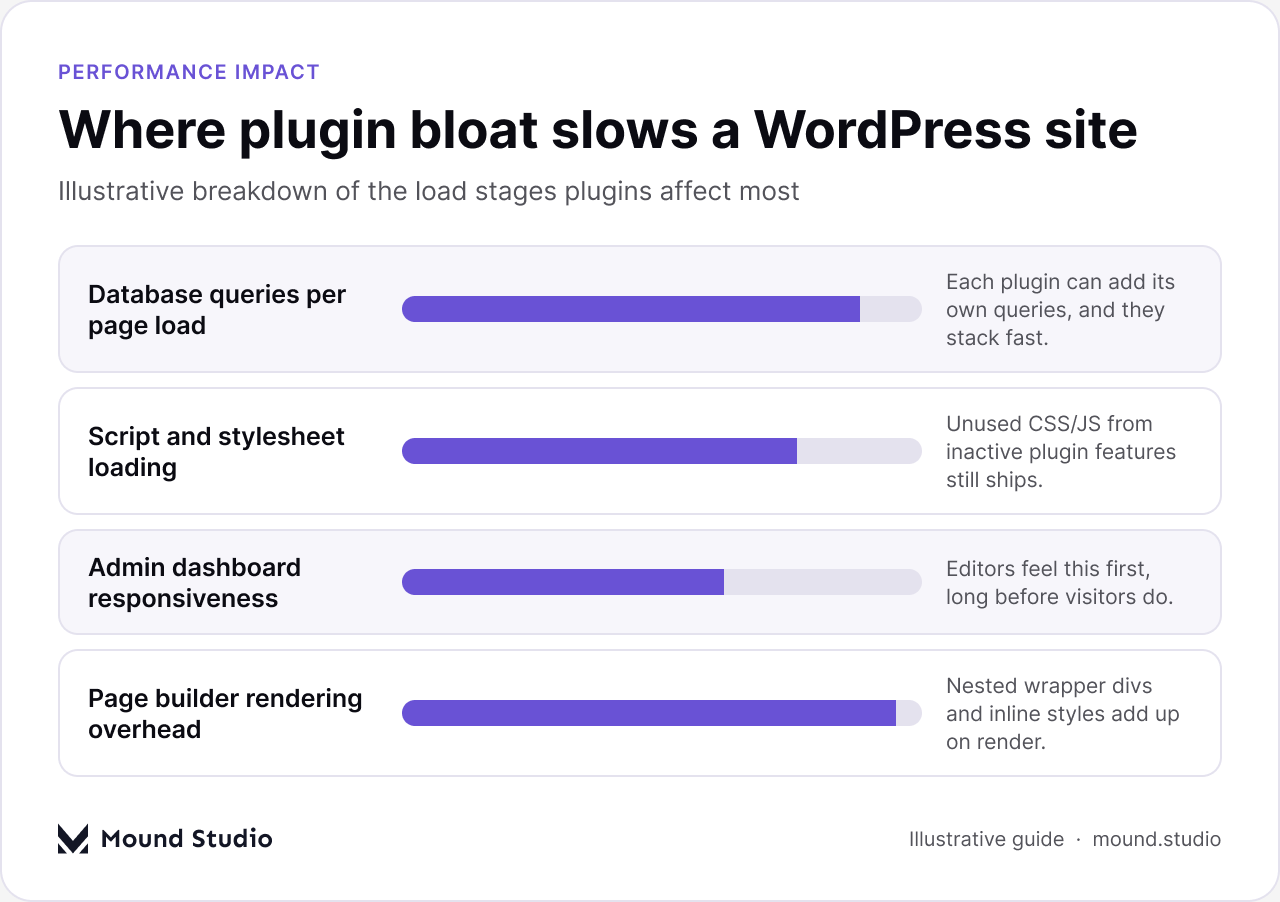
Plugin bloat does not slow a site down uniformly. It concentrates in a handful of predictable places, and knowing where to look first makes an audit much faster. The illustration above is a conceptual guide to those areas, not a measured benchmark — every WordPress install is different, and the only way to know your own numbers is to test your own site. Still, the pattern holds across most of the WordPress projects we have worked on.
Certain categories of plugin are disproportionately likely to cause this kind of overhead. The table below covers the ones we flag first in almost every audit.
| Plugin type | Common issue | What to check |
|---|---|---|
| Page builders | Heavy markup, inline styles, and their own asset bundles loaded on every page | Whether the builder is still actively used, or whether most pages could run on standard templates |
| SEO all-in-one suites | Bundle sitemap, schema, redirects, and analytics features most sites only use a fraction of | Which specific modules are enabled, and whether a lighter tool covers the same ground |
| Multiple caching plugins stacked | Competing cache layers that duplicate work or conflict with each other | Whether more than one caching plugin is active at the same time |
| Unused form or popup plugins | Scripts loaded sitewide for a form or popup that only appears on one page, or no longer appears at all | Whether the plugin's output is still present anywhere on the live site |
A plugin audit does not need special tools. It needs a consistent process and a willingness to actually test each change rather than assume it is safe. We use the same four-step sequence on nearly every WordPress project that comes to us carrying years of accumulated plugins.

Before touching anything, write down every plugin that is currently active and a one-line note on what it is actually doing on the live site today. Not what the plugin description says it does. What it does for this specific site, right now. This step alone usually surfaces a few plugins nobody can explain.
Open each plugin's listing and look at when it was last updated and which WordPress version it has been tested against. A plugin that has not been touched in a long time is both a performance question and a security one — it is more likely to be carrying inefficient code, and it is more likely to have unpatched vulnerabilities.
Deactivate a single plugin, then check the site. Load the key pages, check the admin dashboard, and confirm nothing visibly broke. Disabling several plugins at once might feel faster, but it makes it much harder to know which one actually caused a problem if something does break.
Once you know what each plugin does and how current it is, make the call: keep it, replace it with something lighter, or remove it entirely. A plugin that duplicates functionality already covered elsewhere on the site should almost always go.
You do not need an elaborate setup to see what a plugin is doing to a page. A query-monitoring plugin installed temporarily during the audit will show you which plugins are firing database queries on a given page load and roughly how many. Your browser's built-in developer tools are just as useful: open the network tab, reload a key page, and look at how many scripts and stylesheets are loading, and which plugin folders they are coming from. If a contact form plugin's script is loading on your homepage, your blog, and your pricing page, that is worth investigating even if the form itself only lives on a single contact page.
It is also worth checking the admin side specifically, since that is where bloat is often felt most directly by whoever manages the site day to day. Open the post editor, save a draft, and pay attention to how long the save takes and whether the editor feels sluggish. A plugin that hooks into every admin page load, even ones that have nothing to do with its own function, is a common and easy-to-miss source of that lag. None of this requires precise measurement to be useful — the goal is identifying which plugins deserve a closer look, not producing a formal benchmark report.
Between full audits, it helps to know the warning signs that flag a specific plugin as a likely problem, so you are not waiting for a scheduled review to catch something obvious.
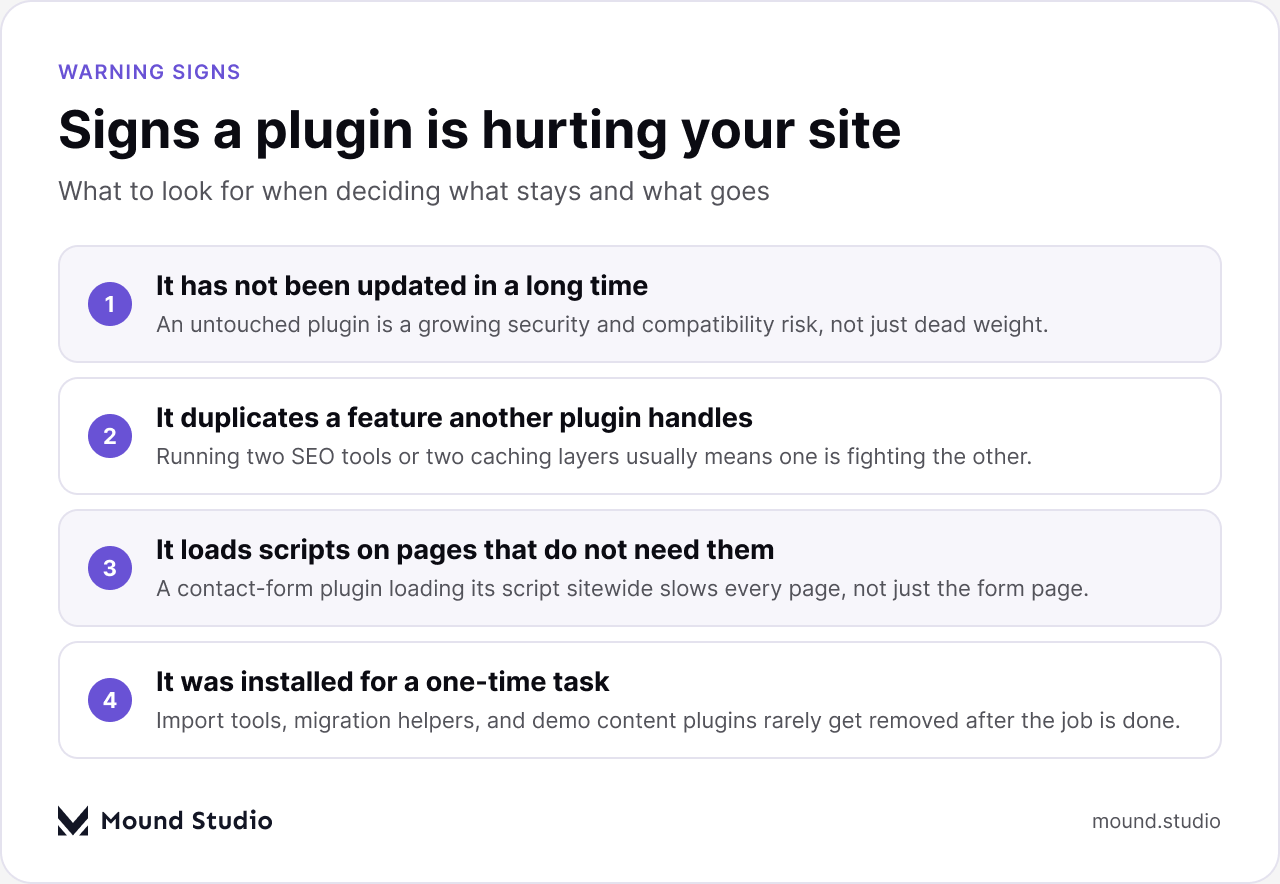
A plugin that has not been updated in a long time, duplicates a feature another plugin already handles, loads scripts on pages that do not need them, or was installed for a one-time task and never removed is a strong candidate for removal. None of these signs require specialized tools to spot. They just require actually looking at what is installed instead of leaving the plugin list untouched because the site "seems fine."
We see the same handful of mistakes repeat across plugin cleanups, and most of them are avoidable with a bit more care during the process itself.
These mistakes come up often enough that they are worth checking against directly whenever you are deciding whether a site needs a deeper look, not just a plugin trim — something we also cover when comparing a custom WordPress theme against a page builder for sites that have outgrown their current setup.
Not every plugin needs the same level of urgency. Sorting your plugin list by risk level makes it much easier to decide what to act on first and what can wait for the next scheduled review.
| Risk level | What it looks like | Action |
|---|---|---|
| High risk | Outdated, flagged for a known security issue, or untested against your current WordPress version | Replace or remove immediately, even outside a scheduled audit |
| Medium risk | Actively maintained but overlapping in function with another active plugin | Pick one, disable the other, and confirm nothing depends on the removed plugin |
| Low risk | Lightweight, actively used, and updated on a reasonable schedule | Keep, but still review it at your next scheduled audit |
When a plugin's status is not obvious, a short decision checklist cuts through the uncertainty faster than debating it in the abstract.
For sites where plugin bloat is a symptom of a deeper platform mismatch rather than just accumulated clutter, it is also worth reading through the broader signs it might be time to rebuild a WordPress website instead of continuing to patch around the same plugin stack. And if speed is the main concern driving the audit in the first place, our guide to site speed optimization covers the platform-level side of the same problem.
A well-run plugin audit is not a one-time cleanup. It is a habit worth building into how a WordPress site gets maintained, the same way you would schedule backups or review user access. Sites that treat plugin review as routine maintenance rarely end up carrying the kind of bloat that forces a painful, time-consuming cleanup years later.
Plugin bloat builds up quietly, one "just in case" install at a time, and the fix is a repeatable audit rather than a one-off purge — if your WordPress site has reached the point where that cleanup feels overdue, get in touch with Mound Studio and we can help you work through it.
Not on its own. A site with twenty well-maintained, lightweight plugins can run faster than a site with five heavy, poorly coded ones. What matters is the combined weight of database queries, scripts, and stylesheets each plugin adds, not the raw count.
There is no fixed number that applies to every site. The better question is whether each active plugin is doing identifiable work right now. A site can comfortably run more plugins than another if each one is lightweight and genuinely in use, and a site with far fewer plugins can still be bloated if even a couple of them are heavy or redundant.
It can, particularly if the plugin's shortcodes, widgets, or custom fields are still referenced in pages or posts. Always check where a plugin's output appears on the live site before removing it, and test the change on staging first if you are not certain it is safe.
Treat it as recurring maintenance rather than a one-time cleanup — a review every few months, or whenever a plugin is added for a one-off campaign or project, keeps bloat from quietly building back up.
Caching can mask some of the symptoms by serving a pre-built version of a page, but it does not address the underlying overhead in the admin dashboard, in uncached requests, or in pages that cannot be fully cached. It is a useful layer, not a substitute for auditing what is actually installed.


.png)